
Configure SSL/TLS and cryptography settings for a B2C Commerce eCDN zone, including Transport Layer Security (TLS) version and HTTP Strict Transport Security (HSTS), using the Configure Zone screen in Business Manager.
Which Salesforce Commerce Product Do I Have?
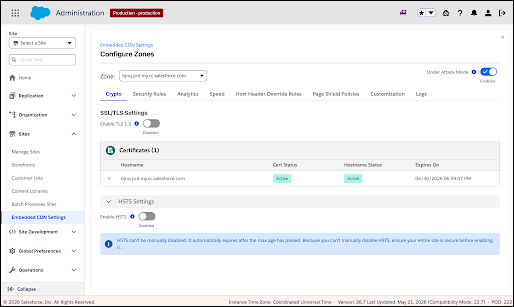
Use the Crypto tab to manage TLS, certificates, and HSTS for an eCDN zone.

- In Business Manager, click the App Launcher, and then select .
- Locate the zone you want to configure and select Configure Zone from the dropdown menu.
-
Select the Crypto tab.
Crypto tab — SSL/TLS settings and certificates
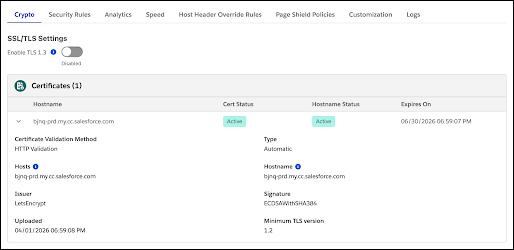
Crypto tab — certificate detail expanded
-
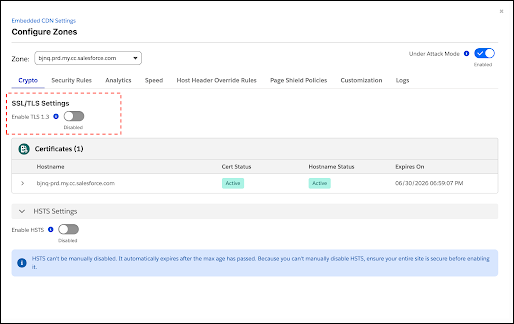
In the SSL/TLS Settings section, set Enable TLS 1.3 on or off.
TLS 1.3 is supported by all major browsers.
Note If your zone has no custom certificates, you can't change the TLS 1.2 minimum requirement. If you click the toggle, a confirmation appears and the toggle reverts.TLS 1.3 setting in SSL/TLS Settings
-
Review certificates in the Certificates table.
Column What it shows Hostname The hostname or wildcard covered by the certificate. Cert Status Certificate state, such as Active, Active - Expires Soon, Pending, or Initializing. Hostname Status Whether the hostname has been verified at the edge. Expires On Certificate expiration date. The first 12 certificates are shown. Click View All to see the rest.
-
Manage certificates as needed.
- To add a certificate, click New Certificate and follow the prompts.
-
To replace or delete a certificate, open the actions menu on the certificate row, and
then select Edit or Delete.
A confirmation dialog appears before deletion.
-
To view certificate details, click the chevron at the start of a certificate row.
The expanded view shows certificate type, hosts, issuer, validation method, expiration details, and any TXT or CNAME records or verification buttons required for unverified certificates.
Certificate details expanded in Certificates table
-
Configure HSTS.
- Expand the HSTS Settings section.
-
Set Enable HSTS on and, in the confirmation dialog, click
Enable.
The dialog explains the consequence before you continue.
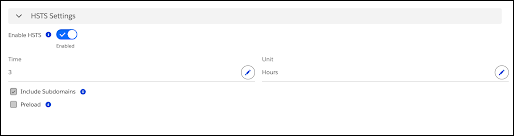
- Click the edit pencil and configure Time and Unit, Include Subdomains, and Preload.
- Click Save.
 Important HSTS can't be turned off manually. It expires only when the configured max age passes. Make sure your full site is served over HTTPS before enabling HSTS.Note HSTS is opt-in and not enabled by default. If you don't see HSTS settings in the Crypto tab, contact your Salesforce representative.
HSTS settings with editable max-age options
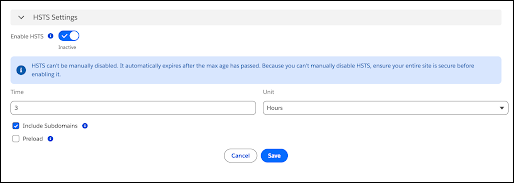
HSTS state indicators in Crypto tab
HSTS informational message when disabled
