
Set up a Page Shield policy to make sure only trusted scripts run on sensitive store pages like cart and checkout. A Page Shield policy helps detect client-side script changes and supply chain risks, and helps your B2C Commerce store comply with the Payment Card Industry Data Security Standard (PCI DSS) 4.0.1 client-side security requirements.
You can configure up to 5 Page Shield policies per zone.

Which Salesforce Commerce Product Do I Have?
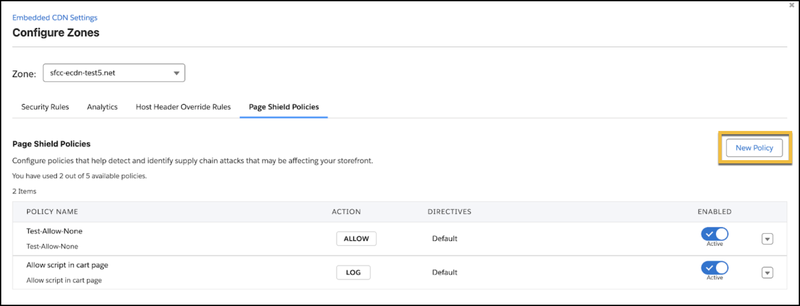
Page Shield policies help detect client-side script changes and potential supply chain risks on storefront pages. These controls are frequently used to support PCI DSS 4.0.1 client-side security monitoring requirements. The Page Shield Policies tab is part of the Configure Zone screen; for the full set of zone security controls, see eCDN Zone Security Rules.
-
In Business Manager, click App Launcher
 , and then select .
-
Locate the zone you want to configure, and select Configure Zone
from the dropdown menu.
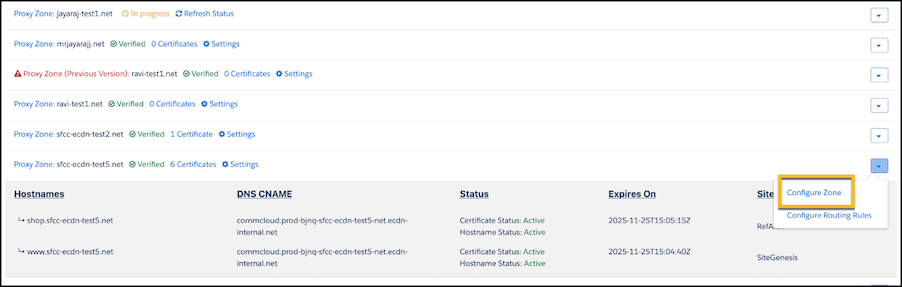
-
Select the Page Shield Policies tab, and then select New Policy.
To switch to a different zone from this tab, select another name from the Zone dropdown
menu.
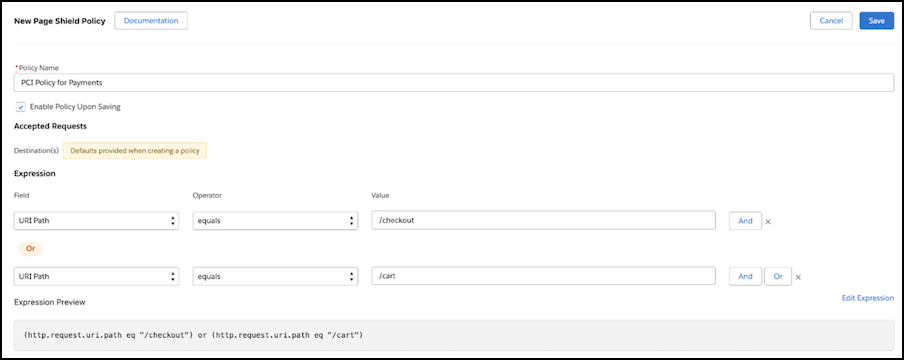
- Enter a policy name. For example, "PCI Policy for Payments.”
- (Optional) If you want the policy to be active when you save it, select Enable Policy Upon Saving. If you’re not ready to activate the policy yet, create it first, and then when you’re ready, return to the Page Shield Policies tab and enable your policy from the list.
-
Enter a policy expression using the visual dropdown interface to select a field,
operator, and value. To add conditional logic, use the And or
Or buttons. To manually enter the expression, click
Edit Expression. For example, create an expression that targets a
particular set of pages with payment scripts:
- From the Field dropdown menu, select URI Path
- From the Operator dropdown menu, select Equals.
-
For the Value field, enter a page name. For example,
/checkoutor/cart. - Select Or.
- For the new expression, repeat steps a through c for any other pages where you have payment scripts.
-
Select any trusted scripts from the list of detected scripts.
Note When allowing inline scripts to execute, you have two main options. Use a nonce (number used once) or unsafe-inline. Here’s a quick overview to help you decide:
- Nonce is effective against user-generated cross-site scripting (XSS) attacks, especially in older tech stacks. Modern stacks often have built-in protections. However, nonce doesn't protect against rogue code from GTM containers.
- Unsafe-inline provides similar protection to nonce in this context, given the low XSS risk on payment pages where user-generated content (UGC) isn’t present.
- Limit dependencies on payment pages to align with PCI DSS goals. Use unsafe-inline and, if necessary, unsafe-eval, with allow-listing of third-party dependencies for continuous monitoring and alerting. Or, continue using nonce and implement Page Shield for site-wide monitoring and alerting to meet PCI DSS requirements.
-
From the Action dropdown menu, select Log or
Allow.
- Log: Log any resources not covered by the policy, without blocking any resources. Use this action to validate a new policy before deploying it. Policy violation logs report any resources not covered by the policy.
- Allow: Block any resources not explicitly allowed by the policy. Use the Allow action after validating a new policy with the Log action. Policies with the Allow action log policy violations for any blocked resource.
- Click Save.
B2C Commerce integrates all policy additions and violations with the Log Center, establishing a clear audit trail as required by PCI. View logs of who added policies and see violation logs when untrusted scripts attempt to run on protected pages
To set up Page Shield notifications, use the CDN Zones API.