
Identify performance regressions, operational issues, and suspicious activity from unusual patterns in B2C Commerce Log Center. Log Center continuously analyzes incoming log data and compares the data with learned baseline behavior. When data deviates from the baseline and meets your thresholds, Log Center flags the anomaly. Each user can configure up to ten detectors. Use these guidelines to reduce false positives and improve detector accuracy.
- Start with critical applications, such as authentication failures or error logs.
- Start with a higher threshold, then adjust severity and confidence over time.
- Review detector results regularly, and refine filters to show more relevant results.
- Create separate detectors for different environments to avoid mixing baselines.
Reading the Anomaly Detector Results
To review a detector's findings, open its Anomaly Detector Results window. The window shows detected anomalies over time so that you can compare actual and predicted behavior and open the related logs for investigation.
Summary cards show the Total Number of Anomalies, the Anomaly Rate (%), and the Last Anomaly Occurrence for the selected period. Use the Time Range selector to set the period, from the last 15 minutes up to the last 14 days. You can also enter custom start and end times in UTC.
The chart plots two series over the selected period: the Actual log data trend and the Model predicted trend. Shaded plot bands mark the periods when the Log Center flagged an anomaly.
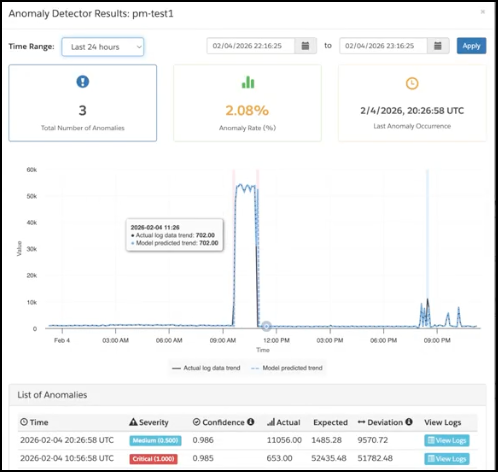
This table lists each flagged anomaly.
| Column | Description |
|---|---|
| Time |
Time when the anomaly occurred, shown in UTC. |
| Severity |
Severity score and category predicted by the model, from 0.0 to 1.0. Higher values indicate more severe anomalies. |
| Confidence |
Estimated probability that the flagged anomaly is genuine, from 0.0 to 1.0. Higher values indicate greater confidence. |
| Actual |
Observed value for the metric or trend at the time of the anomaly. |
| Expected |
Predicted value for the metric or trend at the time of the anomaly. |
| Deviation |
Difference between the actual and expected values. |
| View Logs |
Opens a log search filtered to about 30 minutes before and after the anomaly, so that you can investigate the underlying log entries. |
Severity ranges:
| Severity | Score range | Chart and table color |
|---|---|---|
| Low | Less than 0.3 | Green |
| Medium | 0.3 to less than 0.6 | Blue |
| High | 0.6 to less than 0.8 | Orange |
| Critical | 0.8 and higher | Red |
If you need help with validating a detector strategy, tuning thresholds, or troubleshooting results, contact your Salesforce admin or open a support case.
- Set Up Anomaly Detectors in Log Center
Identify unusual log patterns in B2C Commerce Log Center and optionally send alerts when anomalies meet your alert threshold. Log Center continuously analyzes incoming log data and compares the data with learned baseline behavior. When data deviates from the baseline and meets your thresholds, Log Center flags the anomaly. - Manage Anomaly Detectors in Log Center
View, edit, pause, resume, and delete anomaly detectors in B2C Commerce Log Center, and create a detector from a log search you already ran. What you can change depends on your Log Center role and the realms you can access.