
To get insights into HTTP traffic and security data, use the eCDN Analytics tab in B2C Commerce Business Manager. The Analytics tab shows the Traffic Analysis timeline chart, top traffic statistics across multiple dimensions, and per-rule activity. Switch between HTTP and Security views to see request traffic or firewall events for the same zone and time range.
Looking for the Crypto, Security Rules, Speed, Customization, Logs, or Under Attack Mode controls on the same screen? See the Configure an eCDN Zone in Business Manager guide.

-
In Business Manager, click App Launcher
 , and then select .
-
Locate the zone you want to configure, and select Configure Zone
from the actions menu.
 Tip On-Demand Sandbox (ODS) zones: Select the shared storefront zone or shared BM zone for your realm. Because ODS uses a shared zone model, analytics reflect aggregate traffic across all ODS instances in the realm rather than per-instance traffic. To narrow results to a specific instance, apply a site context filter — each error type then appears per site.
 -
Click the Analytics tab. The Analytics tab opens in HTTP mode by
default. Use the toggle near the top of the tab to switch between two views of the same zone
and time range.
- HTTP — Request traffic to your zone, including request volume, top source IPs, user agents, paths, hostnames, countries, and ASNs. Use this view for performance, traffic-shape, and capacity questions.
- Security — Firewall events that fired on your zone, including managed-rule hits, custom firewall rule hits, rate-limit rule hits, and the sampled security log entries that triggered them. Use this view for security investigations.
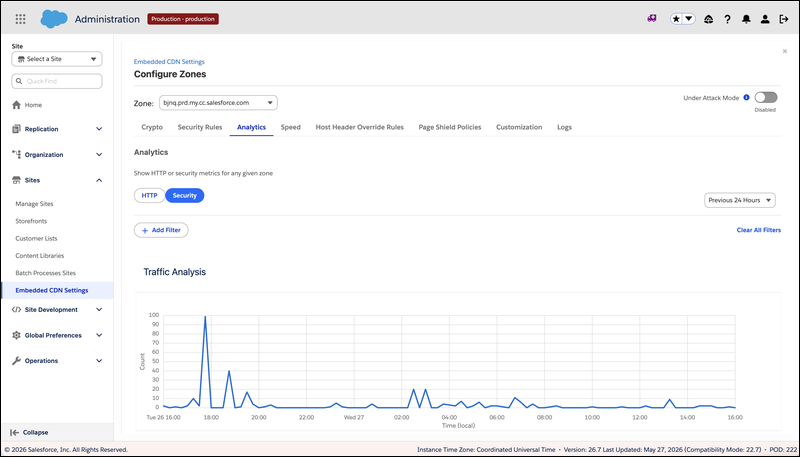
- (Optional) Set the time range by clicking the time-range dropdown in the top-right of the Analytics tab and choose any value between the past 30 minutes and the past 30 days. The view defaults to the past 24 hours. The selected range applies to the Traffic Analysis chart, the Top Statistics panels, and the Sampled Logs table at the bottom of the tab.
- (Optional) Click Add Filter at the top of the Analytics tab to narrow the view. Filters apply across the chart, top statistics, and sampled logs together. Pick a filter dimension (for example, country, ASN, action taken, or user agent) and a value, then click Apply. To clear all active filters and return to the default view, click Clear All Filters.
The Traffic Analysis chart shows your zone's request volume over the selected time range. The X axis is time (local timezone of your viewing environment); the Y axis is request count. Hover over any point to see the exact count for that interval.
Read the Top Statistics
Below the Traffic Analysis chart, the Top Statistics section presents the top values across multiple dimensions. The values shown depend on whether you're in HTTP or Security mode.
HTTP mode:
- Source IP Addresses — The IPs sending the most requests to your zone
- User Agents — The most common User-Agent strings
- Hosts — The hostnames receiving the most traffic
- Paths — The URL paths receiving the most traffic
- Countries — The countries the traffic originates from
- Source ASNs — The Autonomous Systems sending the most traffic
Security mode (additional panels):
- Managed Rules — Cloudflare-managed WAF rules that fired, with hit counts (for example, DotNetNuke - File Inclusion - CVE:CVE-2018-9126, Oracle WebLogic - Deserialization - CVE:CVE-2020-14882, Command Injection, XSS HTML Injection, SQLi)
- Rate Limit Rules — Your Rate Limiting rules that fired, with hit counts
- Firewall Rules — Your Custom Firewall rules that fired, with hit counts
When you see a particular IP, country, path, or rule dominating a panel, click the value to filter the entire Analytics view to that dimension. This is the fastest way to pivot from "what's happening?" to investigating a specific source or rule match.
Sampled Logs (Security Mode)
In Security mode, scroll to the Sampled Logs panel near the bottom of the Analytics tab. This panel shows up to 15 individual firewall events from the selected time range and filters — each entry corresponds to a single request that was logged or blocked.
Each row shows: Date, Action taken (log / block), Country, IP address, Service (firewallCustom / firewallManaged).
Service indicates which detection layer matched: firewallCustom (your Custom
Firewall rule fired) or firewallManaged (a Cloudflare-managed rule fired).
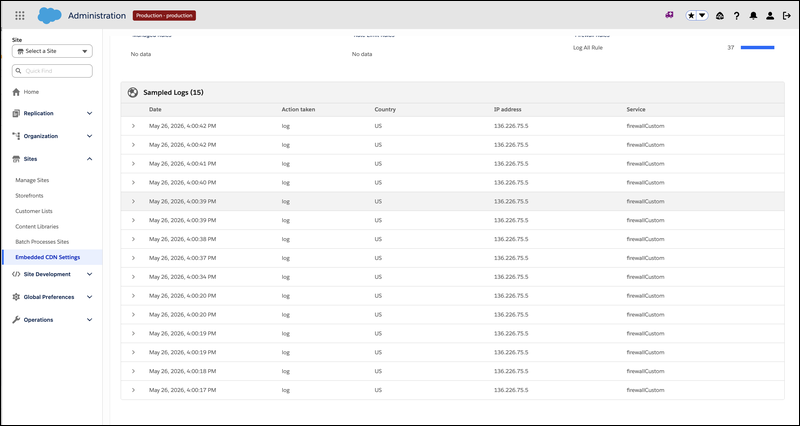
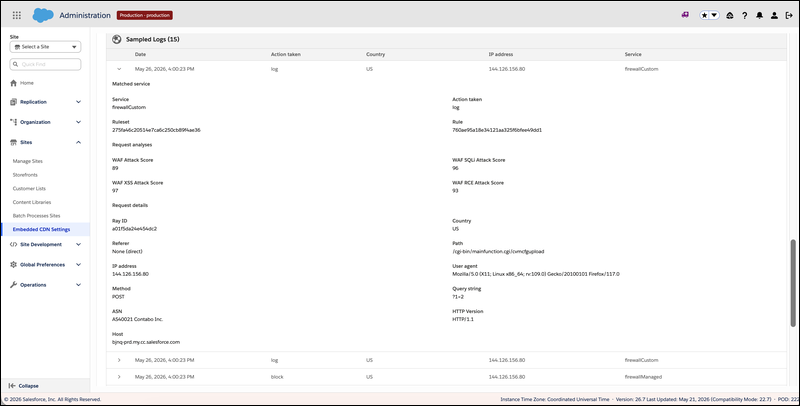
Click the chevron at the start of a row to expand it and see the full per-request detail, grouped into three sections:
- Matched service — Service, Action taken, Ruleset, Rule
- Request analyses — WAF Attack Score, WAF SQLi Attack Score, WAF XSS Attack Score, WAF RCE Attack Score (each 0–100; higher = more suspicious)
- Request details — Ray ID, Country, Referer, Path, IP address, User agent, Method, Query string, ASN, HTTP Version, Host
For a continuous stream of full log events outside this sampled view, see Configure Logpush and Logpull for an eCDN Zone.
I Don't See This Tab
If you don't see the Analytics tab or the HTTP / Security toggle described in this guide, ask your admin or your Salesforce representative to enable the new Configure Zone screen for your instance. The Analytics timeline chart and HTTP/Security toggle are part of the new LWC Configure Zone screen, not the legacy slider-based interface.