
Add a self-managed SSL certificate to a hostname for a zone, validate it, and map DNS so the hostname's traffic routes to its zone. You upload and renew self-managed certificates yourself.

Note Self-managed SSL certificates aren't available on SCAPI zones. Salesforce manages the
SCAPI hostname and certificates. See SCAPI
Zone Support for B2C Commerce.
Which Salesforce Commerce Product Do I Have?
For the DNS mapping rules, validation methods, and certificate limits, see DNS Mapping for eCDN Zones.
To upload a self-managed certificate with the CDN Zones API instead, see eCDN Custom Certificates in the developer documentation.
Restriction You can add up to 5 self-managed certificates per realm.
-
In Business Manager, click App Launcher
 , and then select .
- Click Certificates or Settings for the zone to which you're adding a certificate.
- On the Crypto tab, select the zone from the list.
- Click Add Certificate.
-
Select Self-Managed Certificate.
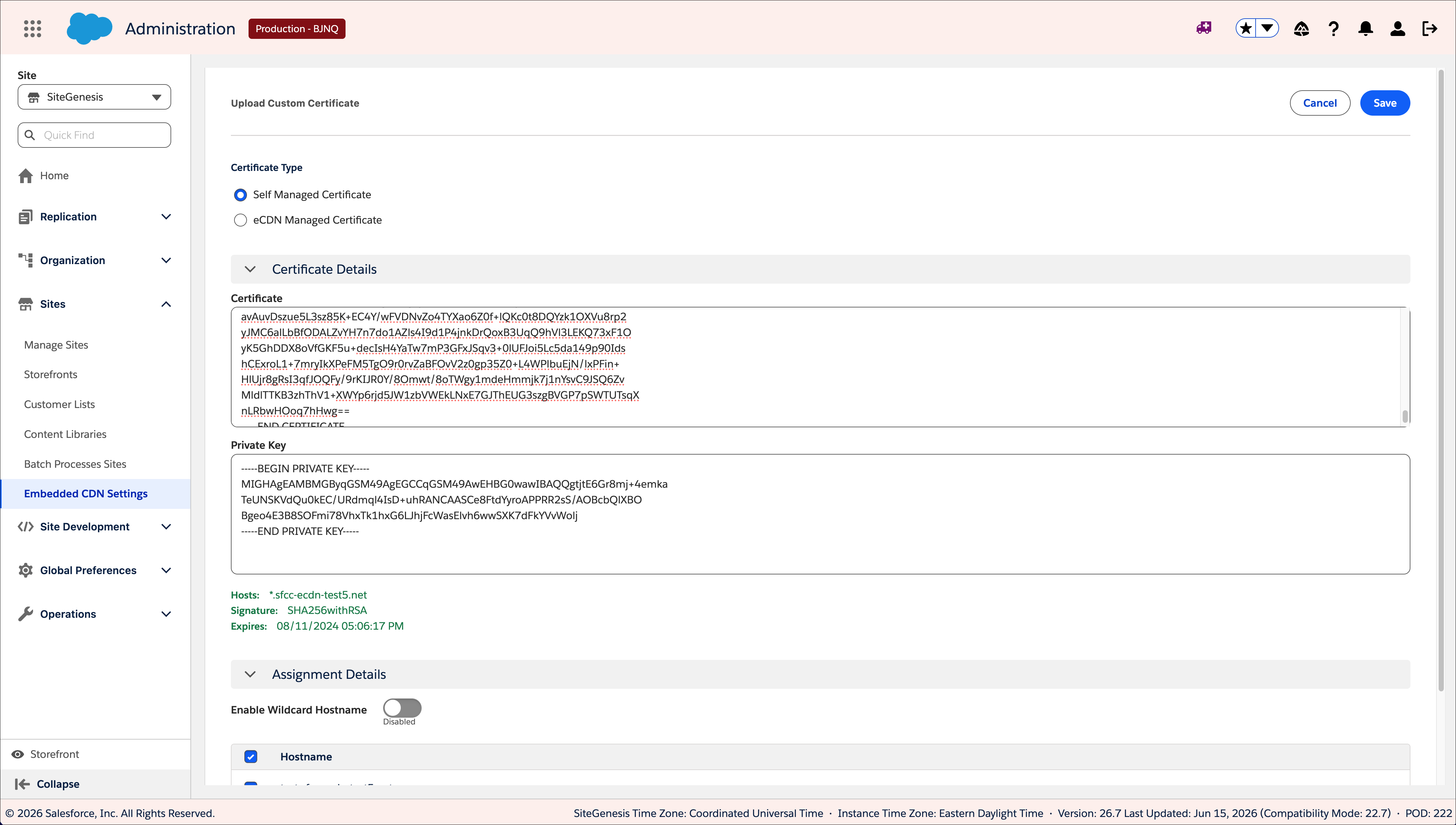
- Enter the SSL certificate and private key information from your certificate provider.
-
Select the hostname to which you want to assign the SSL certificate.
Note Self-managed wildcard certificates require SANs for both the root domain and the wildcard hostname. See Configure Wildcard Custom Hostnames.
- Click Upload Certificate.
- Copy the displayed verification text into your own DNS portal.
-
To check the status of hostname validation, click Verify
HostName.
Verification can take up to six hours.
- Map DNS so that the hostname's traffic routes to its zone.