
Account administrators use Account Manager to create API clients. To access Salesforce Commerce API (Shopper Commerce API [SCAPI]) or Open Commerce API [OCAPI]), use an API client. Append the API client ID to the URLs that you use to access these APIs. The On-Demand Sandbox API also requires an API client.
Starting with Account Manager 3.10, new API clients can only be assigned to one organization. You can't add more organizations to an existing API client. If you have existing API clients assigned to multiple organizations, consider updating them to single-organization assignments. In a later release, all API clients must be migrated to single-organization assignment. For more information, see Security Updates for Account Manager API Clients Assigned to Multiple Organizations for B2C Commerce.
You can't use the same client ID for SCAPI and OCAPI. Each API framework requires its own client ID. Don't assign the Salesforce Commerce API role to an API client ID for OCAPI.
- Log in to Account Manager.
-
Click API Client.
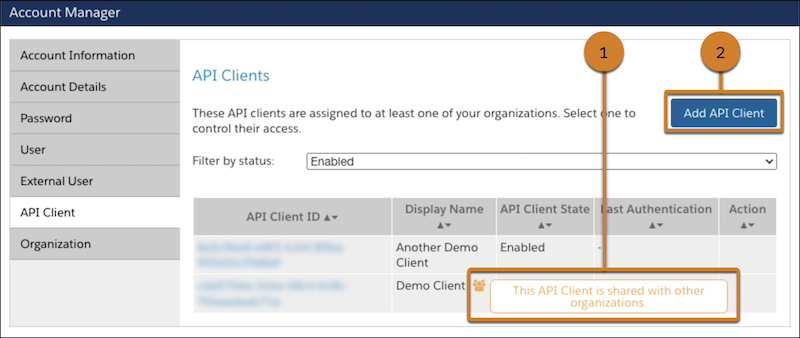
The API Clients page opens, showing a list of API clients. For each client, the page shows the API client ID, the display name, and the status. If an API client is shared across multiple organizations, the display name has an indicator icon (1). Warnings are also shown for shared API clients on the API Client Detail page and when saving changes.
-
To open the Add API Client page, click Add API Client (2).
- In the Display Name field, enter the display name of the client.
-
In the Password field, enter the password.
Minimum password requirements:
- Include at least 12 characters. Configure the number of required characters at the organization level.
- Include three out of four: numbers, symbols, lowercase, uppercase.
- Can't include part of your name, username, or universally unique identifier (UUID).
-
In the Confirm Password field, reenter the password.
The Access Control section indicates the status of the API client.
-
In the Client Authentication Type section, select an
authentication type.
- Confidential: Suitable for applications that run on servers or platforms capable of securely storing a client secret.
- Public: Suitable for environments where a secret can't be hidden, such as single-page web apps or native mobile and desktop apps. Uses Proof Key for Code Exchange (PKCE) to exchange OAuth tokens securely. For public API clients, you can't assign a role, set a password, or use a JWT public key.
-
In the Organizations section, click
Add.
The Assign Organizations page opens.
-
On the Assign Organizations page, follow these steps:
- Search for organizations.
- To add the API client to an organization, select the organization’s checkbox. Starting with Account Manager 3.10, assign each API client to exactly one organization.
- Click Add.
-
(Optional) To assign roles to the API client, in the Roles
section, click Add.
- To assign Account Manager roles, search for and select roles such as Account Administrator or API Administrator.
- To give the API client access to Salesforce Commerce API, search for, select, and add the Salesforce Commerce API role. To specify the required role scope, select the filter icon and select an organization. Enter the instance names and select them. Click Add.
- (Optional) To use a JSON Web Token (JWT) to authenticate the API client instead of using a password, provide a Client JWT Bearer Public Key in the JWT field. Enter a PEM-formatted certificate or a Base64-encoded RSA public key, with or without headers. The system checks for correct formatting and valid cryptographic material. To use Access Token format, add a JWT.
-
(Optional) To access B2C Commerce resources using OAuth2 with an API client,
provide values in the OpenID Connect section.
Use the JWT access token format. UUID isn't supported.
-
Save your changes.
Account Manager creates the API client.
Additional Resources