
Your Exploratory org provides the flexibility to integrate and experiment with data sources (DMOs), visualizations, and semantic models to create comprehensive views for analysis.
Required Editions
| View supported editions. |
Suppose that you want to develop profitability snapshot dashboards and visualizations for each department. A task of this scope requires a detailed dataset. While you have some local data, gaining a complete and accurate view requires incorporating the Sales DMO from the production org. This integrated approach enables you to combine real-world datasets needed to power your dashboards and implement a proactive, data-informed sales strategy.

Note To learn more about adding data and creating semantic models in Tableau Next, refer to
Connect and Prepare Data in Tableau Next.
- Open or create a workspace.
- Click the Add button and select Data.
-
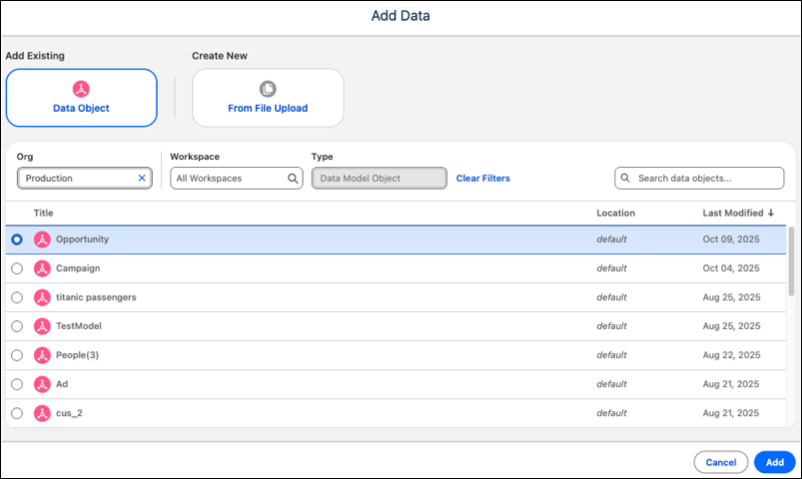
Use the dropdown menus to select the location and type of data.
- Select Production from the Org dropdown.
- Select a workspace from the Workspace dropdown.
-
Select assets by type from the Type dropdown.
-
Click the asset that you want and click Add | Add to Workspace.
A confirmation appears that the assets are being retrieved.Note Reused assets appear with an icon and tooltip.
-
To add existing Exploratory org assets to the workspace.
- Click the Add button and select an asset type.
- Select a workspace from the Workspace dropdown.
- Click the asset that you want and click Add.
Note You can only read assets copied from a production org, but you can delete them from the Exploratory org. If a production org asset that you’ve reused is deleted or you lose access, the reused asset in your Exploratory org stops working. The Exploratory org owner is responsible for deleting these reused assets.