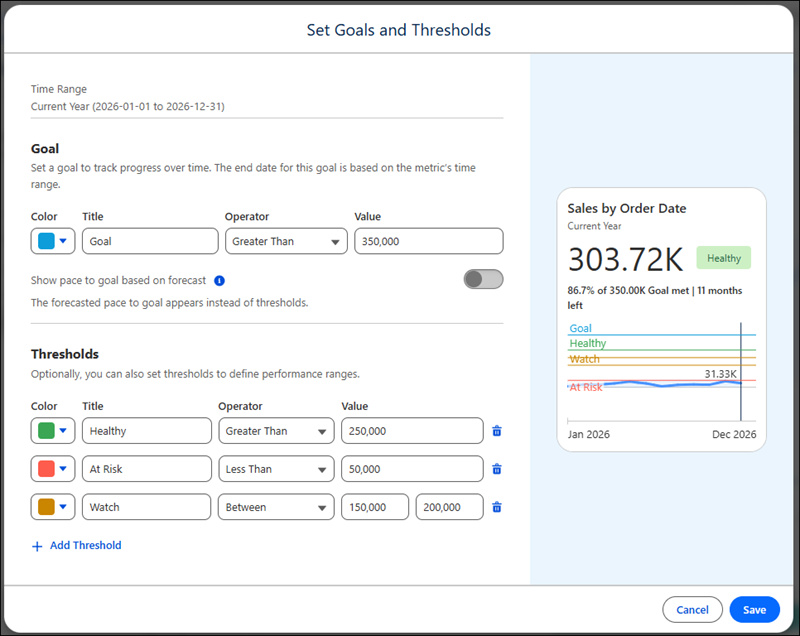
When you set a goal, you see your progress toward that goal on your Tableau Next
Following page. And thresholds give more context to your metric's value. For example, you can
create thresholds for performance ranges, such as "healthy," "at risk," and "critical." You can
set thresholds with or without goals. And you can also set goals without thresholds.
Required Editions
| User Permissions Needed |
| To create goals: |
Tableau Unmetered Consumer or Tableau Next Consumer or Tableau Unmetered Self-Service Consumer or Tableau Next Self-Service Consumer
permission set |
-
Open a metric from the Tableau Next Following page. Analysts can also add a goal or
thresholds when creating a metric.
-
From the Metric page, apply filters and set the time range, if you want.
-
Click Set Goal.
-
Select a color, enter the goal’s label, choose an operator, and enter a value. You can enter positive numbers, negative numbers, or 0 as values.
-
Optionally, you can show the pace to the goal based on the forecast for your metric’s
value.
-
To add thresholds, select a color, enter the threshold’s label, choose an operator, and
enter a value. You can enter positive numbers, negative numbers, or 0 as values. Add up to five
thresholds by clicking Add Threshold.
-
Click Save.