
Create alerts to monitor a metric’s progress towards a goal or threshold, to look out for unusual changes, or to watch period-over-period changes. When you create a metric alert in Tableau Next, notifications are sent to your email and appear under the notifications icon (bell) in Tableau Next.
Required Editions
Users who have Limited Consumer licenses can create and receive non-agentic data alerts for metrics, but users need Tableau Next Consumer permissions to Get Custom Data Alerts in Slack with Agentforce in Tableau Next or Tableau Next MCP.
| View supported editions. |
| User Permissions Needed | |
|---|---|
| To create data alerts: | Tableau Unmetered Consumer or Tableau Next Consumer or Tableau Unmetered Self-Service Consumer or Tableau Next Self-Service Consumer permission set |
When you create a goal or threshold, alerts are also created automatically. For goals and thresholds, alerts are sent during the goal or threshold’s period.
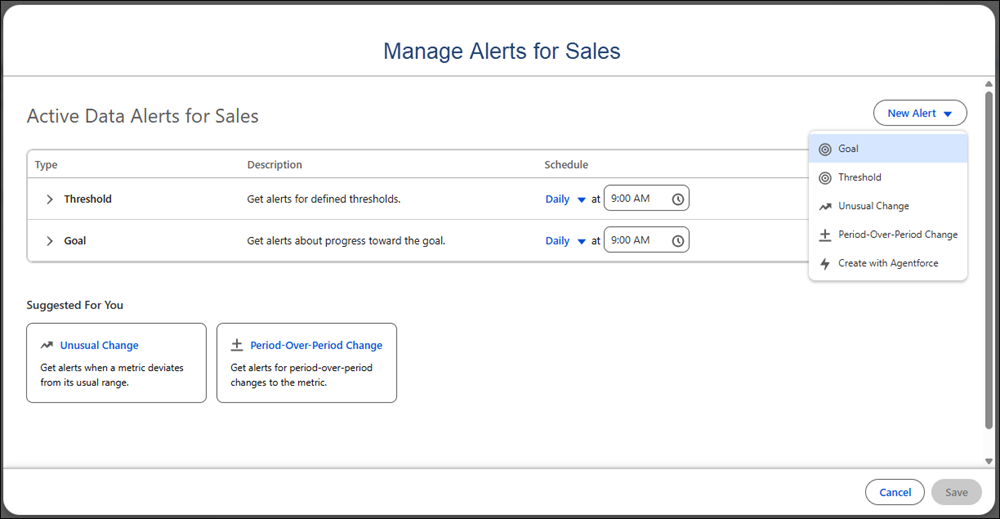
- From Tableau Next, open a metric.
- Click Manage Alerts in the upper right corner.
- Choose the type of alert that you want to receive. Or, click New Alert and select Create with Agentforce to create a custom data alert.
- Choose how often and when you want to receive alerts.
- Save your changes.
For more information about how alerts are billed, see About Unmetered Tableau Next.
| Alert | Looks for | Triggers when | Use when |
|---|---|---|---|
| Period-over-period change | The period's value compared to the equivalent prior period. | You receive recurring alerts with the metric’s current value on a schedule that you set. | You want to compare this period to the last one. This is best for tracking direction, for example, "Are we up or down vs. last quarter?" |
| Unusual change | A value that is unexpected for this metric. | You receive an alert when Tableau Next the metric’s value is higher or lower than the predicted or historic range. | You want alerts about surprising metric values without needing to define the predicted range for the metric. |
| Goal | Progress toward a goal that you've set and whether you're on track to meet it. | You receive an alert based on progress toward the goal. You can also choose to get alerts when thegoal is met, off track to, on track to, or on pace to goal (if forecasting pace to goal is enabled). | You have a specific number that you need to reach by a specific date. When you set a goal, this type of alert is created by default. |
| Threshold | Whether the metric’s value is going to fall within or outside of a defined range. | You receive alerts when the metric’s value is forecasted fall within or out of the threshold’s range. | You have ranges of performance that you want to monitor, such as healthy, warning, and critical. When you set thresholds, this type of alert is created by default. |
| Create with Agentforce | Queries made about metrics or data in your semantic data model (SDM). | You receive alerts based on the schedule and conditions that you give to Agentforce using natural language. | You want alerts about data changes at the semantic layer or for custom queries about your metrics or SDM. For more information, see Get Custom Data Alerts in Slack with Agentforce in Tableau Next or Tableau Next MCP. |