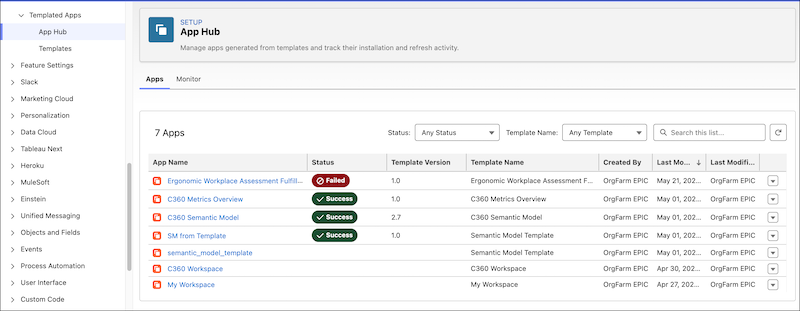
Use the App Hub to manage the apps and components installed from templates in your org, monitor installation and refresh activity, and troubleshoot issues. Templated apps include Tableau Next
apps for Salesforce, Salesforce flows, and Data 360 and Tableau Next components such as semantic models, dashboards, metrics, and visualizations.
Required Editions
| User Permissions Needed |
| To view and manage installed templated apps: |
Tableau Included App Manager permission set |
| To install or refresh templated apps |
Tableau Included App Manager permission set |
| To use a Tableau Next templated app |
Tableau Next Included App Business User permission set |
Open the App Hub
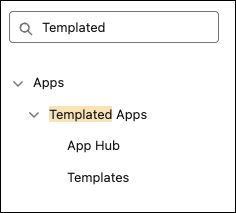
From Setup, in the Quick Find box, enter Templated, then select App Hub under Templated Apps.
The App Hub has two tabs, Apps and Monitor. The Apps tab lists all apps and templated components installed in your org. Use this tab to refresh data, schedule refreshes, edit, reconfigure,
update, or delete an installed app. The Monitor tab lists all create, update, and refresh events for installed apps. Use this tab to track event status, review task details, and inspect
runtime state when you troubleshoot installation or refresh issues.
- Manage Installed Apps from the Apps Tab
In the App Hub, the Apps tab lists every app and component installed from a template, along with its status. From this tab, drill into an app's details, run app actions, or delete an app.
- Track Installations and Refreshes from the Monitor Tab
The Monitor tab lists every create, update, and refresh event for the templated apps in your org. Use it to confirm that an installation finished successfully, find out why an event failed, or inspect the runtime state used during installation.