
In the App Hub, the Apps tab lists every app and component installed from a template, along with its status. From this tab, drill into an app's details, run app actions, or delete an app.
View and Filter Installed Apps
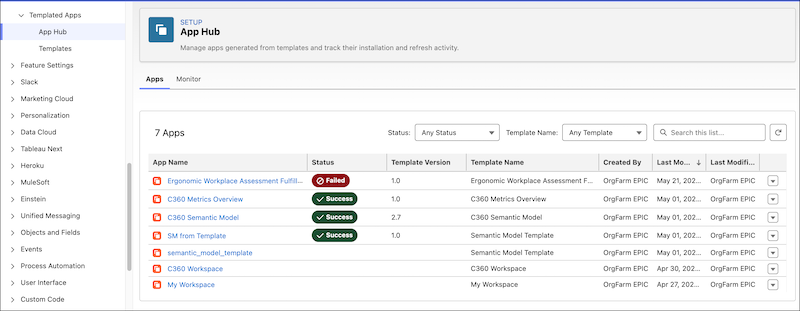
For each app, the list shows the app name, status, template version, template name, the user who created it, and who last modified it and when.
To narrow the list, use any of these controls:
- Status—filter to apps in a particular state, such as Success or Failed.
- Template Name—filter to apps installed from a specific template.
- Search this list—search by name, status, version, or user.
To act on an app from this list, use the dropdown on the right end of the app row.
Available actions depend on the app type. For apps created from a template, the app actions include:
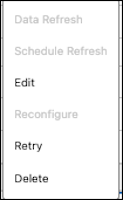
- Data Refresh—refresh the data sources for a templated app. Available only for templated apps with a refresh chain.
- Schedule Refresh—set or update a recurring data refresh schedule. Available only for templated apps with a refresh chain.
- Edit—update the app's name and description.
- Reconfigure—re-run the install or update flow to change the app's configuration. Available only for templated apps with an update chain.
- Update—upgrade the app to a newer template version when one is available. Available only for templated apps with an update chain.
- Retry—re-run the most recent event for an app whose last action ended in a Failed or Canceled state. This action isn’t visible if the app completes successfully.
- Delete—remove the installed app and its associated assets. A confirmation prompt lists what's included. Deleting an app is permanent. Make sure that no active dashboards, flows, or downstream consumers depend on the assets before you delete.
To enable the Data Refresh, Schedule Refresh, Reconfigure, and Update actions, add refresh and update chains to your app template.
For source apps used to generate a template, the only available action is Decouple App.
View App Details
Select an app name to open its detail page. The details include the template name and version, who created the app and when, and the status. The available actions depend on the app type, the same as the app actions on the Apps tab.
Each app has a Resources, Monitor, and Updates tab.
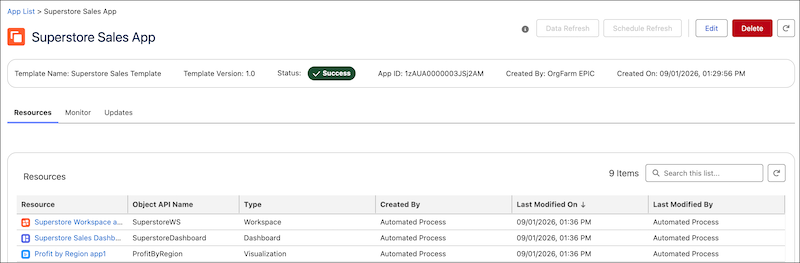
The Resources tab shows the app resources, including the resource type, the API name, the creation date, and modification information. If a resource is viewable, the resource name is a link to view the details.
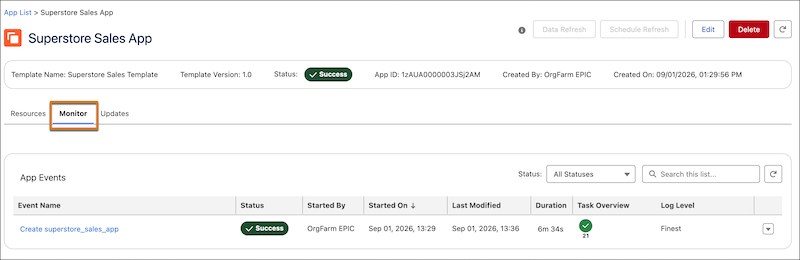
The Monitor tab shows the events specific to this app. Use this tab to confirm that an installation finished successfully, find out why an event failed, or inspect the runtime state used during installation. For more information about events, see Track Installations and Refreshes from the Monitor Tab.
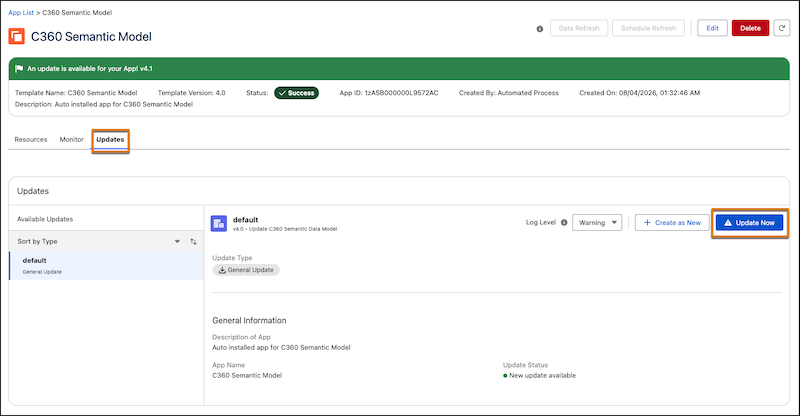
The Updates tab shows any available updates for the app. There's always a default update, but templates with extra update chains have more update types. Updates can include reconfiguring the app from the existing template, creating another app from the template, or updating the app when a new version of the template is available.
Cancel App Installation
When an app is in progress for creation, update, or reconfiguration, you can cancel the installation flow. Open the app details and click Cancel.
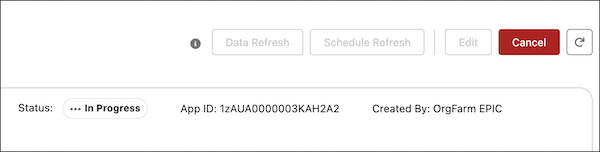
After canceling the app installation flow, you can delete the app, retry the installation, or edit the app template.