
The Templates page lists every available template, including templates that Salesforce provides and custom user-created templates. Use this page to review what a template includes, install templated apps and components, or build and maintain your own templates.
Required Editions
| View supported editions. |
| User Permissions Needed | |
|---|---|
| To view and manage installed templated apps: | Tableau Included App Manager permission set |
| To install or refresh templated apps | Tableau Included App Manager permission set |
| To use a Tableau Next templated app | Tableau Next Included App Business User permission set |
Open the Templates Page
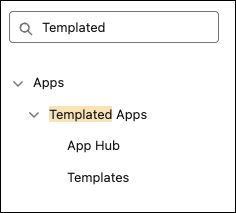
From Setup, in the Quick Find box, enter Templates, then select Templates under Templated Apps.
The list shows the template name, developer name, type and subtype, template version, and the last modified date. Only custom templates have last modified date values.
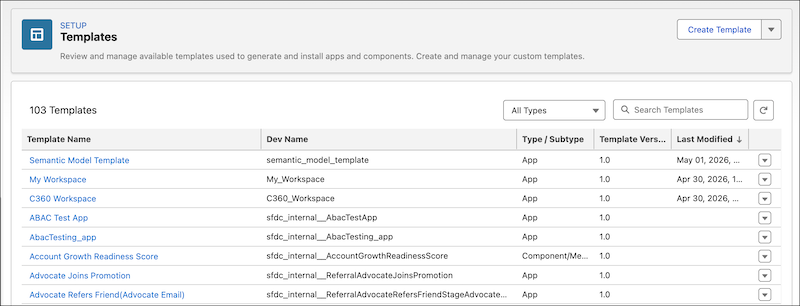
To filter the list, use the type filter or enter search text. Template types include:
| Type | Contents |
|---|---|
App |
One or more assets, such as Tableau Next workspaces, dashboards, metrics, or visualizations, plus Data 360 data objects, data transforms, semantic models, or calculated insights. An app can include chains that define runtime installation, rules, variables, and configuration layout files. |
App/Flow |
A Salesforce Flow template with one flow definition. |
Component/Metric |
A Tableau Next metric template with one or more metrics and a semantic model. |
Component/Dashboard |
A Tableau Next dashboard template with one dashboard. Optionally includes metrics, visualizations, data transforms, and a semantic model. |
Component/Semanticmodel |
A Data 360 semantic model template with one semantic model. Optionally includes data transforms. |
Component/Visualization |
A Tableau Next visualization template with one visualization and a semantic model. |
Tableau Next Apps for Salesforce
The templates provided by Salesforce to install Tableau Next apps appear in the list of templates. These templates have developer names prefixed with sfdc_internal__. These templates are read-only. App actions include:
- Open Template—view the template's resources and details.
- Preview Template—open a preview window with the template description and preview images.
- Create App—install the template. If the template defines a configuration flow, the flow starts, otherwise installation begins immediately. You must have the correct permissions for the assets the template installs.
For more information, see Tableau Next Apps for Salesforce.
Custom Templates
Custom templates are user-created templates. They have developer names that match the template name and a last modified date. Users with template manager permissions can edit these templates. App actions include:
- Edit Template—open the Template Builder to view resources and details and edit the template.
- Preview Template—open a preview window with the template description and preview images.
- Create App—install the template. If the template defines a configuration flow, the flow starts, otherwise installation begins immediately.
- Download Template—download the template's JSON files as a compressed package.
- Delete Template—delete the template. If apps installed from this template exist, you must delete those installed apps first.
View Template Details
Click a template name to open it in the Template Builder. For Salesforce-provided templates, you see view-only resources, details, chains, and rules.
For custom templates, you can add resources, edit details, view the chains and rules. You update and save, download, and delete custom templates.
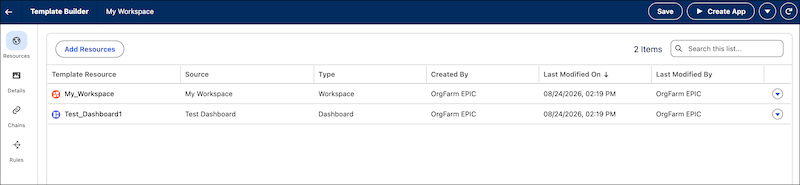
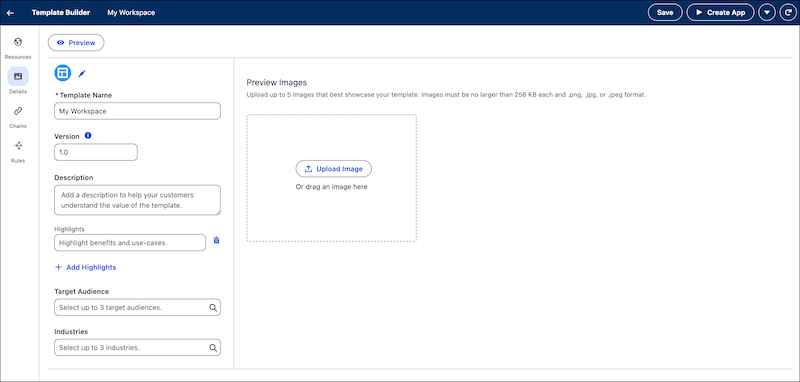
Use Create App to install an app from the template.
For more information on using the Template Builder, see Create an App Template.
Create and Upload Templates
Use the Create Template and Upload Template actions to create and update templates.

Creating a template opens the Template Builder. For more information, see Create an App Template.
Uploading a template requires a .zip file that contains the
AppFrameworkTemplateBundle package for deployment. This package contains
a package.xml file, the workspace files, and the template files that define
the app and its installation.
Uploading template JSON files with a unique developer name creates a template, while files that use an existing developer name overwrite a template. For more information about working with template JSON files, see the App Template Framework developer guide.