
Integrate Tableau Next visualizations into Lightning pages so users can explore visualizations and identify data trends in their workflows. To embed a visualization component in the page, follow these steps.
Required Editions
| View supported editions. |
| User Permissions Needed | |
|---|---|
| To access Tableau Next components in Lightning App Builder: | Tableau Unmetered Admin or Tableau Next Admin permission set |
-
On the Lightning home or record page you want to embed a visualization in, click the Setup
icon and select Edit Page.
If you have multiple page layouts, open the Lightning App Builder in Setup to see the list of page layouts. Click Edit for the page layout you want to update.
-
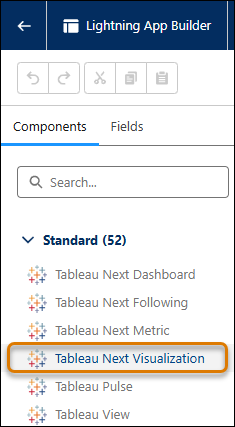
From the Lightning App Builder component palette, select Tableau Next
Visualization and drag the component onto the page.
-
In the component properties panel, configure these properties
- From the visualization dropdown list, choose the visualization to embed.
- Set the visualization’s height in pixels.
-
To apply filters to the visualization, click Add Filter.
Use the filter builder to select the data model, the field, the filter values, and the operator. You can also select Record Value or Static Value as the filter value type on a record page. For more information on filter values, see Filter Values for Embedded Visualizations, Dashboards, and Metrics.
- To control the component visibility, add filters in Set Component Visibility. For more information, see Visibility Rules on Lightning Pages.
After you embed your component, save and activate your Lightning page. For more information on page activation, see Activate Lightning Experience Record Pages.