
You can now set up the file-based connectors to run regular updates that ensure your Tableau Next dashboards and metrics show the most up-to-date information.
Required Editions
Why File-Based Files Use Full Refresh
A full refresh replaces the previously cached data with the latest data from the source. Think of it as erasing a physical whiteboard completely and rewriting the entire lesson from the beginning, even if only one or two words changed. A full refresh eliminates the possibility of outdated or modified data remaining in your records.
Schedule a Full Refresh
- Open your connection, such as Google Drive, and select a file.
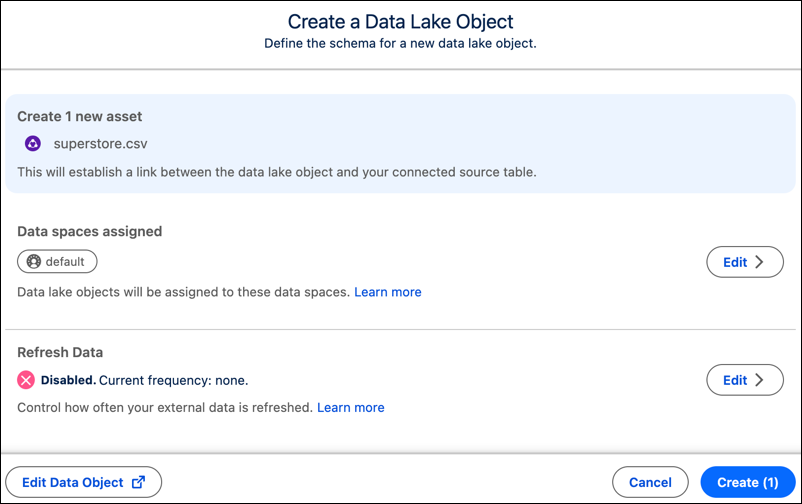
- Click Create Data Lake Object.
-
Click the Edit button in the Refresh Data section.
-
Select Full Refresh and define the update schedule through the
Frequency setting. To initiate the process right away, click Refresh data
now.
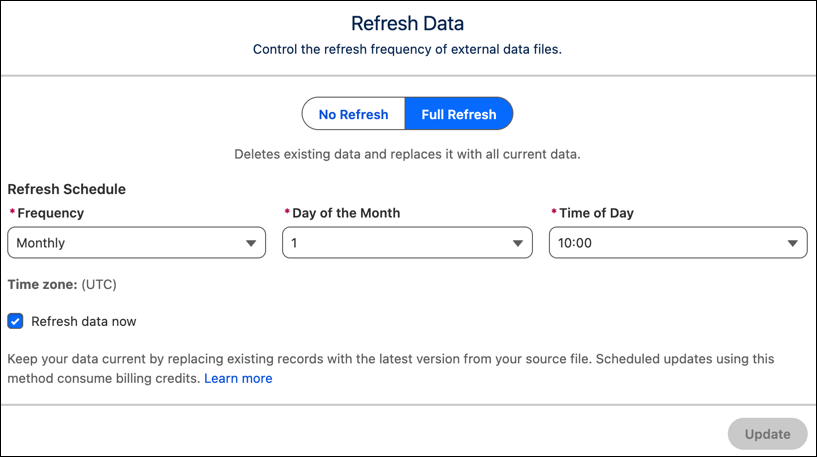
- Click Update.
-
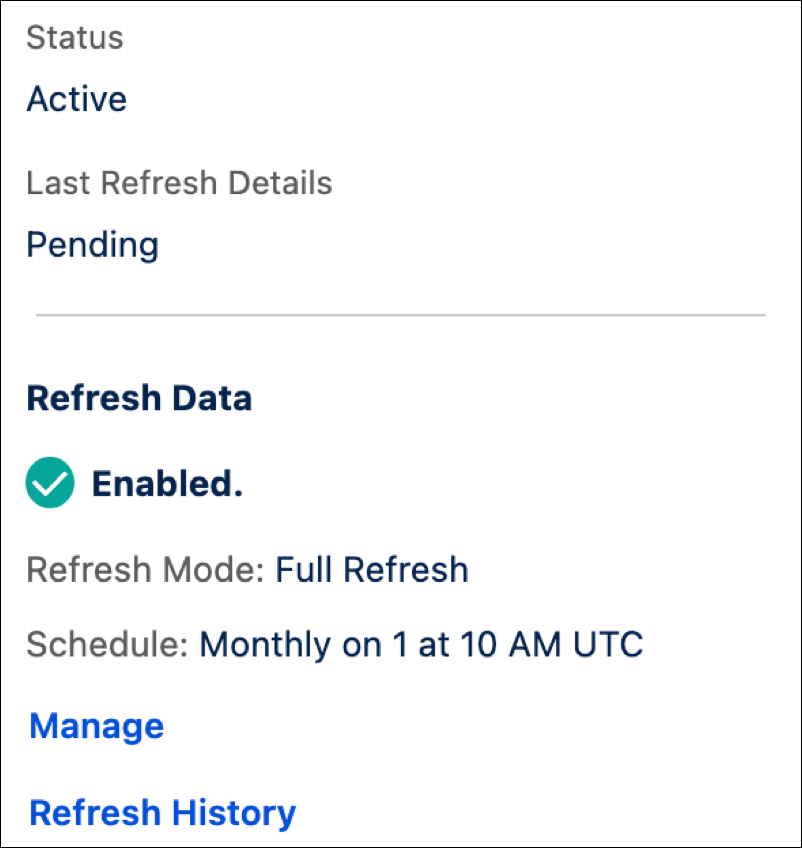
To modify a schedule, select a file and click Details in its
submenu. Click Manage in the right panel. Click Refresh
History to see past refreshes.
File-Based Refresh Best Practice
To keep your scheduled data updates running smoothly, keep these guidelines in mind:
Because the system replaces the entire file during every refresh cycle, expect exceptionally large files to take longer to process and update on your dashboard. For larger files, try scheduling more infrequently, such as weekly or monthly.