
Data acceleration improves query performance by temporarily caching data in Data 360. Acceleration is off by default when you add an external database connection. You can turn it on by selecting Full Refresh or Incremental Refresh.
Required Editions
| View supported editions. |
When you turn on acceleration while creating an external database connection, you turn on caching. Caching prevents the risk of potential timeouts or at run time latencies while accessing data from an external source.
You can incrementally refresh your data as frequently as every 15 minutes. An incremental refresh updates the cached data with data that's been added or changed since the last refresh, but it doesn’t update deleted data. If the refresh frequency is 24 hours or more, you can then select the time and day.
You can also retrieve data in full refresh mode. If you opt for a full refresh, during each refresh cycle, all the existing cached data is deleted and replaced with the new dataset. To keep your data current and in sync with your data source, perform a full refresh at regular intervals.

Turn on Data Acceleration
- Open an existing Data Connection in your workspace and select the source data you want to update.
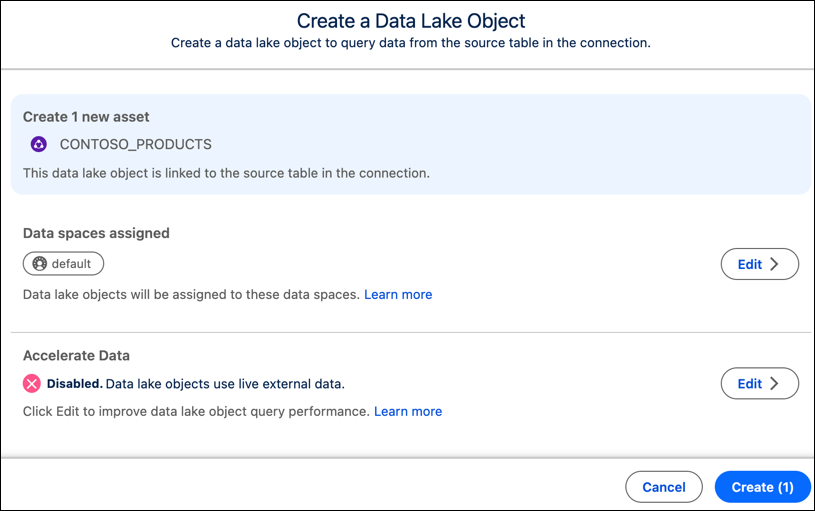
- Click Create Data Lake Object.
-
Click Edit under the Accelerate Data section to turn on
acceleration.
-
Configure your cache refresh method:
- For a Full Refresh: Select this option and use the Frequency menu to select how often the data updates.
- For an Incremental Refresh: Select this option, then select a date field in the Record Modified Field and set your preferred frequency.
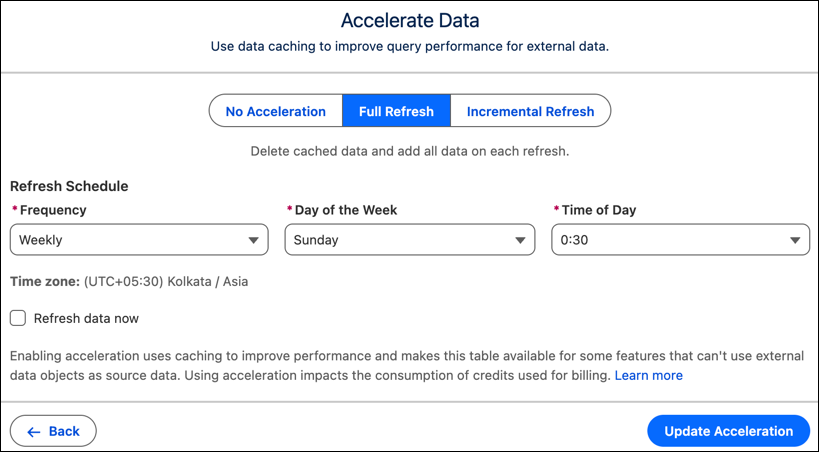
- Click Refresh data now to start the acceleration process.
- Click Update Acceleration to save your changes.