
When you analyze data with a Tableau Agent, the agent guides you from questions about your data to insights with greater efficiency. Ask business questions in natural language, and the agent discovers the relevant data, determines what assets are required to answer your questions, and creates them as needed.
Required Editions
| View supported editions. |
Depending on your question, the agent first searches existing semantic models and visualizations, discovers the relevant data, and generates the visualizations and other assets needed for analysis. The agent also saves generated visualizations and other assets in Tableau Next for future use. You can add generated visualizations to dashboards, continue refining them through conversation, or open them in Tableau Next Visualization Builder to edit and save your changes. You can also use the Agentforce side panel to ask questions about and work with assets on the current page.
How Tableau Agent Helps You Analyze Data with the Analytics Authoring Template
Tableau Agent lets you use natural language to discover data and build visualizations using existing or new assets needed for analysis.
- Discover and understand your data. Ask what data is available for analysis. The agent reviews the data you have access to, then identifies and summarizes available Data Lake Objects, Data Model Objects, tables, and relationships to help you get started. For example: What data is available to analyze sales performance?
- Analyze your data. Ask questions about your data in natural language, and the agent analyzes the available data to answer your questions. For example: What were the top 10 products by revenue last quarter?
- Create and work with visualizations. The agent generates visualizations to answer your questions. Create visualizations with multiple dimensions and measures to compare several categories and metrics in one view. Add filters to focus on relevant data, and manage fields, sorting, mark type, color encoding, labels, and tooltips. Continue refining the results through conversation or in Tableau Next Visualization Builder. For example: Compare sales performance across regions in a bar chart.
- Build the assets required for analysis. Depending on your question, the agent determines whether additional assets are needed and creates them for you. It can create semantic models, add the required data objects and relationships, and include calculated fields needed to answer your questions.
- Manage Tableau Next assets. Create workspaces and add assets to them. Search existing assets, such as semantic models, visualizations, and dashboards. You can also work with Data Lake Objects, Data Model Objects, data spaces, tables, and SQL queries.
- Guide your analysis. Continue the conversation with follow-up questions or the next steps the agent suggests. If the agent can't complete a request automatically, it explains what is needed and guides you through the remaining steps. For example: break down the top 10 products by revenue by product category.
- Enable Data Connection and Analytics Creation with Tableau Agent (Beta)
Enable Tableau Agent to let Tableau Next users explore data, generate semantic models needed for analysis, and create visualizations using natural language. - Grant Access to Tableau Agent (Beta)
Grant users access to your Tableau Agent by configuring and assigning the permission set created for the agent. The permission set has the same name as your agent. - Analyze Data Through Conversations with Tableau Agent (Beta)
Use Tableau Agent in Tableau Next to explore and analyze your data. Ask business questions in natural language, refine your analysis through follow-up prompts, and generate visualizations and semantic models without leaving the conversation. - Tableau Agent—Analytics Authoring Template: Limitations (Beta)
Review these limitations before using the Analytics Authoring template in Tableau Agent:
Enable Data Connection and Analytics Creation with Tableau Agent (Beta)
Enable Tableau Agent to let Tableau Next users explore data, generate semantic models needed for analysis, and create visualizations using natural language.
Required Editions
| View supported editions. |
| User Permissions Needed | |
|---|---|
| To update Tableau Next settings: | Tableau Next Admin permission set |
| To build and manage Analytics Authoring agents: | Manage AI Agents, or, Customize Application |

Administrative Prerequisites
Create a Tableau Agent
- In Tableau Next, click Administration, and then click Settings.
- On the General page, enable Data Connection and Analytics Creation (Beta).
-
Create an agent by using the Analytics Authoring (Beta) template
and configure its settings.
- From Setup, in the Quick Find box, enter Agentforce Studio.
- Click + New Agent.
- Click Create Agent.
- In the Agentforce Builder, select the Analytics Authoring (Beta) template.
- Enter a name for your agent.
- Click the Developer Name field to populate it automatically from the agent name.
- After reviewing the agent configuration, save your changes.
- Review the agent definition, make changes if needed, and click Save.
- Click Commit This Version and confirm the version commit.
- Click Activate.
Grant Access to Tableau Agent (Beta)
Grant users access to your Tableau Agent by configuring and assigning the permission set created for the agent. The permission set has the same name as your agent.
Required Editions
| View supported editions. |
- Configure Agent Permissions (Beta)
Configure the permission set created for your Tableau Agent to grant it access. - Assign Permission Set to Users (Beta)
Enable an agent with the Analytics Authoring agent template to let Tableau Next users explore data, generate semantic models needed for analysis, and create visualizations using natural language. - Configure System Permissions (Beta)
Enable an agent with the Analytics Authoring agent template to let Tableau Next users explore data, generate semantic models needed for analysis, and create visualizations using natural language.
Configure Agent Permissions (Beta)
Configure the permission set created for your Tableau Agent to grant it access.
- From Setup, in the Quick Find box, enter Permission Sets, and then select Permission Sets.
- Select the permission set with the same name as your agent.
- Under Apps, click Agent Access.
- Click Edit.
- Enable the agent and save your changes.
Assign Permission Set to Users (Beta)
Enable an agent with the Analytics Authoring agent template to let Tableau Next users explore data, generate semantic models needed for analysis, and create visualizations using natural language.
- Click Manage Assignments.
- Click Add Assignments.
- Select the checkbox next to each user that you want to assign the agent to, and click Assign.
Configure System Permissions (Beta)
Enable an agent with the Analytics Authoring agent template to let Tableau Next users explore data, generate semantic models needed for analysis, and create visualizations using natural language.
- On the Permission Set page, under System, select System Permissions.
- Click Edit.
-
Enable these permissions:
- Explore Data in Tableau.
- Use Tableau Conversations.
- Click Save.
Analyze Data Through Conversations with Tableau Agent (Beta)
Use Tableau Agent in Tableau Next to explore and analyze your data. Ask business questions in natural language, refine your analysis through follow-up prompts, and generate visualizations and semantic models without leaving the conversation.
Required Editions
| View supported editions. |
| User Permissions Needed | |
|---|---|
| To explore data in Tableau: | Tableau Unmetered Consumer or Tableau Next Consumer or Tableau Unmetered Self-Service Consumer or Tableau Next Self-Service Consumer permission set |
To analyze and visualize data with Tableau Agent:
- On the Tableau Next home page, select Conversations. Alternatively, open a workspace or visualization and click the Agentforce icon to open the side panel. Select the Tableau Agent you created using the Analytics Authoring (Beta) template.
-
In the conversation window or Agentforce panel, enter your business question or analytic
goal in natural language. For example: "Show total sales by region for this quarter."
If you aren't sure where to begin, ask what data is available or what data can answer your question.
You can review the reasoning workflow while Tableau Agent prepares its response and after it returns the response.
-
Review the response in one of two ways:
- Scroll through the conversation window to review the response inline.
-
Click the Pencil icon to edit a visualization in the Visualization
Builder.
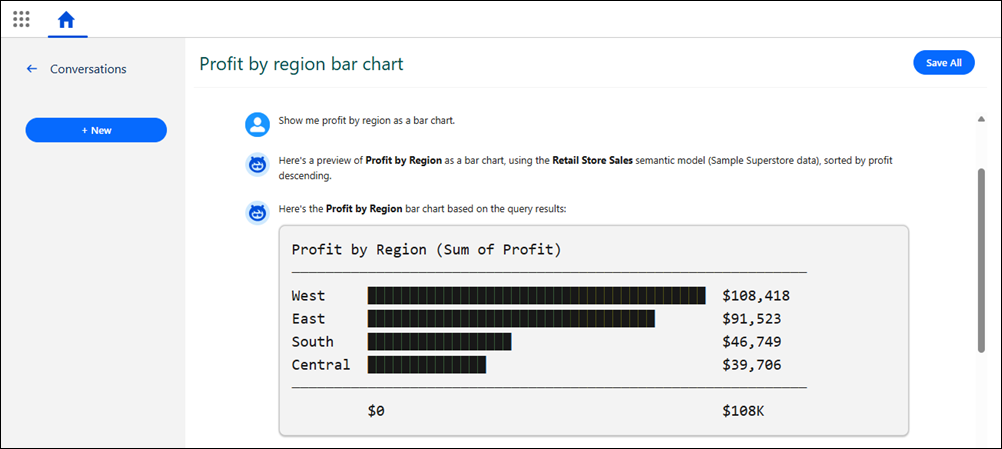
- To return to a previous conversation, click the conversation in the History pane.
-
Optionally, reuse the visualization:
- Save the visualization for later use.
- Add the visualization to a dashboard.
Tableau Agent—Analytics Authoring Template: Limitations (Beta)
Review these limitations before using the Analytics Authoring template in Tableau Agent:
- Duplicate tables or missing join key relationships can affect the generated assets and the agent's analysis.
- Only bar charts and line charts are currently supported.