
Clean your Excel files to make sure that your data has the correct structure for ingestion. The Data Interpreter cleans and structures Excel data during upload. It resolves formatting issues, such as merged headers or blank fields, and ignores non-essential images and hidden formatting.
Required Editions
| View supported editions. |
| User Permissions Needed | |
|---|---|
| To upload data into Tableau Next: | Tableau Unmetered Platform Analyst or Tableau Next Platform Analyst permission set |
- On the workspace tab, select an existing workspace or create one.
-
Upload the data.
- From a new workspace, click Connect to New Data, and then click Upload File.
- From an existing workspace that includes data, click Add, select New Data, and then click Upload File.
 Note If the Data Interpreter doesn't identify a field’s data type, it automatically assigns a string type to that data.
 - Select an .xlsx file and click Open.
-
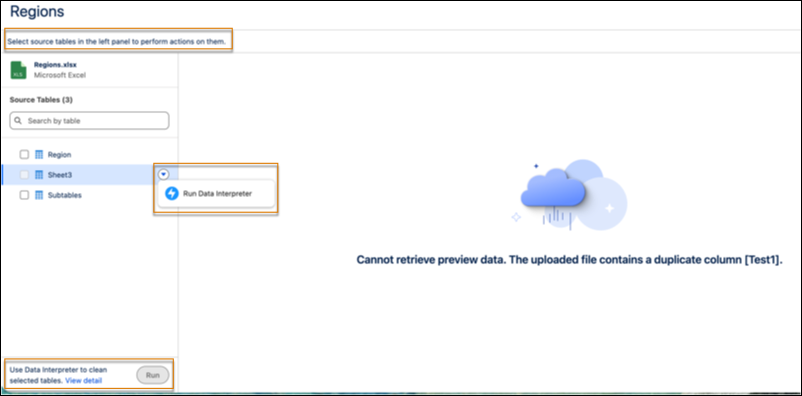
To resolve formatting issues or create separate subtables, click
Run.
-
Examine detected formatting issues.
-
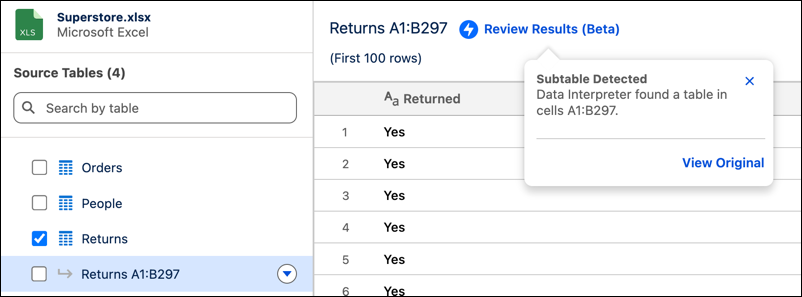
Click Review Results (Beta) on the cleaned sheet.
-
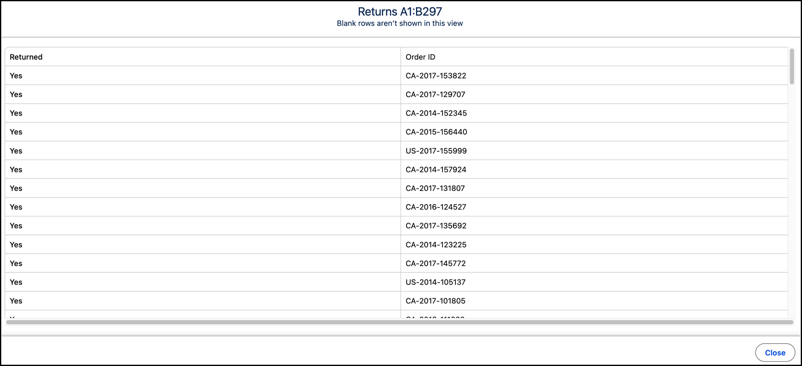
Click View Original to view a snapshot of your source file.
-
Click Review Results (Beta) on the cleaned sheet.
Supported Data Interpreter Formats
Data Interpreter can identify and resolve the listed data issues during the Excel ingestion process.
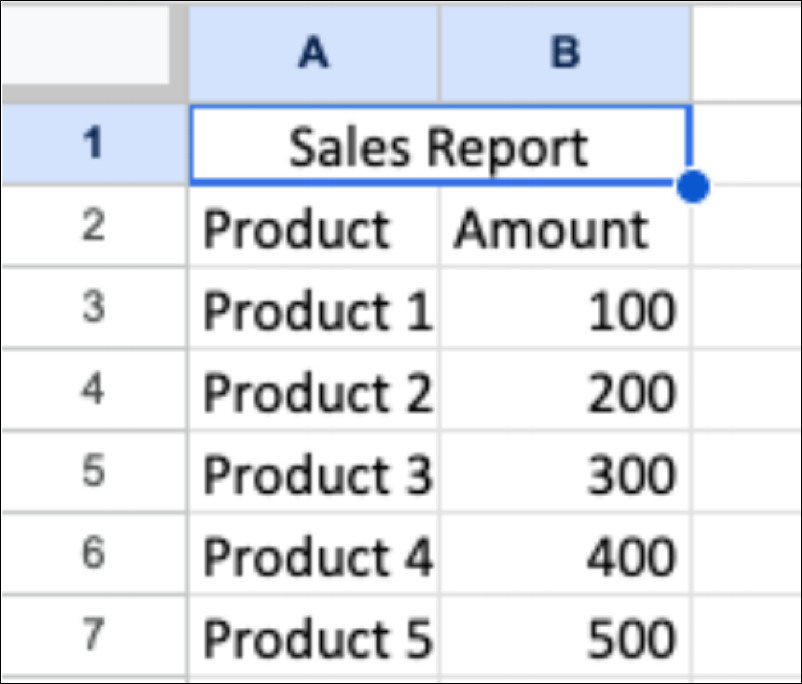
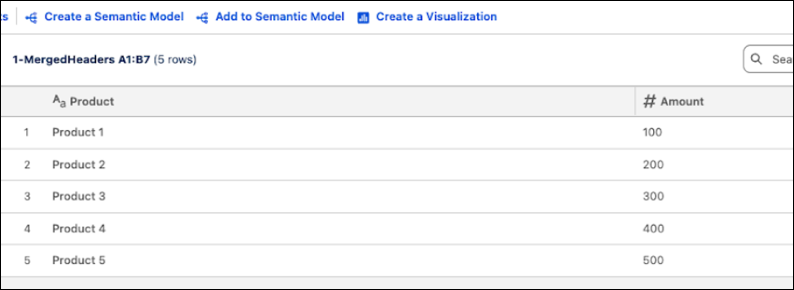
- Merged Headers
- Combines merged cells into single, unique names for each column.
-
-
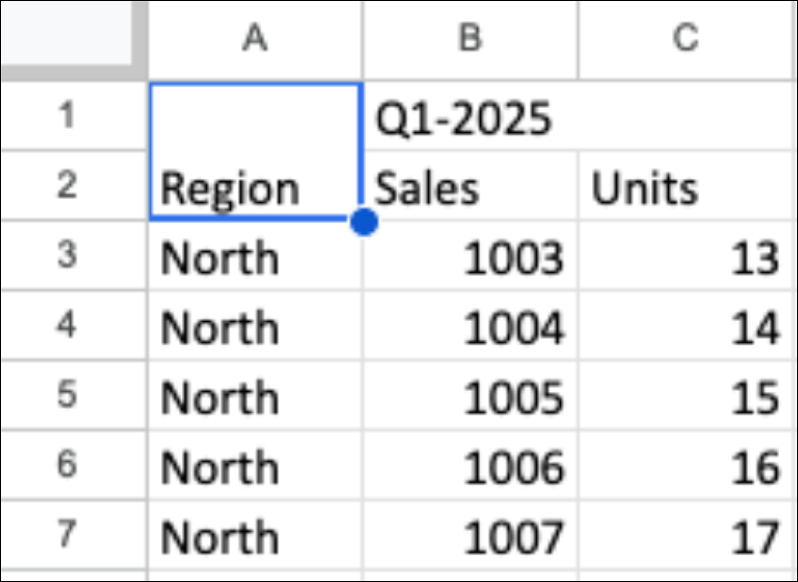
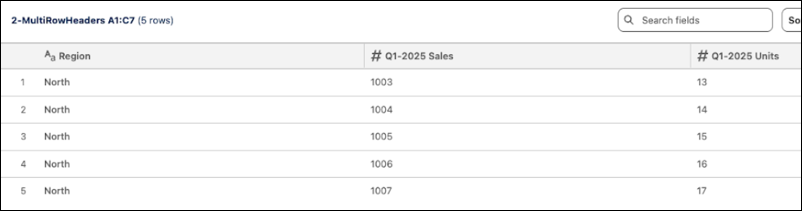
- Multi-row Headers
- Connects information from the top rows to the main column header to keep the correct context.
-
-
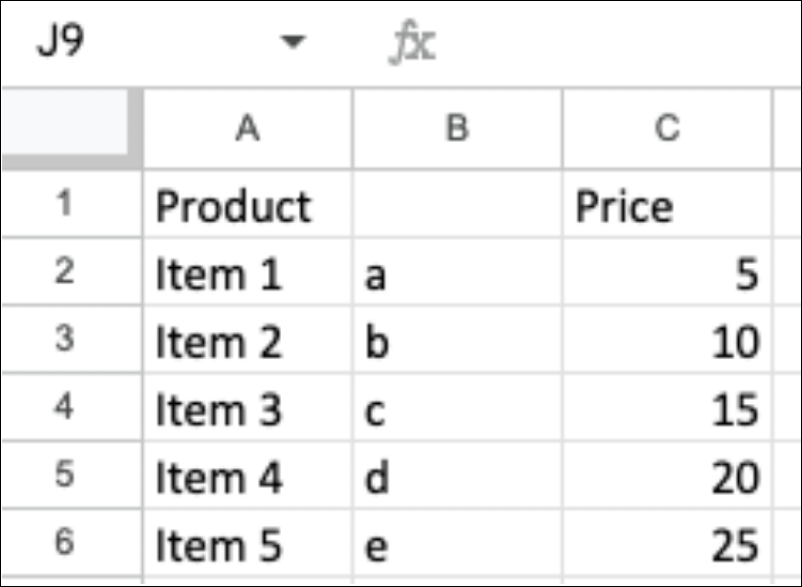
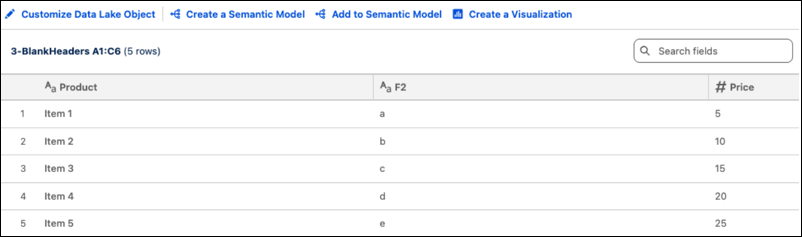
- Blank Headers
- Gives a temporary name to any column that doesn’t have a header.
-
- Duplicate Headers
- Adds a number to column names that are the same to make them unique.
-

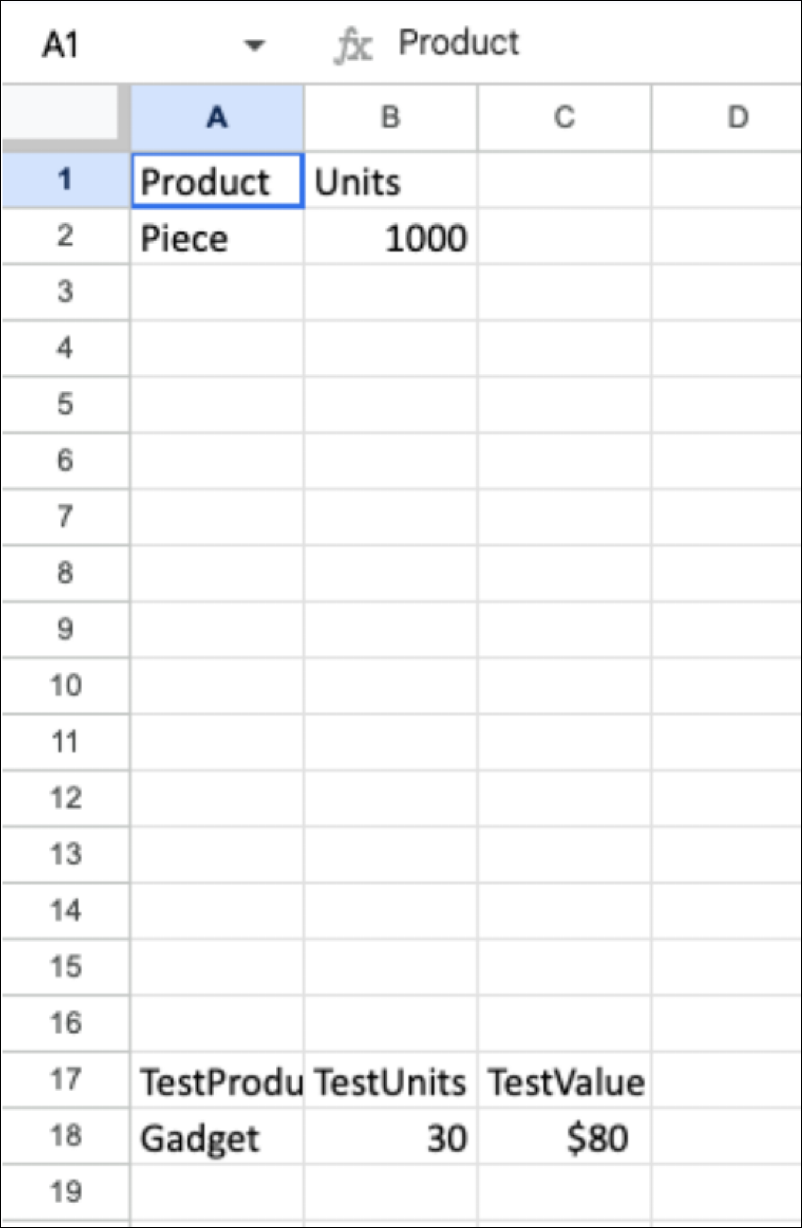
- Stacked Tables (Vertical)
- Separates tables that are one on top of the other if there are two or more empty rows between them.
-
-

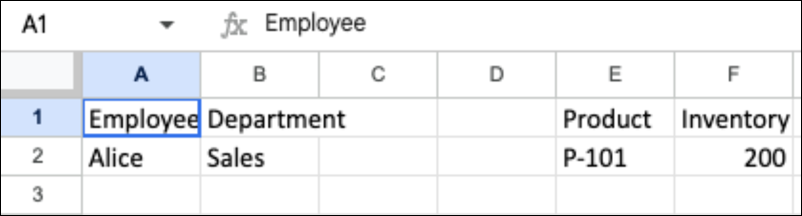
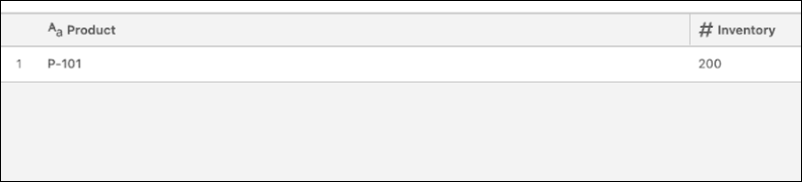
- Side-by-SideTables (Horizontal)
- Separates tables that are side by side if there are two or more empty columns between them.
-
-
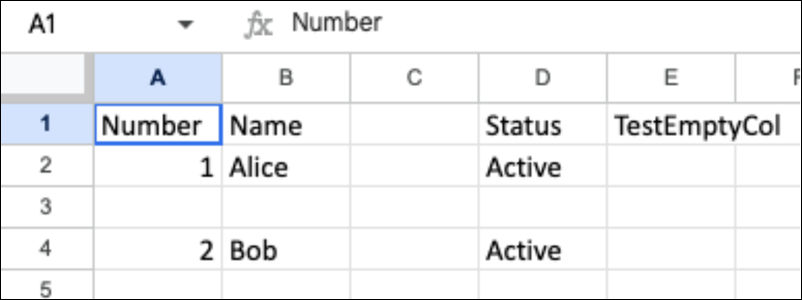
- Empty Columns
- Removes single empty columns that don’t have any titles.
-
-

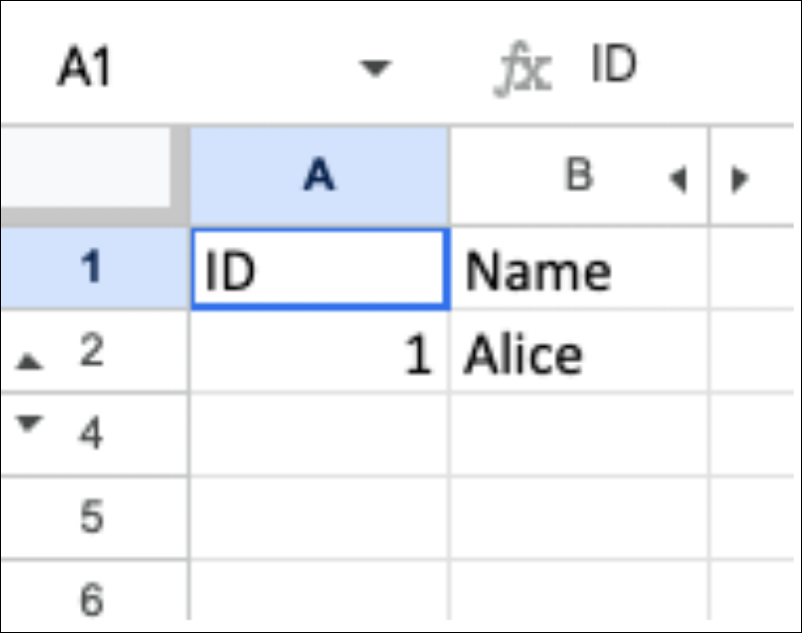
- Hidden Data
- Reads and processes data even if it is in hidden rows or columns.
-
-

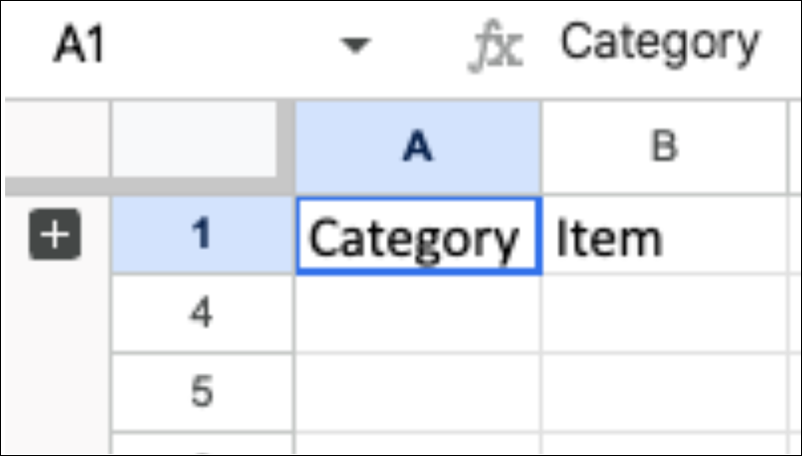
- Grouped Data
- Reads data inside collapsed or hidden groups as normal.
-
-

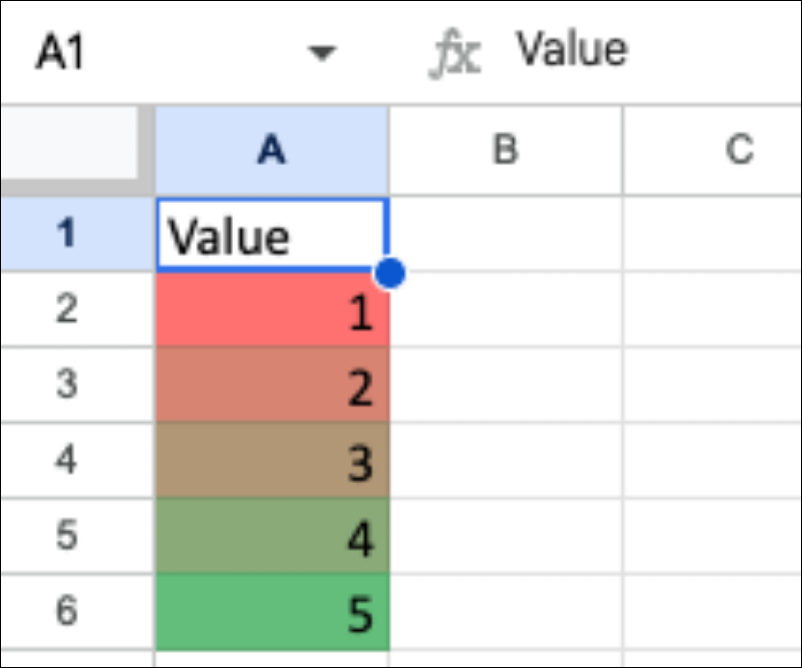
- Conditional Formatting
- Processes data that has color rules or special formatting applied.
-
-
The Data Interpreter ignores the listed data issues to make sure that your dashboard remains clean and focused only on your data.
- Page Layout Breaks
- Object Linking and Embedding (OLE)
- Charts and Images
- Rich Text
- Extra Text
- Hyperlinks
- Filters
- Frozen Panes
- Comments