Use size encoding to highlight differences in values in bar, square, or circle mark
types. You can base mark size on the values of the continuous measure field represented by the
marks. Or, base the mark size on values of a different continuous measure field of your choice.
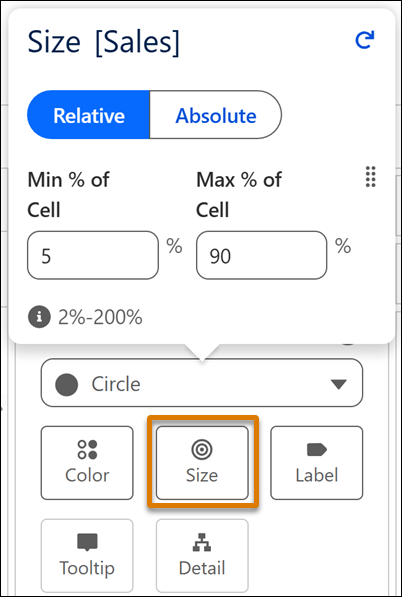
Choose relative sizing to highlight contrast between values or absolute sizing to to apply a
uniform scale based on a fixed pixel range. Combine size with color to interpret data
easily
Required Editions
This table includes a description of the sizing modes available with size encoding in Tableau
Next.
| model |
Description |
| Relative |
Set mark size proportionally based on the range of values in the selected
continuous measure field.
Minimum (% of cell) defines the smallest size a mark can appear as a percentage of
the available cell space.
Maximum (% of cell) defines the largest size a mark can appear as a percentage of
the available cell space.
For example, let’s say you’re using sales for size encoding. If the minimum is set
to 10% and maximum to 80%, the lowest sales value appears at 10% of the available
cell size, the highest sales value appears at 80%. All other sales values scale
proportionally between those limits.
|
| Absolute |
Set mark size using fixed pixel values. The smallest value appears at the minimum
pixel size and the largest at the maximum pixel size. |
Apply Size Encoding for Data Clarity and Visual Appeal
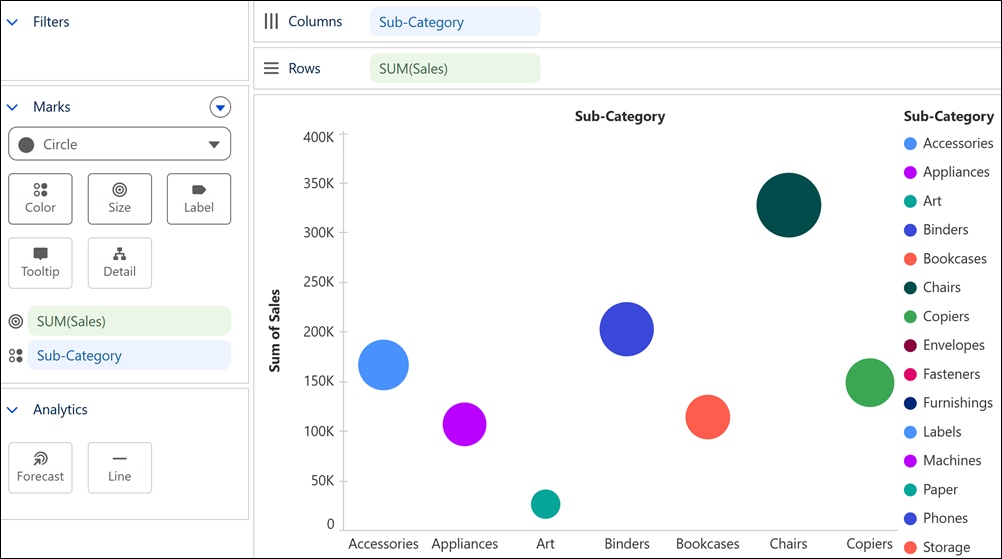
In Tableau Next, you can emphasize differences in data values using size encoding. For
example, with a circle mark type, compare product sub-categories by encoding sales on size to
quickly identify top-performing sub-categories.
Required Editions
| User Permissions Needed |
| To apply size encoding to Tableau Next visualization: |
Tableau Unmetered Platform Analyst or Tableau Next Platform Analyst permission set |
-
In a visualization, double-click Sales. Or, drag and drop it onto
Rows.
-
Drag Product Sub-Category and drop it onto Columns.
-
From the Marks drop-down, select Bar, Square, or Circle mark type.
-
Double-click Size. Or, from the Data pane, drag Sales and drop it
onto Size.
-
Click Size to configure sizing options.
-
Select Relative or Absolute.
-
Based on your selection, set the minimum and maximum sizes using percentages or pixels.