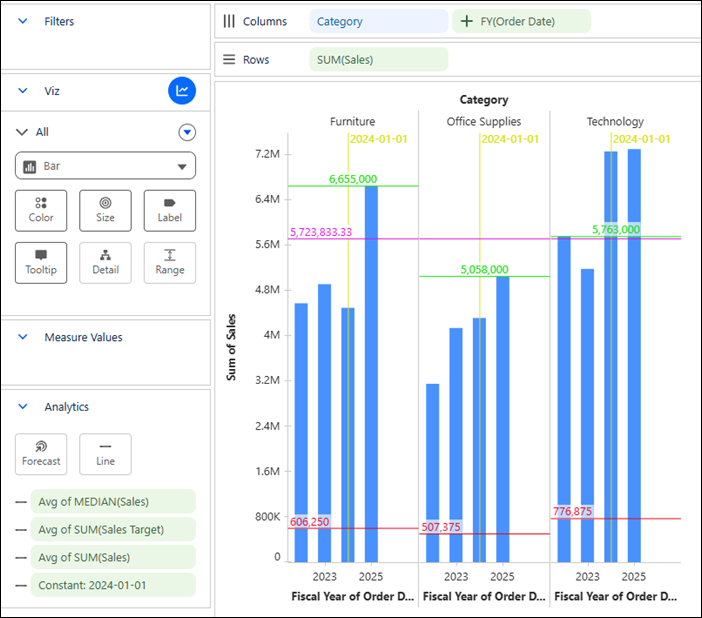
Use reference lines in Tableau Next to evaluate performance against benchmarks, such as customer satisfaction (CSAT) scores or monthly sales targets. You can base the reference line on the same measure, calculated field, or date field as the axis it’s on. You can also choose a different source field to compare against another business metric. Define the reference line as a constant for fixed targets or a computed measure value, such as average monthly revenue, to compare performance within context. Personalize it with labels and colors to interpret data easily.
Required Editions
| View supported editions. |
This table includes a description of the settings available with reference lines in Tableau Next.
Add Reference Lines to Compare Data Points
In Tableau Next, you can add reference lines to highlight key thresholds in your visualizations. Add lines at constant values, computed values, or values from other fields to compare performance against business goals. For example, evaluate monthly sales against a median sales reference line and a reference line based on another field, such as profit ratio. Also, highlight an important date with a constant reference line, such as the start of a quarter.
Required Editions
| View supported editions. |
| User Permissions Needed | |
|---|---|
| To add reference lines in a Tableau Next visualization: | Tableau Unmetered Platform Analyst or Tableau Next Platform Analyst permission set |
- Select a chart visualization that supports reference lines. For the chart visualization in this example, select a vertical bar graph.
- From the Data pane, drag Category and Order Date onto Columns.
- From the Order Date context menu, click Date Part and choose Fiscal Year.
- From the Data pane, drag Sales onto Rows.
-
Add a computed value as a reference line, such as median sales for each product category.
- From the Data pane or Rows, drag Sales onto Line in the Analytics section. By default, Tableau Next bases the reference line on a measure field’s average and a date/time field’s maximum value.
- For Apply To, select Pane.
-
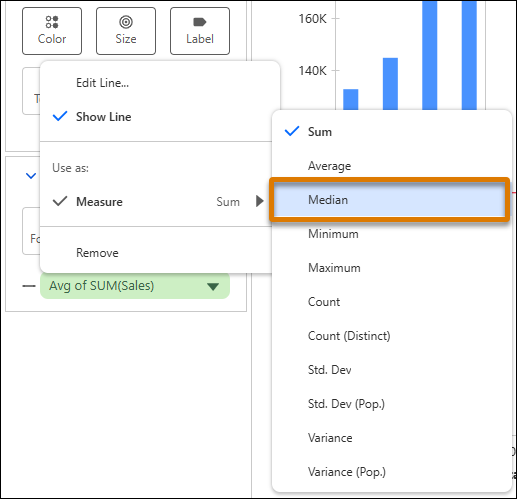
From the reference line’s context menu, select
Measure > Median.
- Optionally, from the Label dropdown menu, select a label for the reference line.
- Optionally, choose a color for the reference line from Line Color.
-
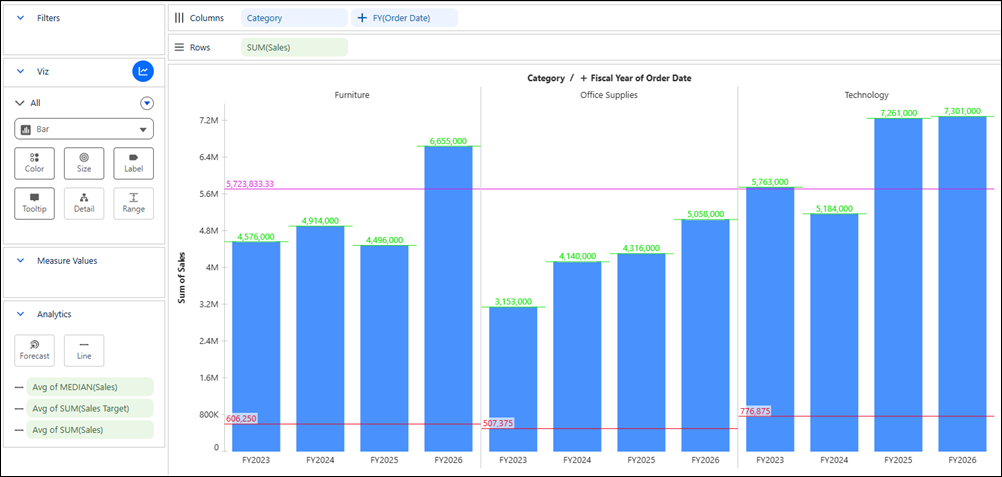
Add a reference line at the cell level, such as average sales for each product category
and fiscal year.
- From the Data pane or Rows, drag Sales onto Line in the Analytics section.
- For Apply To, select Cell.
- Optionally, set a label and choose a color for the reference line.
-
Add a reference line based on another field, such as average sales target, across all the
data in the visualization.
- From the Data pane, drag Sales Target onto Line in the Analytics section.
- For Apply To, ensure that Table is selected.
- In the Value dropdown menu, verify that Sales Target is selected.
- In the Computation field, verify that Average is selected.
- Optionally, set a label and choose a color for the reference line.
-
Add a constant reference line on the Order Date field, such as the
rollout date of a new sales initiative.
- From the Order Date context menu on Columns, select Date Value, and then select Fiscal Year.
- From the Data pane or Columns, drag Order Date onto Line in the Analytics section.
- From the Value dropdown menu, select Constant.
- In the Constant Value field, set the date for the reference line.
- Optionally, set a label and choose a color for the reference line.