Work with Data Tables in Tableau Next

Use Data Table view in Tableau Next to review and compare exact values across records in a structured, row-and-column layout. This view makes it easy to scan, sort, and validate data across multiple fields without opening individual records. Data Table view also helps you identify duplicates and anomalies at a glance.
Required Editions

View supported editions.

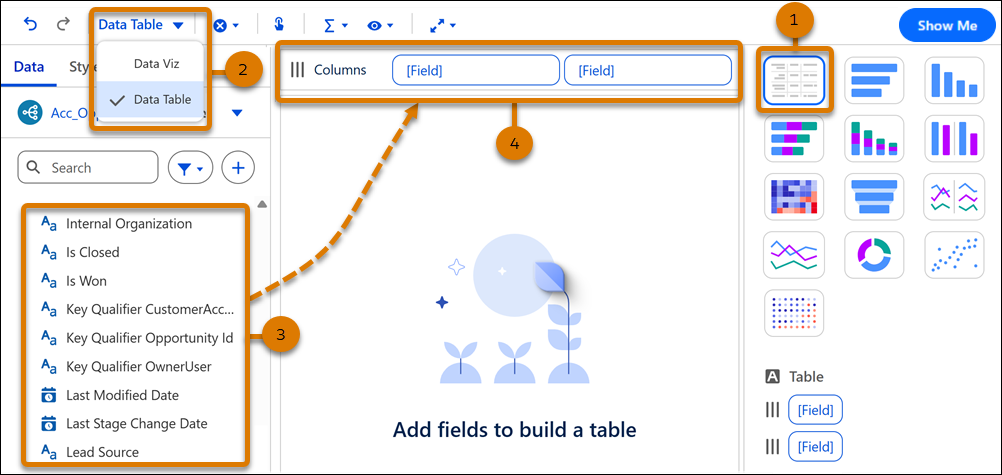
To begin working in Data Table view, in the Visualization Builder’s Show Me pane, select the Table thumbnail (1). Alternatively, select Data Table from the widget toolbar (2). In the Data pane, double-click fields to add to the table (3). You can also drag and drop them onto Columns (4).

Tableau Next Viz Builder Overview
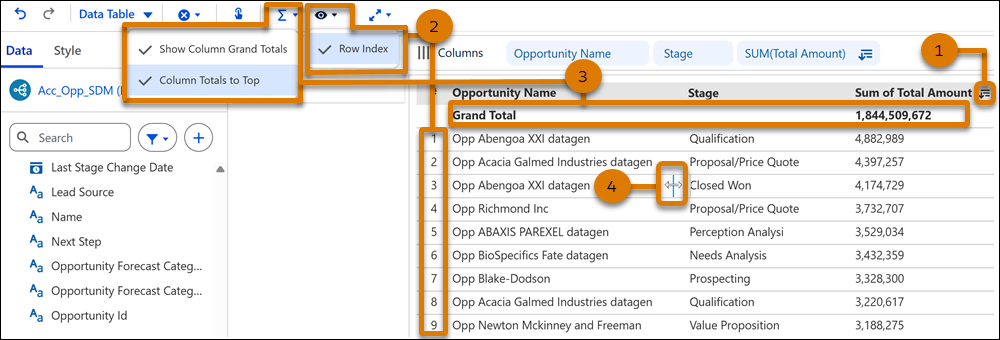
  • Sort a column using Tableau Next Column Header Sort option in its header (1). Then choose ascending Tableau Next Column Header ascending order option or descending Tableau Next Column Header descending order option order.
  • Include row index with Tableau Next Show/Icon in the Widget toolbar (2).
  • Show column totals and display them at the top using the Totals menu Tableau Next Totals menu icon in the Widget toolbar (3).
  • To resize a column, hover over a column border until the resize cursor appears. Drag the column border to adjust column width (4).
Tableau Next Viz Builder Overview