The Tableau Next Sales Insights Model and Metrics template offers comprehensive
visibility into your sales data. It includes key metrics for analyzing sales, team performance,
leaderboards, stage progression, conversion rates, and sales lead analysis. This template installs
the semantic model along with 15 pre-configured metrics and over 70 calculated fields. Designed
for sales managers and key stakeholders, these insights provide a detailed breakdown of
performance and forecasting across multiple dimensions, empowering them to monitor sales progress,
pinpoint areas for improvement, and make data-driven decisions.
Required Editions
| User Permissions
Needed |
| To view Marketplace templates: |
Tableau Unmetered Platform Analyst or Tableau Next Platform Analyst permission set |
| To install semantic models in Data 360: |
Data Cloud Architect permission set |
| To install and view Sales Insights: |
Sales Insights user permission |
This template requires:
- Customer 360 Data Model installed in Data 360
- Sales Insights data kit installed in Data 360
- Sales DMOs: Account, Lead, Opportunity, Opportunity History, Opportunity Stage, Task,
Contact Point Address, and Calendar Event.
For full functionality, you need the User, Business Period, Forecasting Fact, and Forecasting Item DMOs.
This template is designed to work with the Customer 360 data model that incorporates data from multiple parts of
your business, like sales, service, marketing, and commerce.
-
On the Tableau Next home page, select Marketplace.
-
In the Search box, enter Sales, and select the Sales Insights
Model and Metrics tile.
-
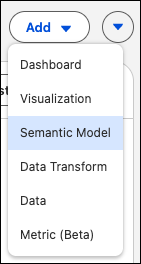
Or, from your Tableau Next workspace, click Add, and select
Semantic Model.
-
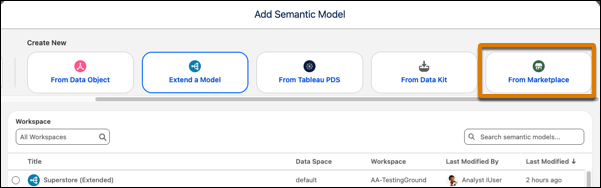
Under Create New, select From Marketplace.
-
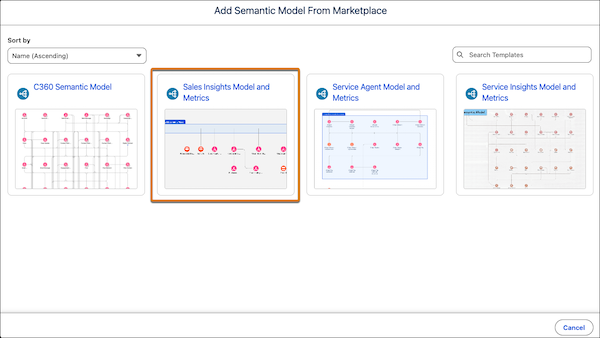
Select the Sales Insights Model and Metrics tile.
-
View the template details and click Next.
-
Select the data space for the semantic model.
-
Click Next to start the installation process.
The template checks your org to make sure that all prerequisites and permissions are set up correctly to install the semantic model
and its supporting metrics. If the template validation is successful, the installation process begins. If it fails, you’re provided with
a list of errors to resolve.