Define parameters in Tableau Next to explore what-if scenarios in dashboards and see how
different inputs affect your business. Create a parameter on any field type and use it with a
calculated field, filter, or reference line to update the visualization interactively. Use a
parameter list to switch between fields or field values, such as countries, to compare each
value’s impact separately. You can also create parameters for values outside the dataset, such as
discount percentages, to see how they affect results.
Required Editions
| User Permissions Needed |
| To define parameters in Tableau Next: |
Tableau Unmetered Platform Analyst or Tableau Next Platform Analyst permission set |
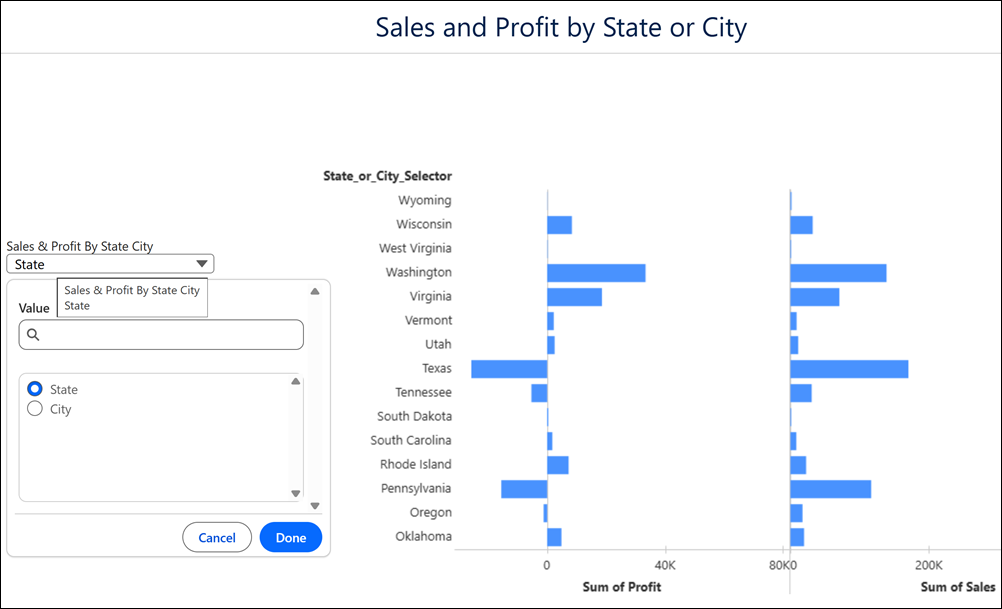
For example, create a parameter to switch the sales and profit breakdown between city and
state. In a chart visualization that shows sales and profit as columns, follow these
steps.
-
Create a parameter.
-
From the Data pane, click
 and select Create Parameter.
-
Enter a name for the parameter and select its data type.
-
Choose List as the parameter type.
-
Add the list values to include in the parameter list.
-
Click Save.
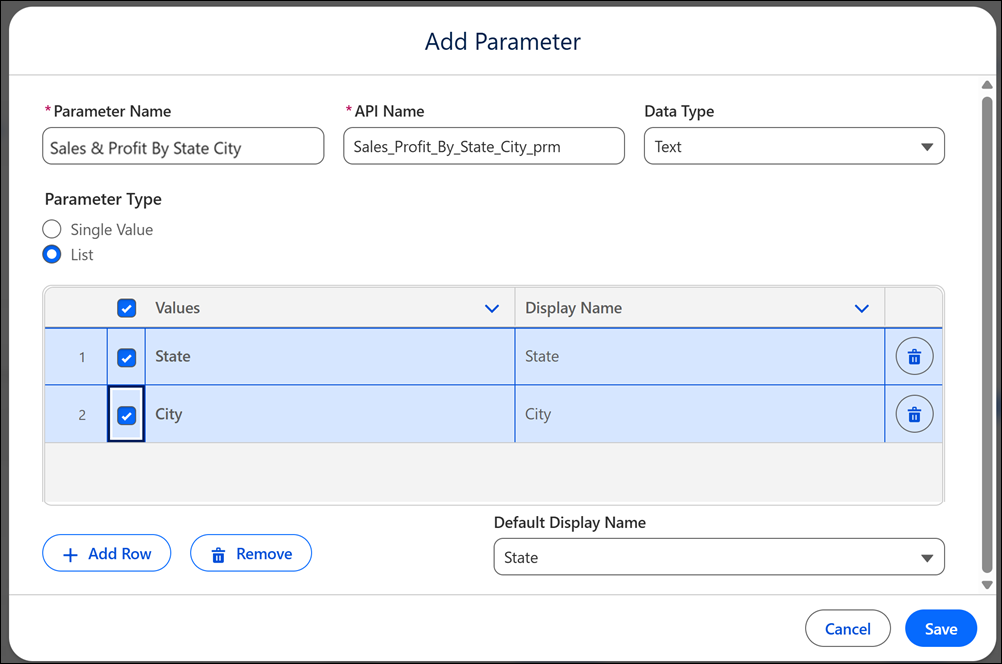
The parameter now appears in the Data pane.
-
Create a calculated field to use with the parameter.
-
From the Data pane, click and select Create Calculated Field.
-
In the calculated field editor, define the formula that specifies how the calculation
responds to the selected parameter value.
-
Validate the formula and click OK.
The calculated field now appears in the Data pane.
-
Drag the calculated field onto Rows.
-
Optionally, you can reflect the parameter’s name in the calculated field’s name.
-
From the calculated field’s drop-down menu, click Edit Field
Label.
-
In the Field Label box, click

-
Select the parameter’s name and click Apply.
-
To add the visualization to a dashboard, click + Add to Dashboard
.
-
Choose the dashboard you want to add the visualization and click
Select.
-
Add the parameter to the dashboard.
-
Drag the parameter widget to the dashboard.
-
Click Add Parameter.
-
In the Select a parameter window, choose the semantic model and the the parameter’s
name.
-
Click Add
-
To review the parameter in the dashboard, click Preview.
-
To apply your changes to the dashboard, click Save.