Use dual axes in Tableau Next to compare two measures on separate axes in the same chart
across a shared dimension. Because each measure retains its own scale, you can highlight patterns
and trends side by side while keeping the chart easy to interpret. To surface differences between
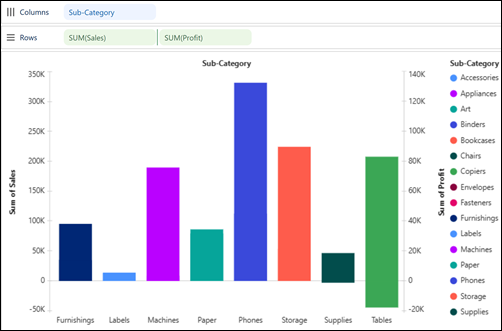
measure values more clearly, synchronize the axes to align them to a common scale. For example, in
a chart, compare sales and profit by product sub-category using dual axes. Then synchronize the
axes to evaluate how closely profitability aligns with sales.
Required Editions
| User Permissions Needed |
| To add dual and synchronized axes in Tableau Next visualizations: |
Tableau Unmetered Platform Analyst or Tableau Next Platform Analyst permission set |
-
From the Data pane in your visualization, drag the dimension field used to analyze the
measure onto Columns. For the chart in the example, select
Sub-Category.
-
Drag a continuous measure field, such as Sum of Sales, onto
Rows.
-
Drag the second continuous measure field, such as Sum of Profit,
onto Rows.
-
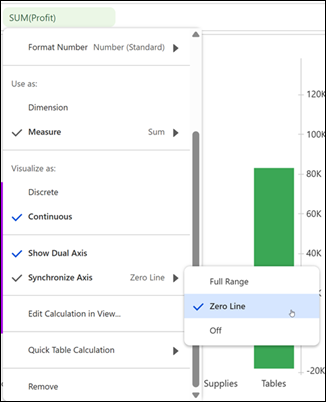
To include dual axis in the chart, from the second measure field’s context menu, select
Show Dual Axis.
-
To synchronize the axes, from the field’s context menu, select one of these options:
- to include all values across both measures.
- to align the axes at zero and compare positive and negative values.
-
Apply your changes.