Add visualizations to Tableau Next dashboards to enhance communication and collaboration by presenting data in a clear and intuitive way. Use visualizations to help you effectively act on key issues, such as drivers for sales growth.
Required Editions
| View supported editions. |
| User Permissions Needed | |
|---|---|
| To edit Tableau Next dashboards: | Tableau Unmetered Platform Analyst or Tableau Next Platform Analyst permission set |

Note Data access for dashboards in Tableau Next is subject to data governance policies that
define data ownership, security, and access control. These policies ensure that data is
accurate, consistent, and secure, and that users can only view and interact with the data
they are authorized to see. For specific details on your access, consult with your
Salesforce administrator.
-
Add a Visualization Widget to a Dashboard
-
Click the Visualization
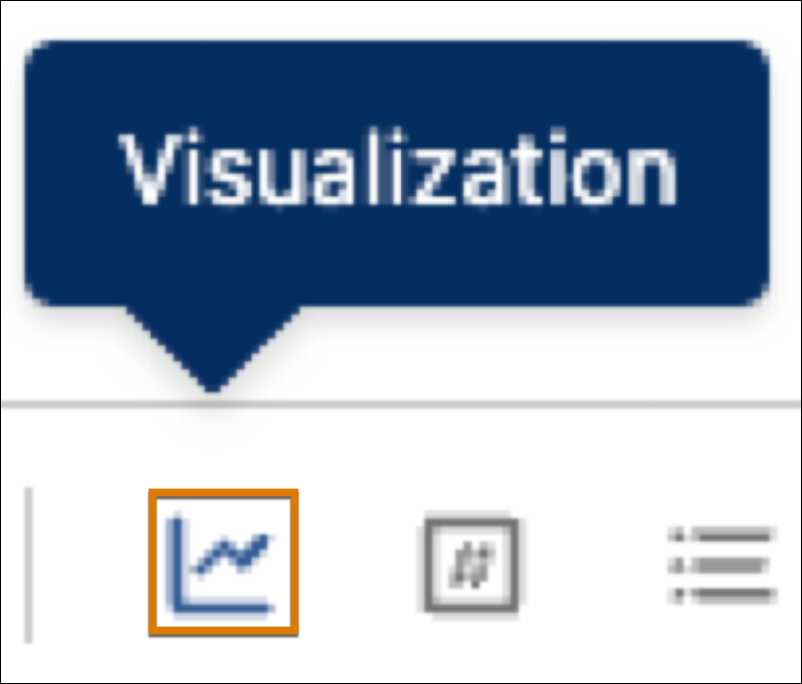 icon and select an area of the dashboard.
- Click Add Visualization.
-
In the Select a Visualization window, choose an available visualization from the
workspace.
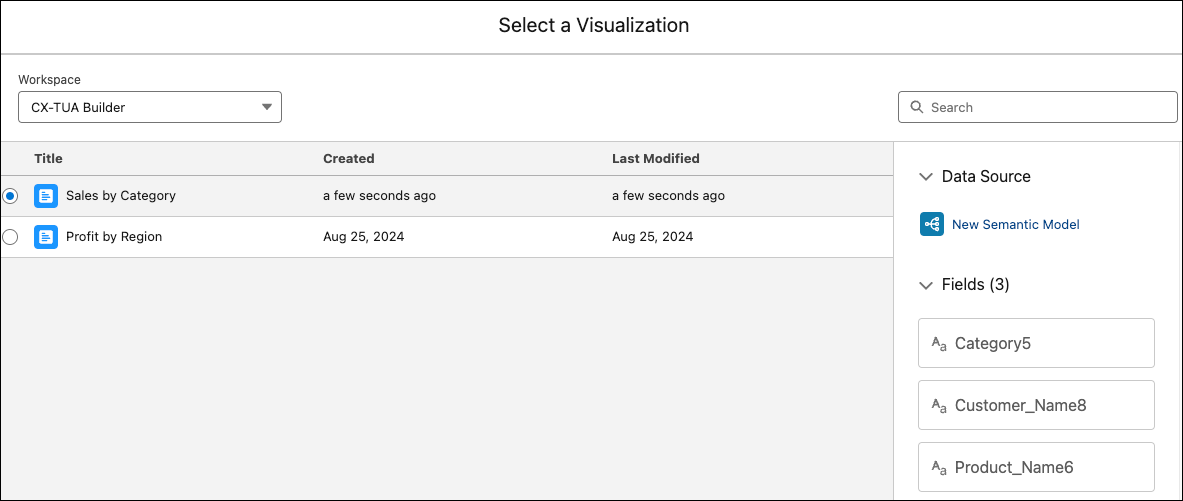
- Data Source is the semantic model used in the visualization.
- Fields lists the attributes.
- Use the search bar to locate a specific visualization.
- Click Select to add the visualization to the dashboard.
-
Click the Visualization
-
Add a Visualization from the Visualization Builder
Refer to Build Insightful Visualizations in Tableau Next for creating and editing visualizations.
-
Create or open a visualization and save your changes. Click Add to
Dashboard

-
Select a dashboard or use the menu and search to locate one. Click
Select.
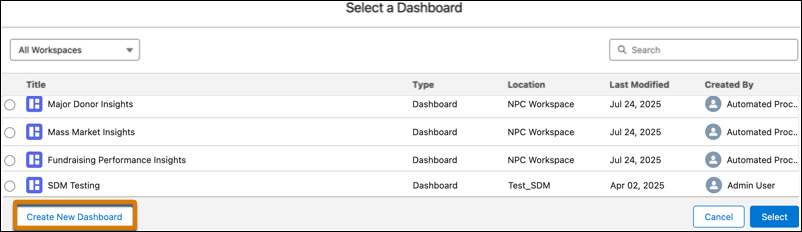
- To add to a new dashboard, click Create New Dashboard.
-
Create or open a visualization and save your changes. Click Add to
Dashboard
-
Create a Visualization on the Dashboard
Refer to Build Insightful Visualizations in Tableau Next to set up a new visualization.
- Click the Visualization icon in the toolbar and select an area of the dashboard.
- Click Add Visualization.
- Click Create New Visualization.
-
Edit a Visualization on the Dashboard
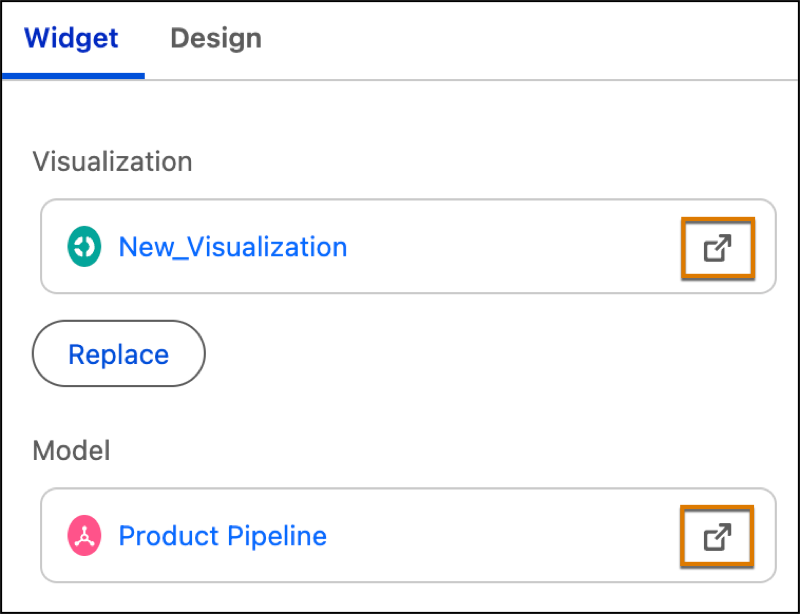
- Click the Visualization launch button to open the visualization.
- Click the Model launch button to open the visualization semantic model.
- Click Replace to switch to another visualization.