
The Tableau Next Service Agent Analytics dashboard template provides data about your service agent performance, conversation metrics tracking, and how to optimize your agents. It includes 12 visualizations focusing on agent performance, usage, and quality. The dashboard is designed for users who refine and improve AI agents, delivering real-time insights.
Required Editions
| View supported editions. |
| User Permissions Needed | |
|---|---|
| To view Marketplace templates: | Tableau Unmetered Platform Analyst or Tableau Next Platform Analyst permission set |
| To install semantic models in Data 360: | Data Cloud Architect permission set |
| To install and view Service Agent Analytics: | Agentforce Service Agent Configuration permission set |
This template requires:
- Installation and setup the Agentforce Analytics Foundations. For more information, see Set Up Agent Analytics . These steps include installing the required data kit and enabling session tracing.
- A minimum of one Service Agent.
- AI Agent DMOs: AI Agent Interaction, AI Agent Interaction Message, AI Agent Interaction Step, AI Agent Moment, AI Agent Moment Interaction, AI Agent Session, AI Agent Session Participation, AI Agent Tag, AI Agent Tag Association, AI Agent Tag Definition, and AI Agent Tag Definition Usage.
This template is designed to work with the AI Agent DMOs, mapping your Agentforce analytics data for use in insights.
-
On the Tableau Next home page, select Marketplace.
- In the Search box, enter Service, and select the Service Agent Analytics tile.
-
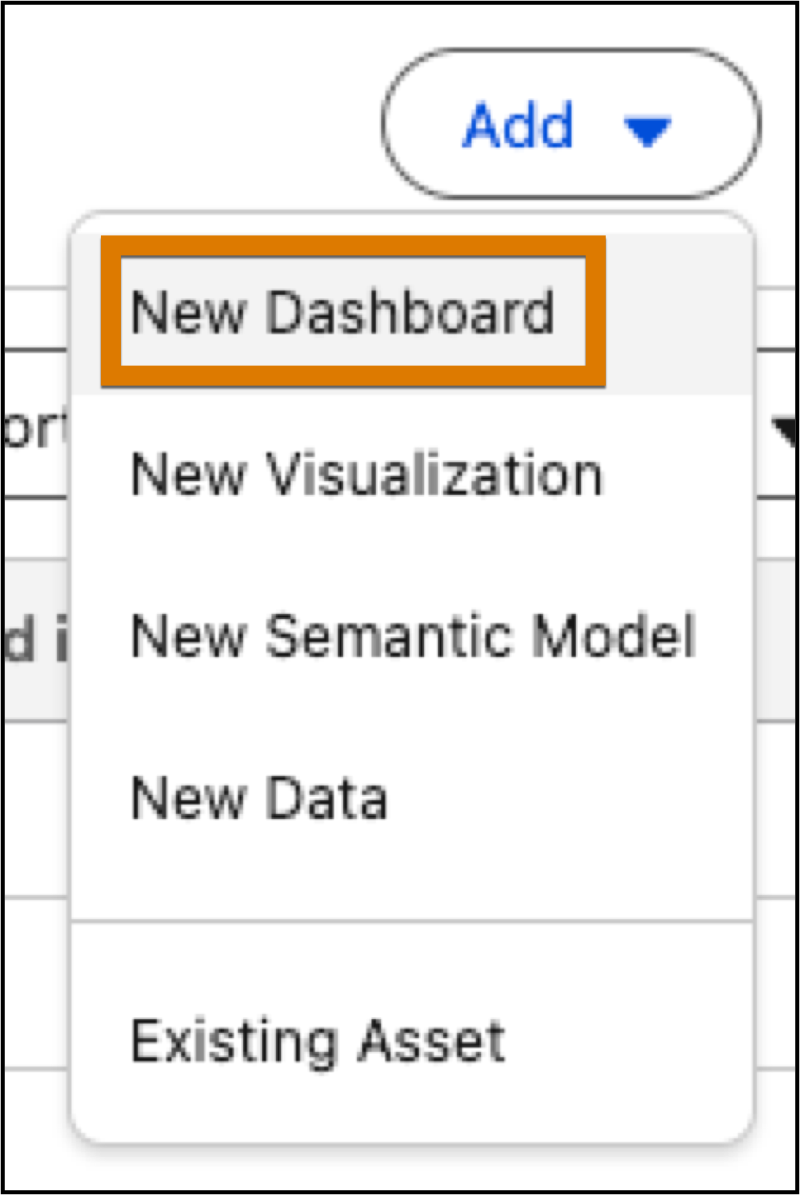
Or, from a workspace, click Add, and select New
Dashboard.
-
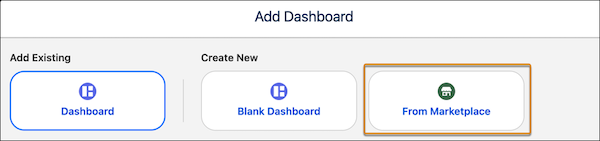
To view dashboard templates, select From Marketplace.
-
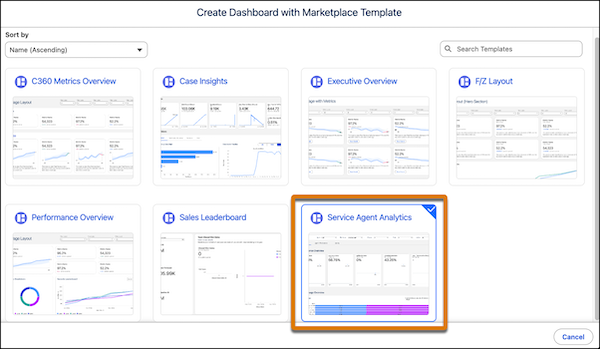
Select the Service Agent Analytics template tile, and click
Next.
- View the template details and click Next.
- Select the data space for the semantic model.
- Click Create Dashboard to start the installation process.
The template checks your org to make sure that all prerequisites and permissions are set up correctly to install the dashboard. If the template validation is successful, the installation process begins. If it fails, you’re provided with a list of errors to resolve.