Format the dashboard and its widgets to create a consistent user experience.
Required Editions
| View supported editions. |
| User Permissions Needed | |
|---|---|
| To edit Tableau Next dashboards: | Tableau Unmetered Platform Analyst or Tableau Next Platform Analyst permission set |
Format a Dashboard
To format the dashboard, click Dashboard Properties  to open the properties panel.
Grid Preset
Grid Preset makes dashboard design easier by providing a structured framework that assists with the arrangement of dashboard widgets. Use the available layout patterns to help you achieve a professional appearance while reducing manual adjustments. Layout patterns include:
- Standard is a commonly used, well-structured layout that ensures uniformity across different dashboards.
- Fine organizes information in a smaller space, making it easier to find information.
- Spacious helps make dashboards more visually appealing by providing generous spacing between dashboard widgets.
- Custom offers more flexibility, enabling you to choose how data is presented and arranged.
Additional Layout Properties
The table below provides details on the remaining dashboard properties for fine-tuning the dashboard, ensuring it aligns with user preferences and corporate standards.
|
Property |
Description |
|---|---|
| Search | Locates a dashboard asset. |
|
Maximum Dashboard Width |
Sets the largest width that a dashboard can have. |
|
Minimum Dashboard Width |
Sets the smallest width before a horizontal scroll bar appears. |
|
Dashboard Preview Width |
Previews the dashboard at preset widths so you can check how it looks on narrower screens. |
|
Grid Background Color |
Sets the background color of the dashboard grid. |
|
Gutter Color |
Sets the color between widgets in a dashboard. |
|
Widget Background Color |
Sets a widget's background color. |
|
Widget Border Color |
Sets the border color around a widget. |
|
Border |
Adds an outline that surrounds dashboard assets. |
|
Border Width |
Sets the thickness of the border around dashboard assets. |
|
Border Radius |
Sets how much curve is applied to the corners of dashboard assets. |
|
Apply to all widgets |
Applies format settings to widgets. |
Control How Widgets Appear on Narrow Screens
To keep the dashboard layout intact when screen space is limited, enter a value in the Minimum Dashboard Width field on the Style tab. When the screen is narrower than that width, a horizontal scroll bar appears.
To check the layout at common widths, click Dashboard Preview Width and select a preset.
To keep long text contained, select a text widget and use the Overflow and Text Wrapping menus.
Page links in a navigation widget automatically move into an overflow menu when they don’t fit. To show navigation as a compact list, change the navigation widget display to a dropdown menu.
Organize Dashboard Widgets
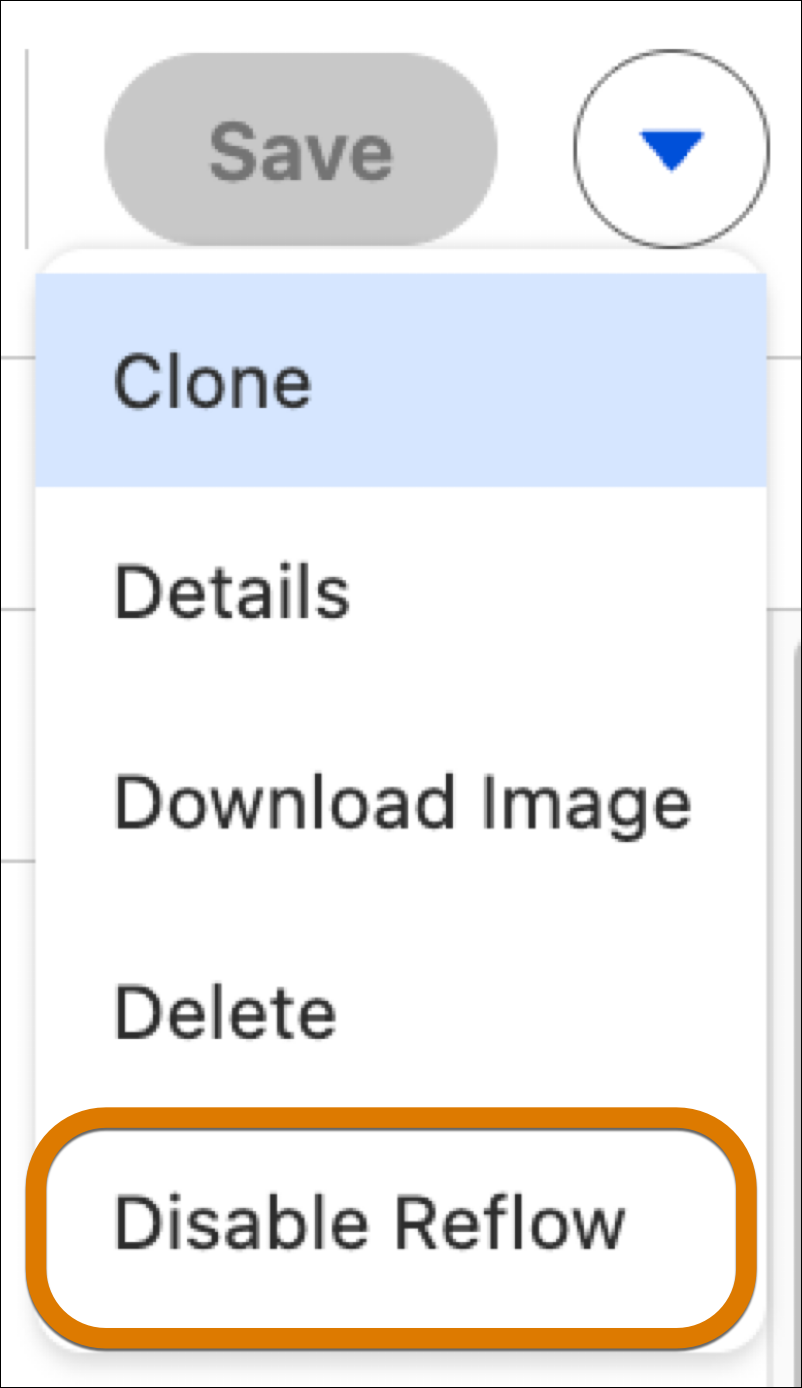
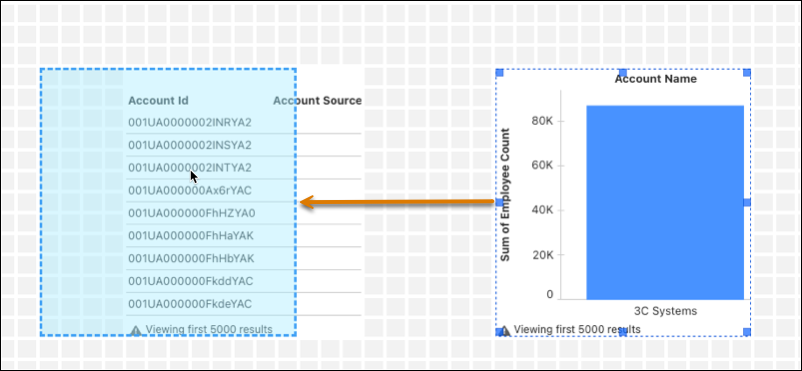
Use Reflow to automatically shift and reposition widgets without manual reorganization. To disable Reflow, select Disable Reflow from the dropdown menu.
Move a widget to the desired location. Surrounding widgets automatically adjust their position to accommodate the new placement.
Format a Widget
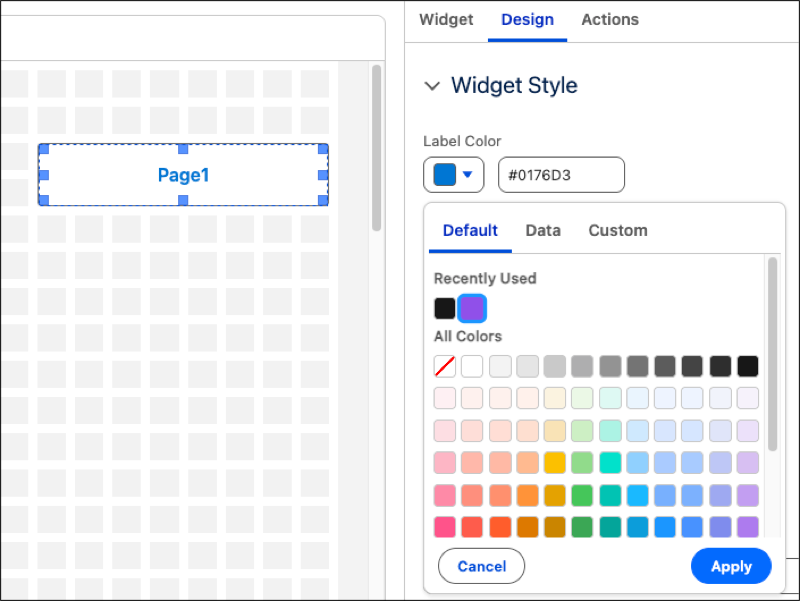
To adjust content and appearance in widgets, use the Widget and the Design tabs in the properties panel. For example, go to the Design tab to customize widget colors that highlight data progress and status or to apply brand colors.

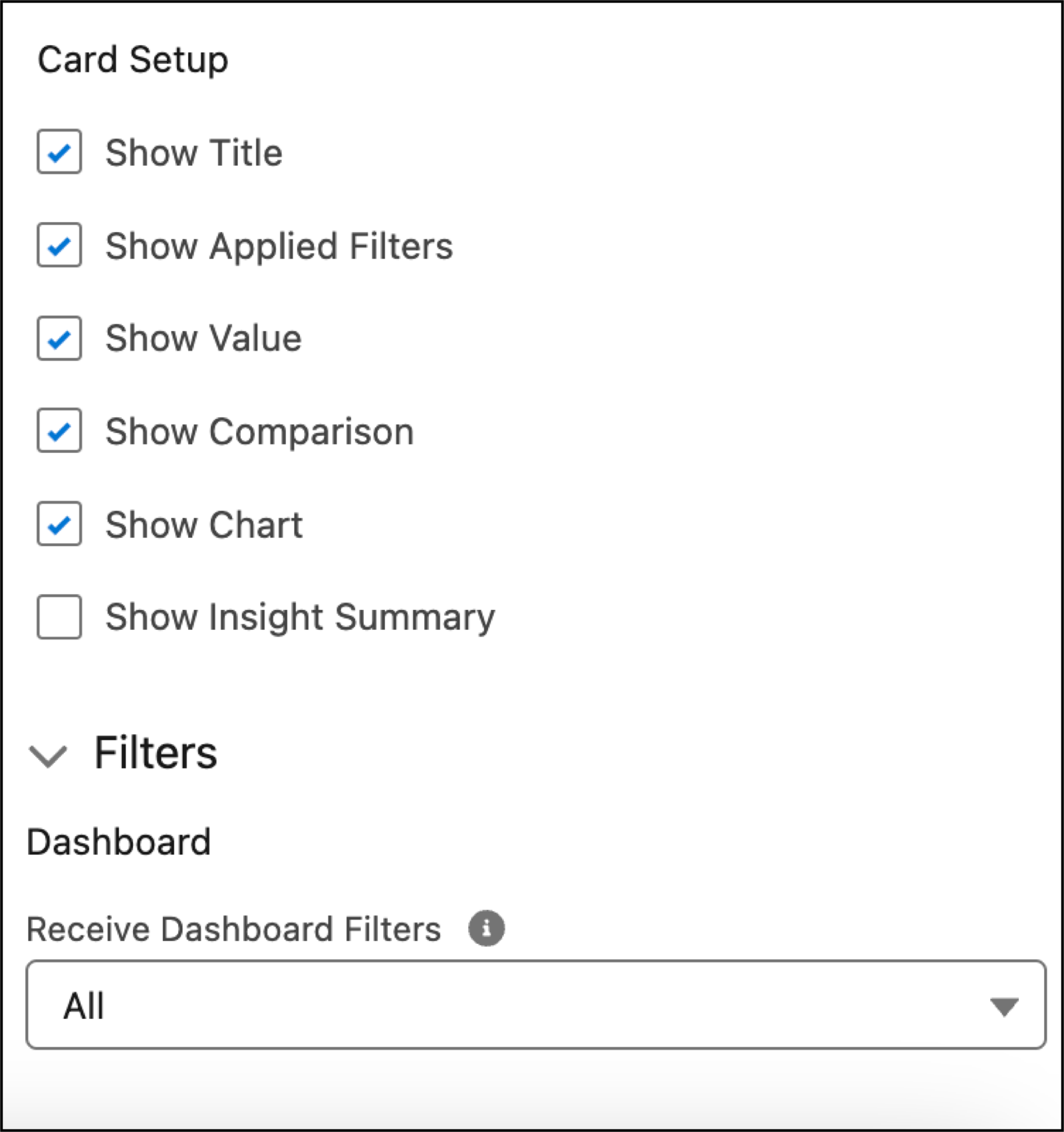
Go to the Widget tab and find Card Setup to select metric widget content.