
The Tableau Next Case Insights dashboard template provides insights to track and optimize the total case volume across different origins and times. It highlights case escalations and resolutions. The dashboard is designed for service teams, delivering real-time insights.
Required Editions
| View supported editions. |
| User Permissions Needed | |
|---|---|
| To view Marketplace templates: | Tableau Unmetered Platform Analyst or Tableau Next Platform Analyst permission set |
| To install semantic models in Data 360: | Data Cloud Architect permission set |
| To install and view Service Insights: | Service Cloud with the Service Insights App license |
This template requires:
- Customer 360 Data Model installed in Data 360
- Service data kit and Service data bundle installed in Data 360
- Service DMOs: Account, Agent Service Presence, Agent Work, Case, Category, Knowledge Article, Knowledge Article Category, Knowledge Article Engagement, Knowledge Article Version, Linked Knowledge Article, Service Presence, Survey, Survey Invitation, Survey Question, Survey Response, Survey Subject, Survey Version, User, and User Group.
This template is designed to work with the Service Insights DMOs, mapping your service data into valuable visualizations.
-
On the Tableau Next home page, select Marketplace.
- In the Search box, enter Insights, and select the Case Insights tile.
-
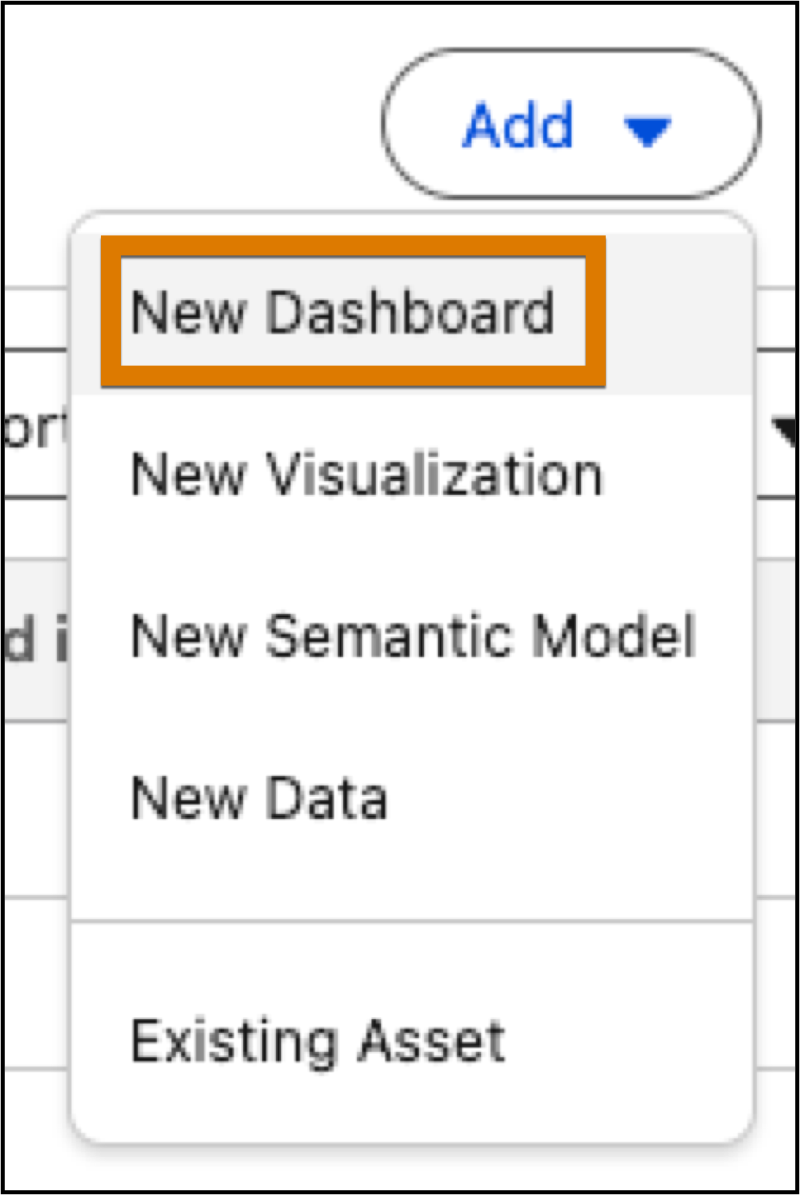
Or, from a workspace, click Add, and select New
Dashboard.
-
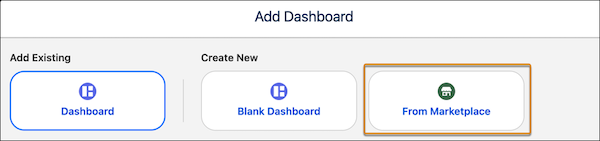
To view dashboard templates, select From Marketplace.
-
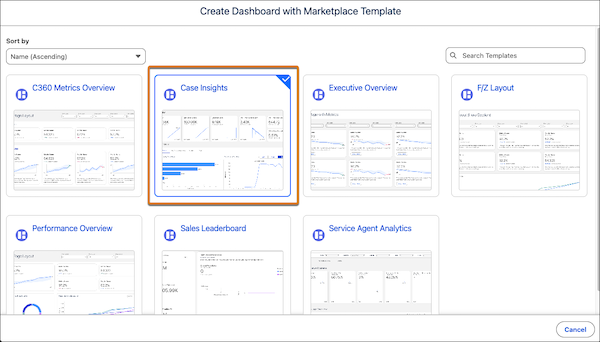
Select the Case Insights template tile, and click Next.
- View the template details and click Next.
- Enter the hourly cost for your service agents in dollars.
- Click Create Dashboard to start the installation process.
The template checks your org to make sure that all prerequisites and permissions are set up correctly to install the dashboard. If the template validation is successful, the installation process begins. If it fails, you’re provided with a list of errors to resolve.