Create a data journey for your users by turning your static Tableau Next dashboard into
an interactive experience with single-click actions that lead to detailed pages or initiate
Salesforce Flows. For example, use actions to add dynamic navigation to guide sales managers from a summary dashboard to pipeline details, progressively revealing more detailed information.
Required Editions
| User Permissions Needed |
| To edit Tableau Next dashboards: |
Tableau Unmetered Platform Analyst or Tableau Next Platform Analyst permission set |
Use a button or container widget to initiate a Salesforce action or link to other
elements such as another dashboard or URL.
-
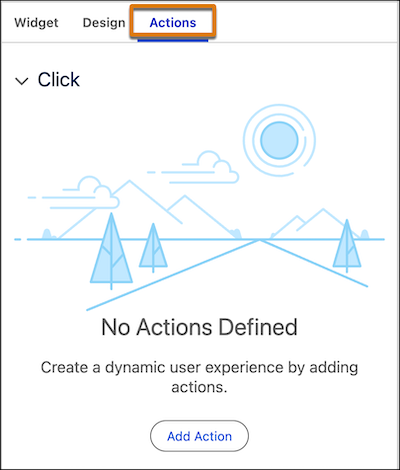
On the widget properties panel, go to the Actions tab.
-
In the action panel, click Add Action.
-
Select the action type and configure the action.
-
Click Done
-
Add more actions or remove actions as needed.
Only 1 Salesforce flow action can be added per widget, but a widget can have multiple
navigation actions.
-
Save your dashboard.
When adding actions to your dashboard, remember that not all users have the same access levels.
Make sure users have permissions to view other dashboards, URL destinations, and to execute
Salesforce flows.
- Add a Navigation Action to a Dashboard
Add a Navigate To action to a widget to guide your users to relevant URLs or other Tableau Next dashboards and dashboard pages with detailed information on the selected data.
- Add a Salesforce Flow Action to a Dashboard
Add a Salesforce Flow action to a widget to execute flows using the Tableau Next dashboard context. Flows empower your users to seamlessly create follow-up tasks, dispatch reminder emails, or refresh records directly from their dashboard insights. For example, add a flow action that lets sales reps create a follow-up task directly from a dashboard widget showing at-risk opportunities.