
App templates bundle assets from one or more Tableau Next workspaces so you can share related insights and data sources.
Required Editions
| View supported editions. |
| User Permissions Needed | |
|---|---|
| To view, create, and edit Tableau Next templates: | Tableau Unmetered Platform Analyst or Tableau Next Platform Analyst permission set |
To create an app template in Tableau Next, start from an existing workspace or from the Templates page.
Create a Template from a Workspace
- In Tableau Next, open the workspace you want to use for the template.
-
In the workspace menu, click Generate Template.
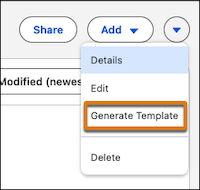
The generated template contains all supported workspace resources. If an unsupported resource is present in the workspace, the process notifies you and creates the template without that resource.
Create a Template from the Templates Page
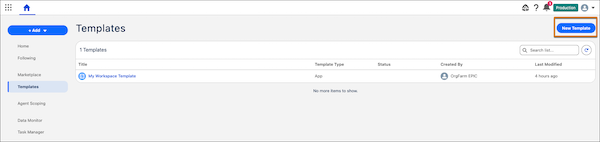
Use the Template Builder
-
Enter a name for your template.
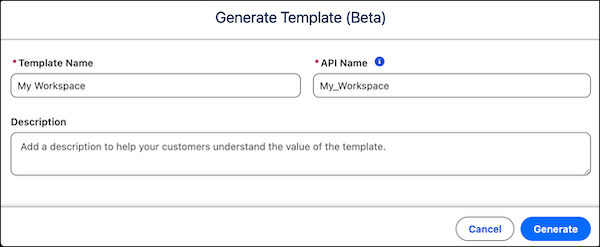
- Click Generate.
-
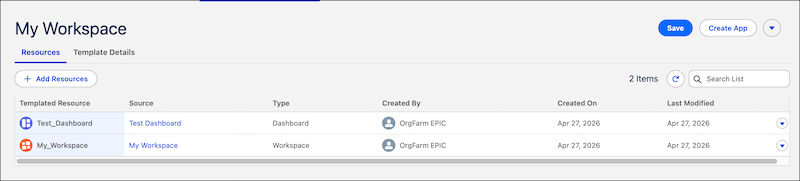
Review the resources on the Resources page.
-
Click Add Resources to add resources to your template.
-
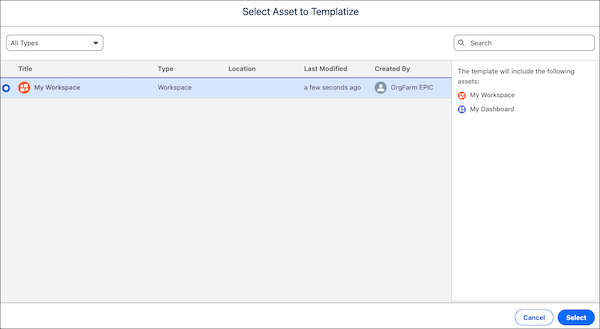
Select one or more assets from the list to add as resources to your template.
Supported asset types include workspaces and semantic models. Workspaces can include dashboards, visualizations, metrics, and semantic models.
 Note Data 360 data lake objects and data models objects aren’t supported.
 - To add the assets, click Add.
-
Click Add Resources to add resources to your template.
-
To add details to your template, open the Details page.
The template details include name, version, description, highlights, and tags for target audience and industries. Add up to 5 preview images to showcase your template features.
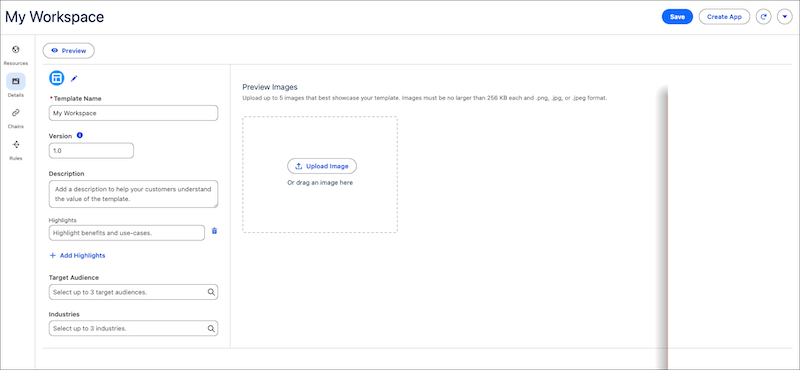
- To see how the template appears to users, click Preview.
- Save the template to share it with other users.
-
To test the template, click Create App.
This action installs your template as an app, where you can verify that the template creates assets successfully.
After your template is created, you can add more functionality by creating rules, variables, and a configuration wizard. For more information on additional functionality, see the App Template Developer Guide.