Edit reports faster by turning off automatic preview updates. When off, you can make
multiple edits without waiting for the preview to refresh after each edit. When you’re ready
to preview data, manually refresh the report preview. Or, see sample records returned after
each edit by keeping automatic previews on.
Required Editions
| Available in: Lightning Experience |
| Available in: Essentials,
Group, Professional,
Enterprise, Performance,
Unlimited, and Developer
Editions
|
| User
Permissions Needed |
| To turn automatic updates to the report preview on or off while
editing a report saved in a private folder: |
Create and Customize Reports |
| To turn automatic updates to the report preview on or off while
editing a report saved in a private or public folder: |
Report Builder OR Report Builder (Lightning Experience) |
To turn automatic preview updates on or off flip the Update Preview
Automatically switch on or off.
-
Edit or create a report.
-
Click Update Preview Automatically. The switch switches
on or off.
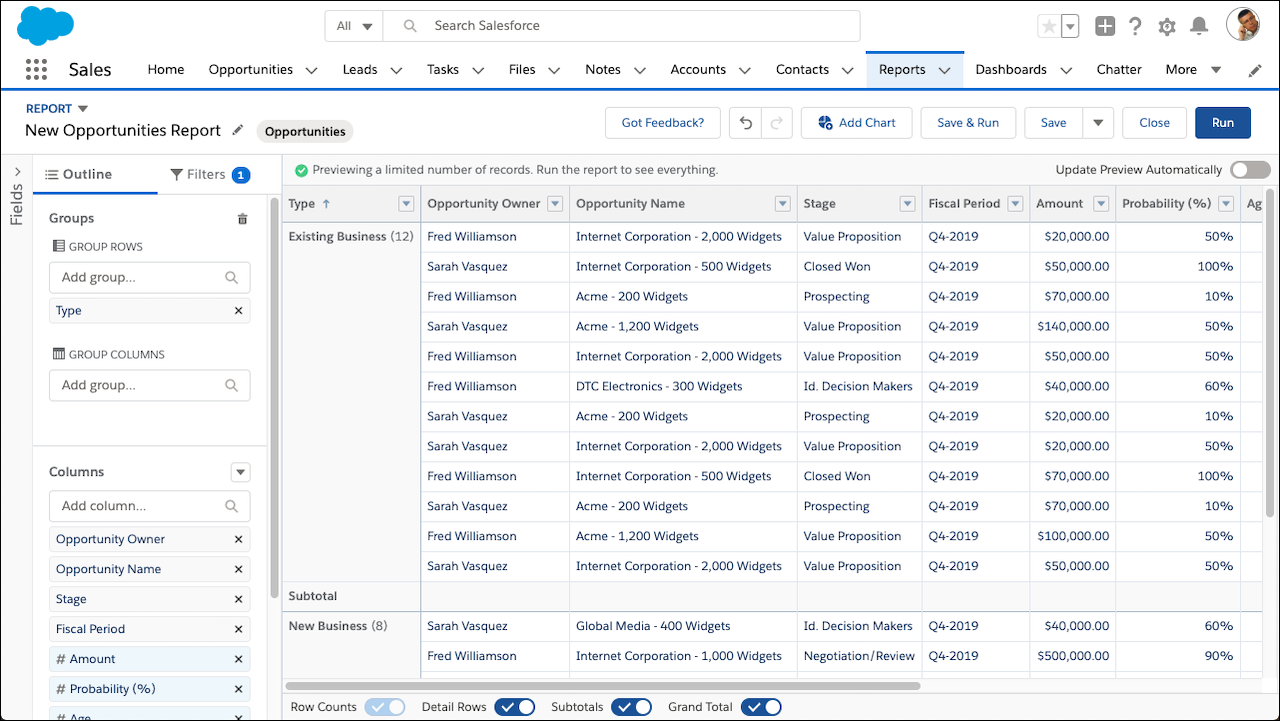
When on, the report preview updates automatically after each edit you make to
the report.
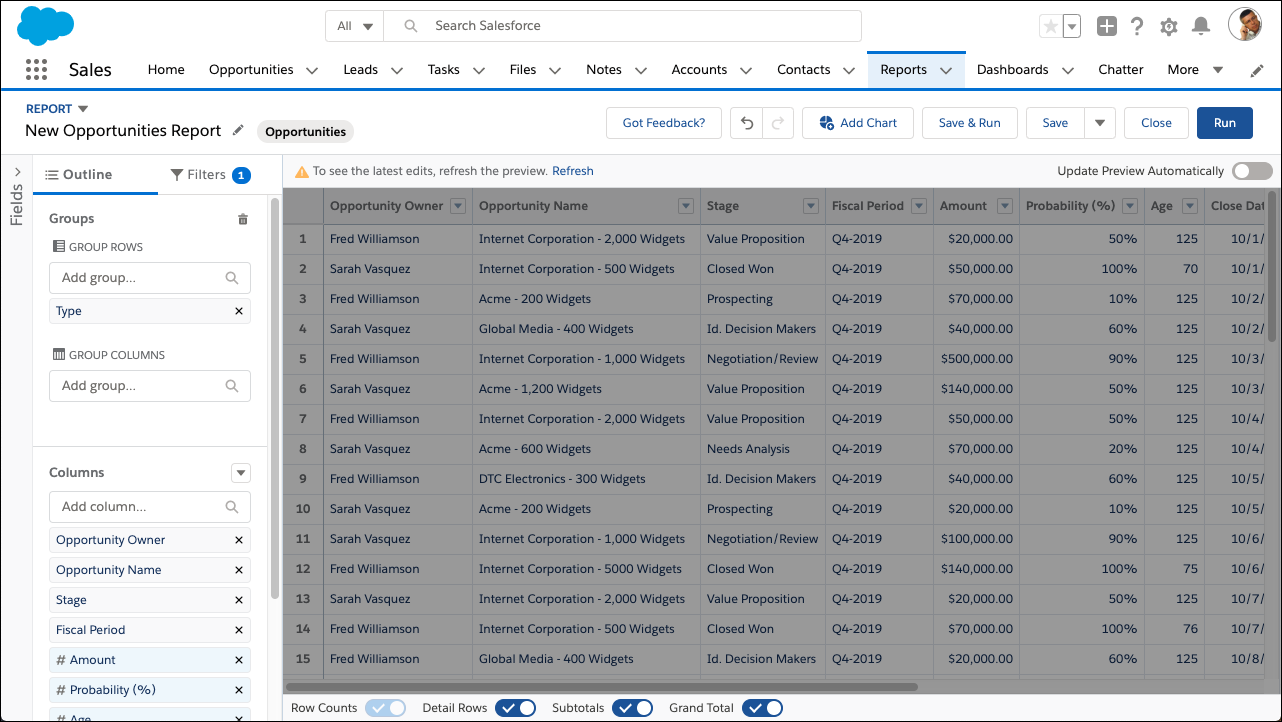
When off, a message tells you whether the preview shows your most recent
edits and provides the option to refresh the preview. When hiding recent
edits, the preview turns gray.
-
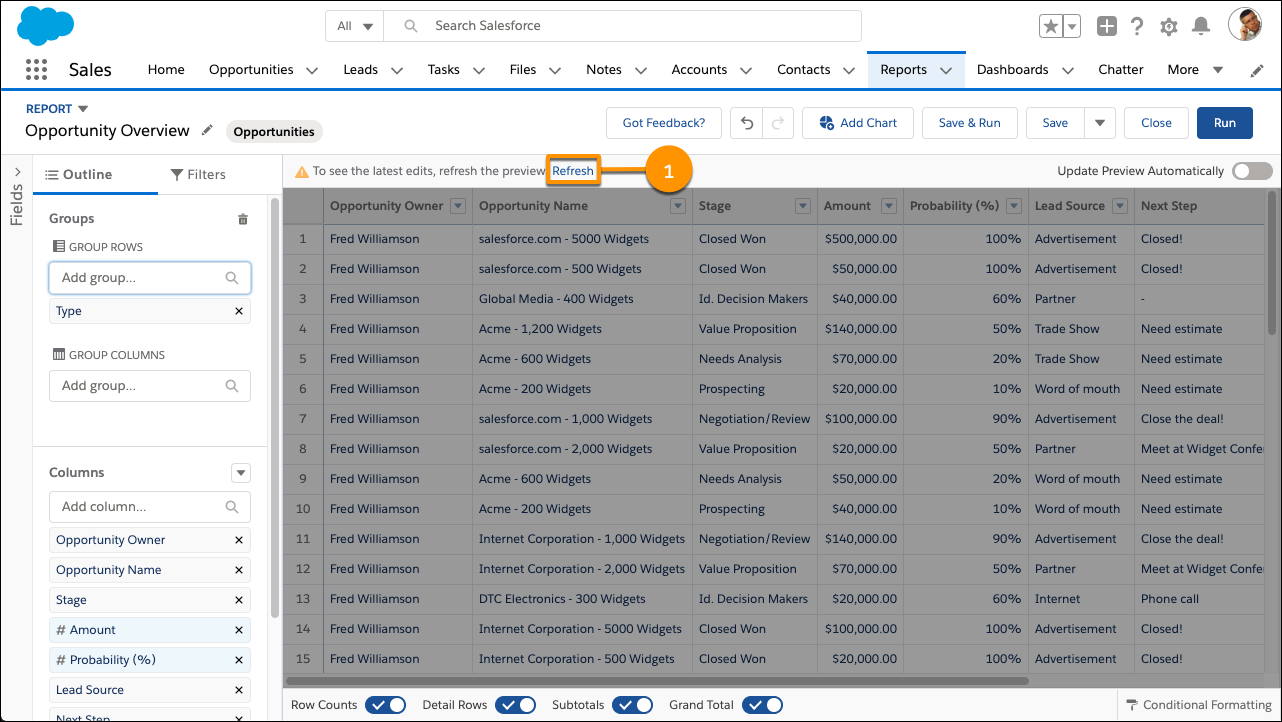
To refresh out-of-date data, click Refresh (1).
The preview reloads to show your edits.
The Update Preview Automatically switch doesn’t affect the
report run page.