
To embed a report chart on object pages, edit the object’s page layout with the enhanced page layout editor, then add the chart.
Required Editions
| Available in: Salesforce Classic and Lightning Experience |
| Available in: Essentials, Group, Professional, Enterprise, Performance, Unlimited, and Developer Editions |
| Available in: Enhanced Folder Sharing |
| User Permissions Needed | |
|---|---|
| To create, edit, and delete reports: |
|
Before you add a chart, check that:
- Its source report is in a folder that’s shared with users who need access. Reports in personal report folders are unavailable to add to a page.
- The source report format is summary or matrix.
- The source report has a chart.
- Go to the page layout editor for the object that you’re adding a chart to.
- Click Edit next to the page layout.
-
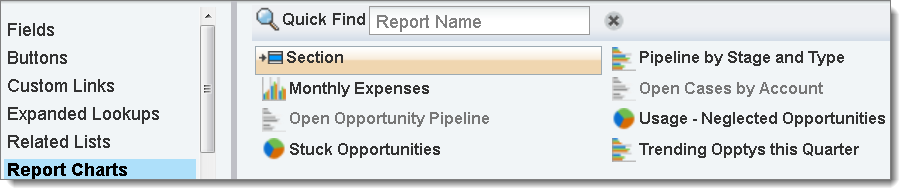
Click Report Charts.
-
In the Quick Find box, type the name of the report and click
 to find and select the
report chart.
You can browse up to 200 recently viewed reports by chart type in the Report Charts palette.
to find and select the
report chart.
You can browse up to 200 recently viewed reports by chart type in the Report Charts palette. - Drag the chart to a new or existing section of the layout.
- To customize a chart, click the wrench icon on the chart.
-
Click Save.
The Preview As option is unavailable for report charts.