
Give your partner users direct access to a Lightning report by embedding it on your Lightning Web Runtime (LWR)-based Experience Cloud site. In Experience Builder, add the Lightning Report component to a page, select the report, and publish the site.
Required Editions
| Available in: Lightning Experience |
| Available in: Enterprise, Performance, Unlimited, and Developer Editions |
| User Permissions Needed | |
|---|---|
| To access Experience Builder and add the Lightning Report component to an LWR site | Create and Set Up Experiences |
| To view the report on the published LWR site | Run Reports and Customize Application |

Note Lightning Reports in LWR Experience Cloud Sites is a pilot or beta service that is subject
to the Beta Services Terms at Agreements - Salesforce.com or a written Unified Pilot
Agreement if executed by Customer, and applicable terms in the Product Terms
Directory. Use of this pilot or beta service is at the Customer’s sole
discretion.
- From Setup, in the Quick Find box, enter Reports and select Reports and Dashboards Settings.
- Select Show Lightning reports in Lightning Web Runtime (LWR)-based Experience Cloud sites (Beta).
- From Setup, in the Quick Find box, enter Digital Experiences, and then select All Sites.
- Click New and create an LWR site in Experience Cloud.
- Under My Workspaces, click Builder.
-
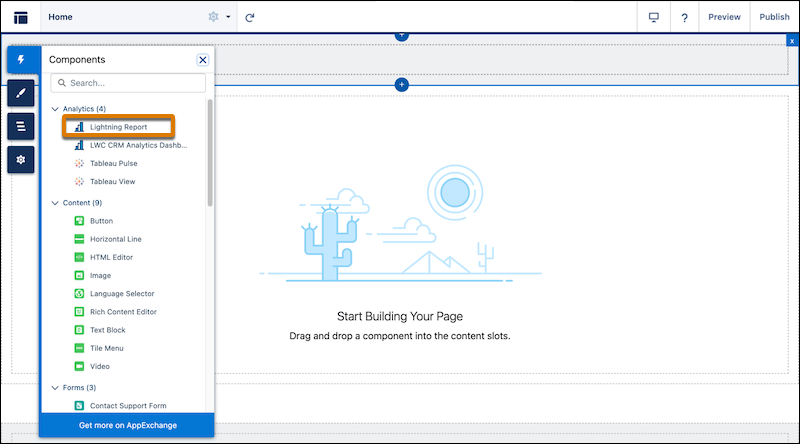
In Experience Builder, from Components, drag the Lightning Report
component to the desired location on the LWR page.
-
Select the Lightning report component and enter the report ID.
The report ID is the 18-character code beginning with 00O that is found in the URL when viewing a report.
- To publish your LWR site, click Publish.
Note To view report charts and data on the published site, partner users must have viewer access
to the report folder. They must also have read access to the objects and fields used by the
report.