To gain insight into your deals, use bucketing to group
by deal size instead of looking at individual deals. This lets you
concentrate on the large deals that affect your quota the most.
Required Editions
| Available in: Salesforce Classic and
Lightning Experience |
| Available in: Enterprise, Performance, Unlimited, and
Developer Editions
|
| Available in: Enhanced Folder Sharing and Legacy Folder Sharing |
| User Permissions Needed |
| To create, edit, and delete reports: |
- Legacy Folder Sharing
- Create and Customize Reports
AND
Report Builder
- Enhanced Folder Sharing
- Create and Customize Reports
AND
Report Builder
|
-
Create or edit a standard opportunity report.
-
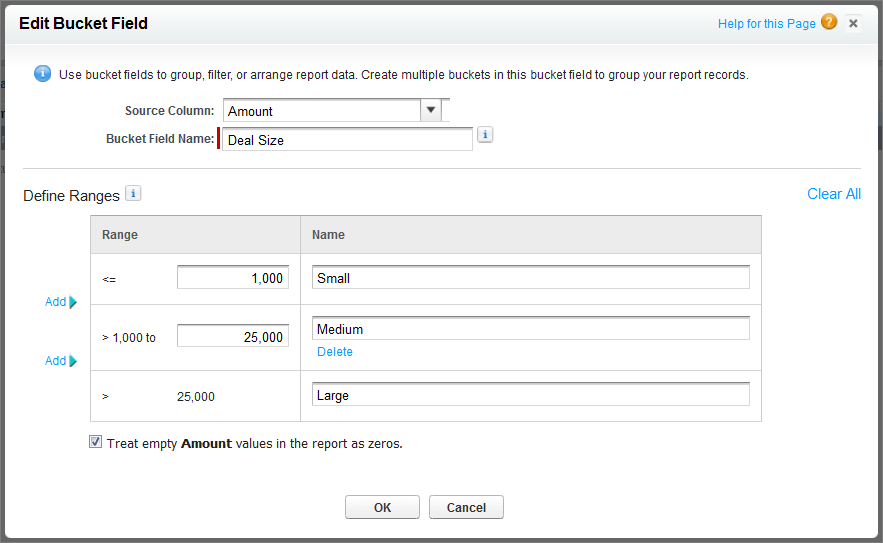
In the Fields pane of the report builder, double-click Add Bucket Field or drag it into the report.
-
For Source Column, select Amount.
-
For Bucket Field Name, enter Deal Size.
-
Under Define Ranges, enter 1000 in
the first row. This represents the maximum for a small deal. Name
this range Small.
-
Click Add and enter 25000 in the second row. This represents the maximum for a medium-size
deal. Name this range Medium.
-
By default, the last range is any amount over the previous
range. You don’t need to enter a number for this range. Name
this range Large.
-
Click OK.
With numeric bucket
fields, each range is greater than the lower number, up to and including
the higher number. Once you’ve set up this bucket field, amounts
will be bucketed as follows:
| Amounts |
Bucket |
| 1000 or less |
Small |
| 1001 to 25000 |
Medium |
| 25001 or more |
Large |