
Use a report currency to analyze data that contains currency values from multiple countries or business units. Convert currency fields to a single reporting currency so you can accurately compare, sort, filter, group, and summarize records in the same report.
Required Editions
| Available in: Lightning Experience |
| Available in: Data 360 in Enterprise, Performance, Unlimited, and Developer Editions |
Before you begin, complete these prerequisites.
- Set up a corporate currency.
- Turn on multiple currencies in your org. For details on considerations for enabling multiple currencies, see Considerations for Enabling Multiple Currencies.
- Make sure that the currency fields are mapped to the Currency field type in the DMO.
-
Open an existing Data 360 report based on a data model object (DMO), or create a new
one.
-
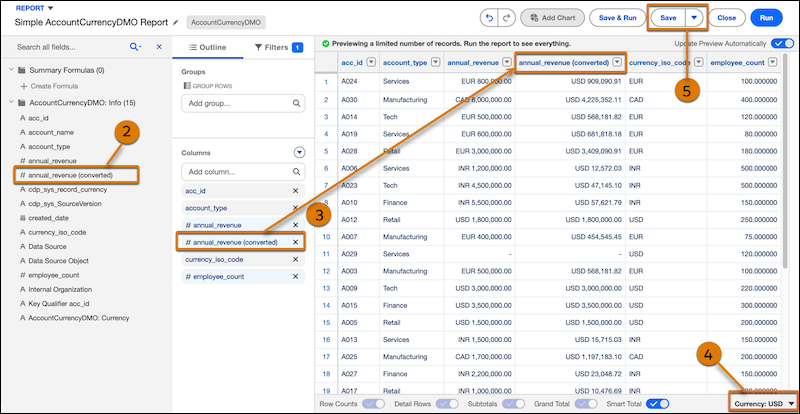
In the report edit mode, click Fields.
The Fields panel displays a converted field for each currency field that’s mapped to the Currency field type in the DMO. If a currency field isn’t mapped to the Currency field type, a converted field isn’t available for that field.
-
From the Fields panel, drag the converted currency field into the Columns
section.
The converted field is added as a column on the right side of the report. Place it next to the corresponding currency field to make it easier to compare the values.
-
Select a report currency from the bottom of the report editor.
The values in the converted currency column are displayed in the selected report currency. If you change the report currency, the converted values are recalculated using the new report currency.
- Save the report.

Example To compare annual revenue across regions, add Annual Revenue (Converted) to the report
and group the report by Region. With the report currency set to USD, the report converts
annual revenue values stored in USD, EUR, GBP, and JPY to USD before calculating regional
subtotals and the grand total.