
Move reports between folders to organize the reports and control access.
Required Editions
| Available in: Lightning Experience |
| Available in: Essentials, Group, Professional, Enterprise, Performance, Unlimited, and Developer Editions |
| Available in: Enhanced Folder Sharing |
| User Permissions Needed | |
|---|---|
|
To create, edit, and delete public report folders: |
Create Report Folders |
| To move reports you created from one folder to another in Lightning Experience: | Edit My Reports |
| To move reports you didn’t create from one folder to another in Lightning Experience: | Manage Reports in Public Folders |
- Find the report on the Analytics tab or Reports tab.
- Select the Move row level action.
- Select the target folder or subfolder.
- Search for folders by name, or select a folder on the left and scroll to find the target folder on the right.
- If you’re looking for a subfolder, continue to navigate to the right if necessary to find the subfolder.
- If you would like to use a new folder for the report, click New Folder. Enter a name for the folder and click Save to create the folder and select it.
- You can use the breadcrumb links above the search box to navigate back to parent folders.
- When you select a folder, the Select button changes to include the folder name.
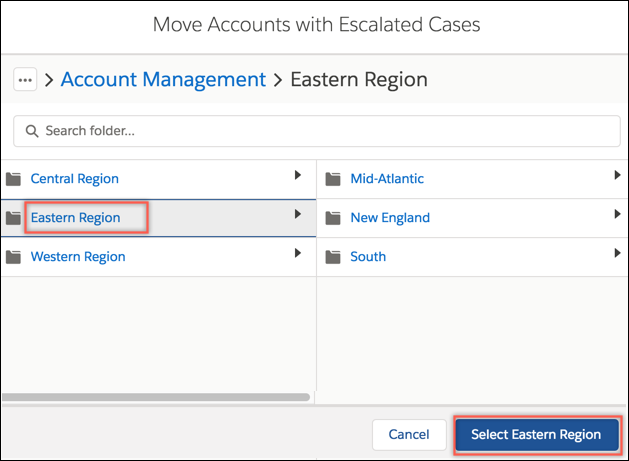
- After selecting the target folder, click the Select button.
The report is moved to the new folder.