
After you install an Intelligent App, you can monitor the install process and manage the app from the Setup page.
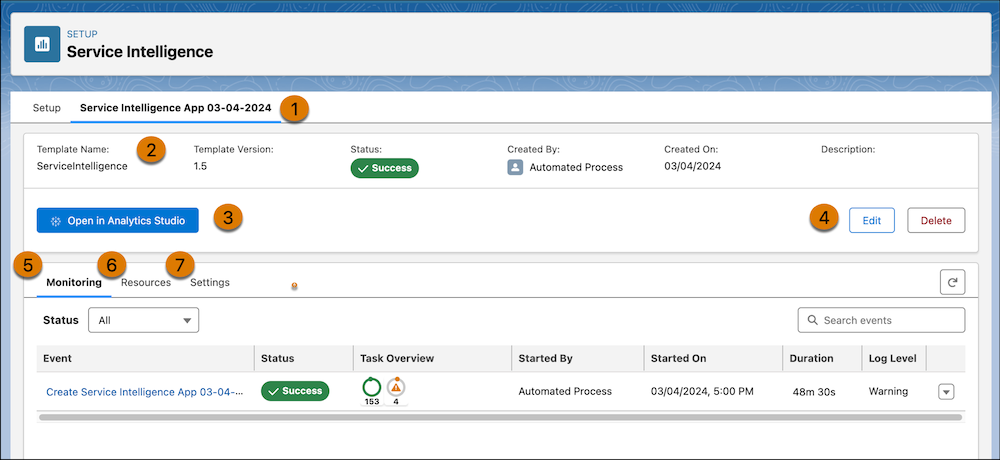
Select the Intelligent App installation you want to manage from the list across the top of the Setup page (1). View details about the app, such as the creation date, version, and status (2). To customize or modify an app, open it in Analytics Studio where applicable (3). Or, click Edit or Delete (4) to remove the app or make minor edits to the name or app details.
To view logs and see details about your installation, click Monitoring (5). To view your app assets, click Resources (6). To manage app settings, such as refreshing the app or scheduling regular app refreshes, or to update the app, click Settings (7).
When an Intelligent App is installing or updating, a progress bar displays the elapsed process time.
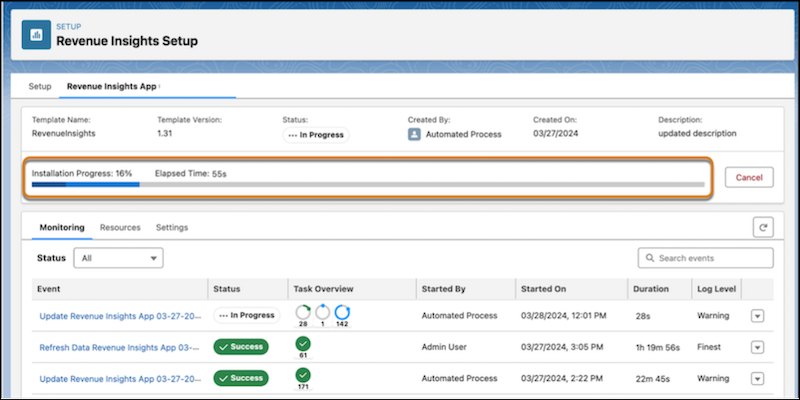
To update the status and progress of the app installation, you can click the
Refresh icon  .
.