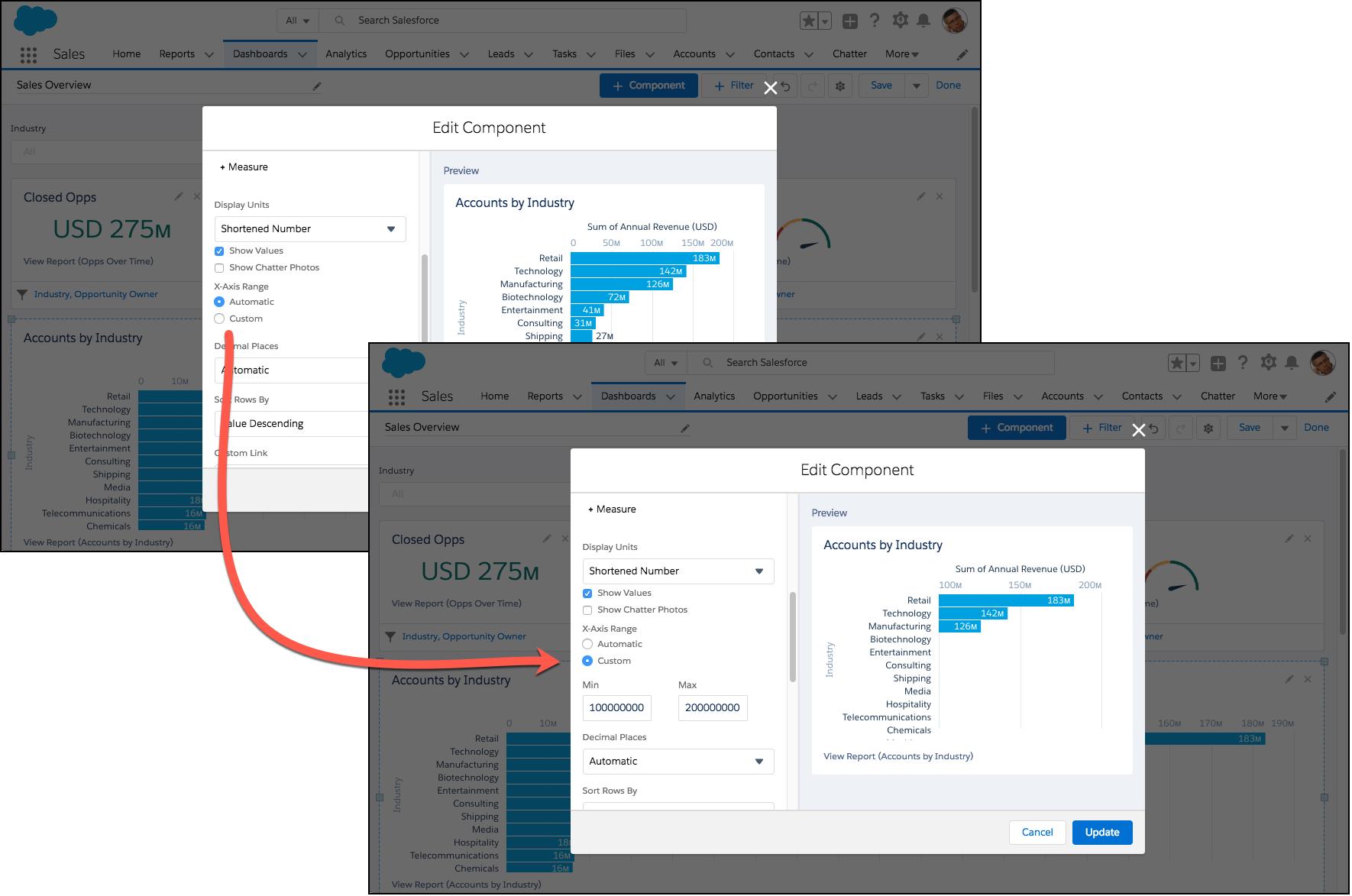
Choose the range of the x- and y-axes on dashboard charts, or let Salesforce automatically set them.
Required Editions
| Available in: Lightning Experience |
| Available in: Essentials, Professional, Enterprise, Performance, Unlimited, and Developer Editions |
| User Permissions Needed | |
|---|---|
| To create dashboards: | Run Reports AND Create and Customize Dashboards |
| To edit and delete dashboards that you created: | Run Reports AND Create and Customize Dashboards |
| To edit and delete dashboards that you created in public folders: | Edit My Dashboards |
| To edit and delete dashboards that you didn’t create in public folders: | Manage Dashboards in Public Folders |
| To create, edit, and delete dynamic dashboards: | Manage Dynamic Dashboards |
Some charts only let you customize the x- or y-axis. For example, horizontal bar charts only let you customize the range of the x-axis. You can only set custom ranges on axes that display a numeric field.
- Edit or create a dashboard.
- Edit a dashboard widget, or add one by clicking + Widget.
- To set the axis range, from X-Axis Range or Y-Axis
Range, select Custom. Then set a minimum range in
Min and a maximum range in Max. To let
Salesforce set the axis range for you, choose Automatic.
 Note Optionally, set only a Min or a Max range and Salesforce chooses the corresponding range.
 - Click Update. (If you're adding a widget, click Add.)
- Click Save.
The dashboard widget displays the data within the range you set.