
Share analytics with colleagues across your Slack workspaces and channels. Recipients can view dashboard details, share, subscribe, view a snapshot of the dashboard with the latest data, and quickly open the dashboard in Salesforce.
Required Editions
| Available in: Lightning Experience |
| Available in: Essentials, Group (View Only), Professional, Enterprise, Performance, Unlimited, and Developer Editions |
| The CRM Analytics for Slack app is available for use where approved by a workspace admin and installed in Slack. |
| Permissions Needed | |
|---|---|
| To use CRM Analytics for Slack: | Connect Salesforce with Slack |
To set up the Post to Slack feature, complete these steps.
- From Setup, in the Quick Find box, enter Slack, and then select Slack Apps Setup.
- At step 2, click Accept to agree to the Terms and Conditions.
- In the left navigation panel, select CRM Analytics for Slack and click Agree and enable Slack integration. For more information, see Enable Salesforce for Slack Integrations.
- Each user must then add CRM Analytics for Slack to their personal Slack sidebar and connect their Salesforce account. See Add Apps in Your Personal Slack Sidebar.
After setting up the feature, the Post to Slack icon appears on Lightning dashboards.
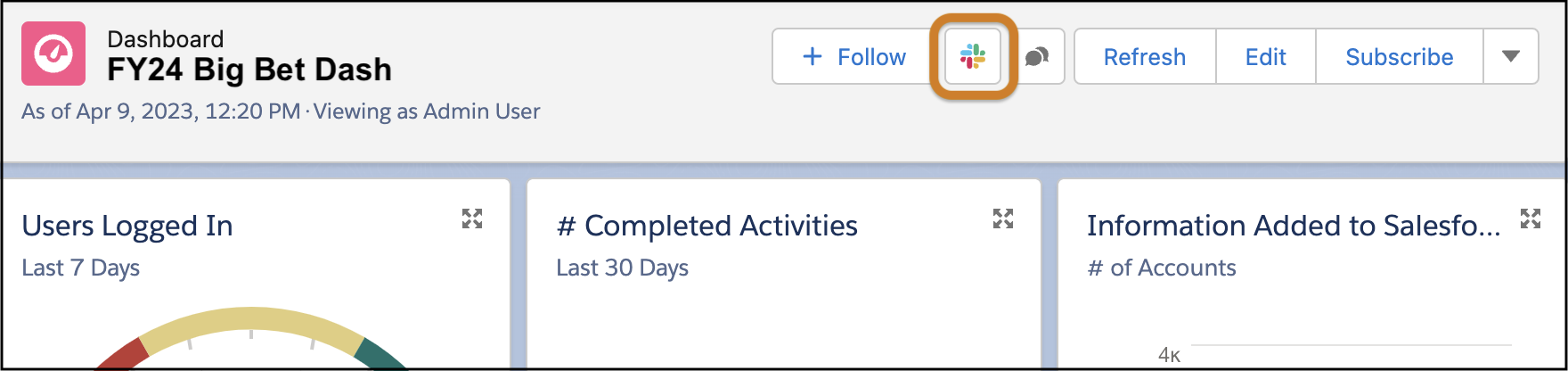
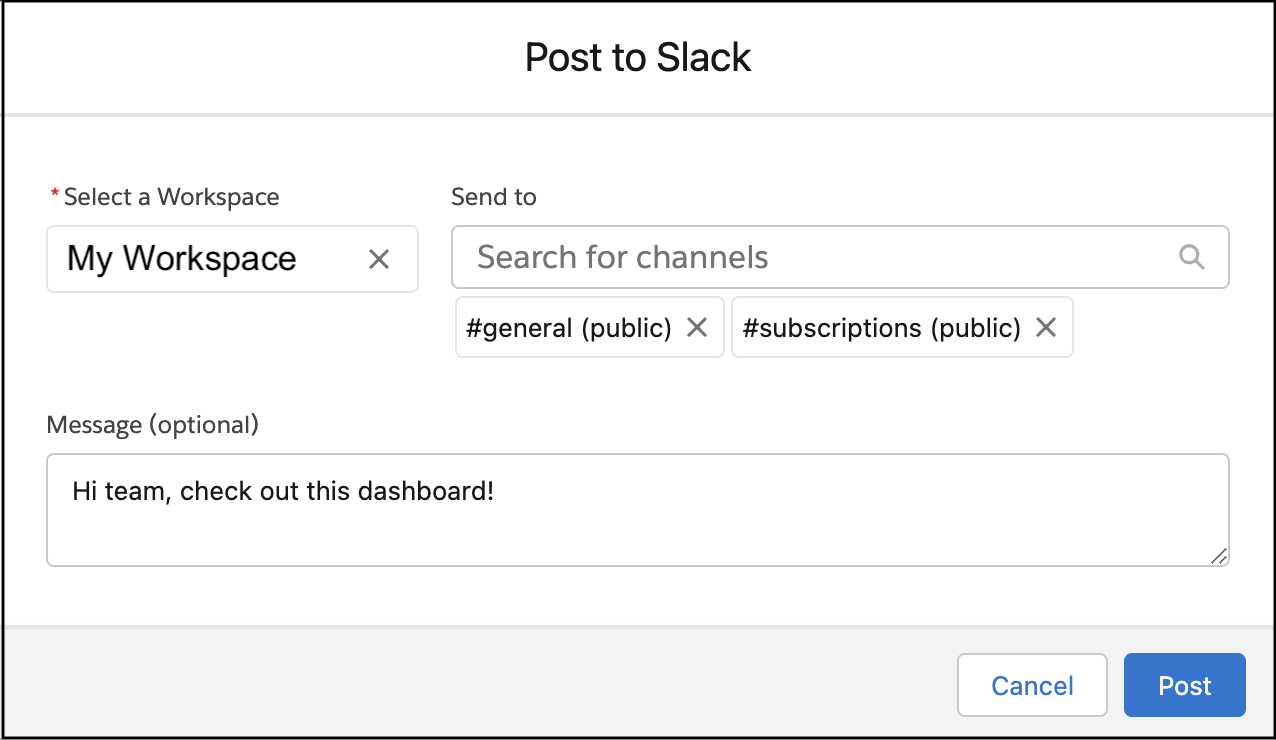
Click the icon to select the Slack workspace and channels where you want to share the dashboard. Optionally, type a message to accompany your post. The maximum number of channels available within the Post to Slack dialog box is 1000.

The post appears in the channels that you selected. Click the dashboard name to go to the dashboard in Salesforce.
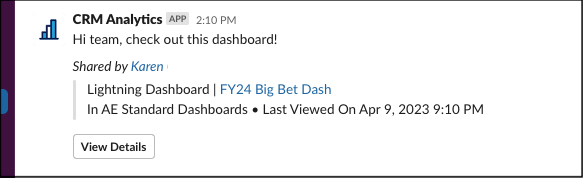
Or click View Details to see more and access the Share, Subscribe, and View Snapshot actions.
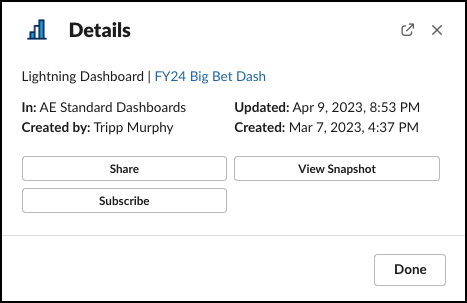
View Snapshot runs the dashboard in the background and creates a screenshot .png file. If you share your snapshot, keep in mind that others can see and share your personal view of your data.