
Use an existing semantic model and extend it to create an extended model. When you create an extended model it stays connected to the base model, and the base model remains the single source of truth. Changes made to the referenced model are automatically added to the composed model, but changes made to the composed model aren’t pushed to the base model.
Required Editions
| Available in: All editions supported by Data 360. See Data 360 edition availability. |
| User Permissions Needed | |
|---|---|
| To create a semantic model: |
Permission set:
AND Semantic Models object |
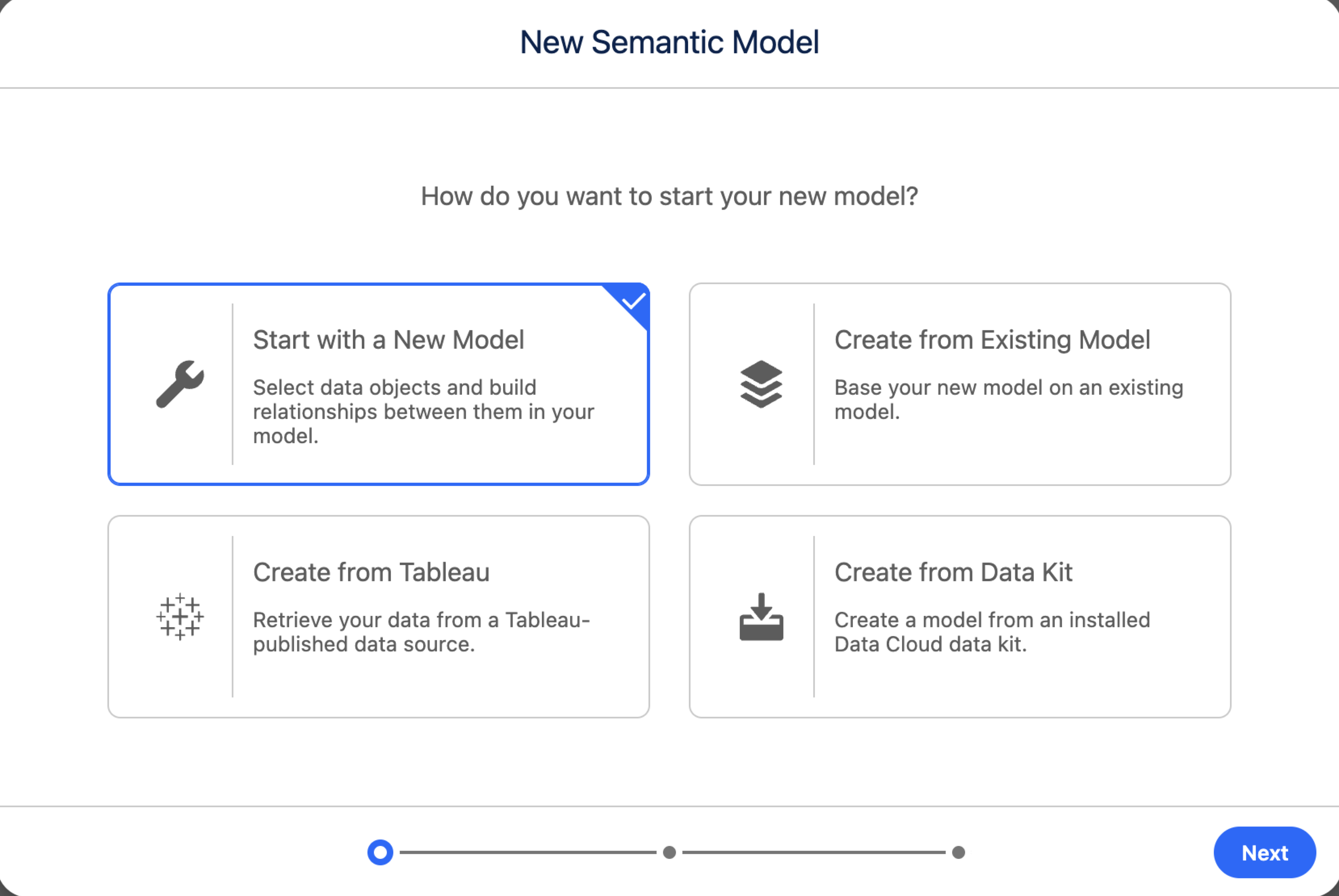
- In Data Cloud, on the Semantic Layer tab, click New Model.
-
Select Create from Existing Model and then click
Next.
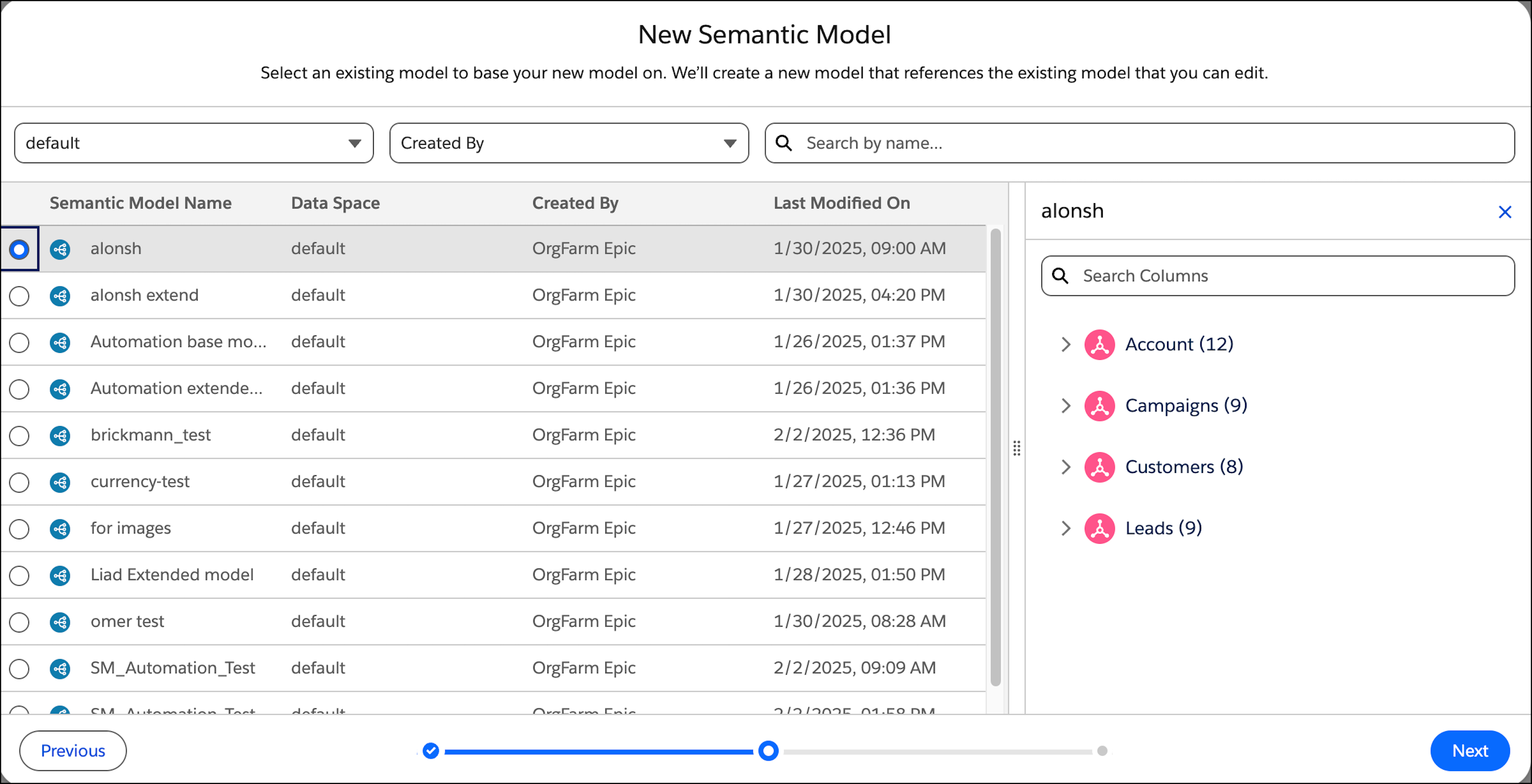
A list of semantic models that you have access to appears.
-
Select the semantic model to use as the base model, and then click
Next.
-
Enter the extended model information.
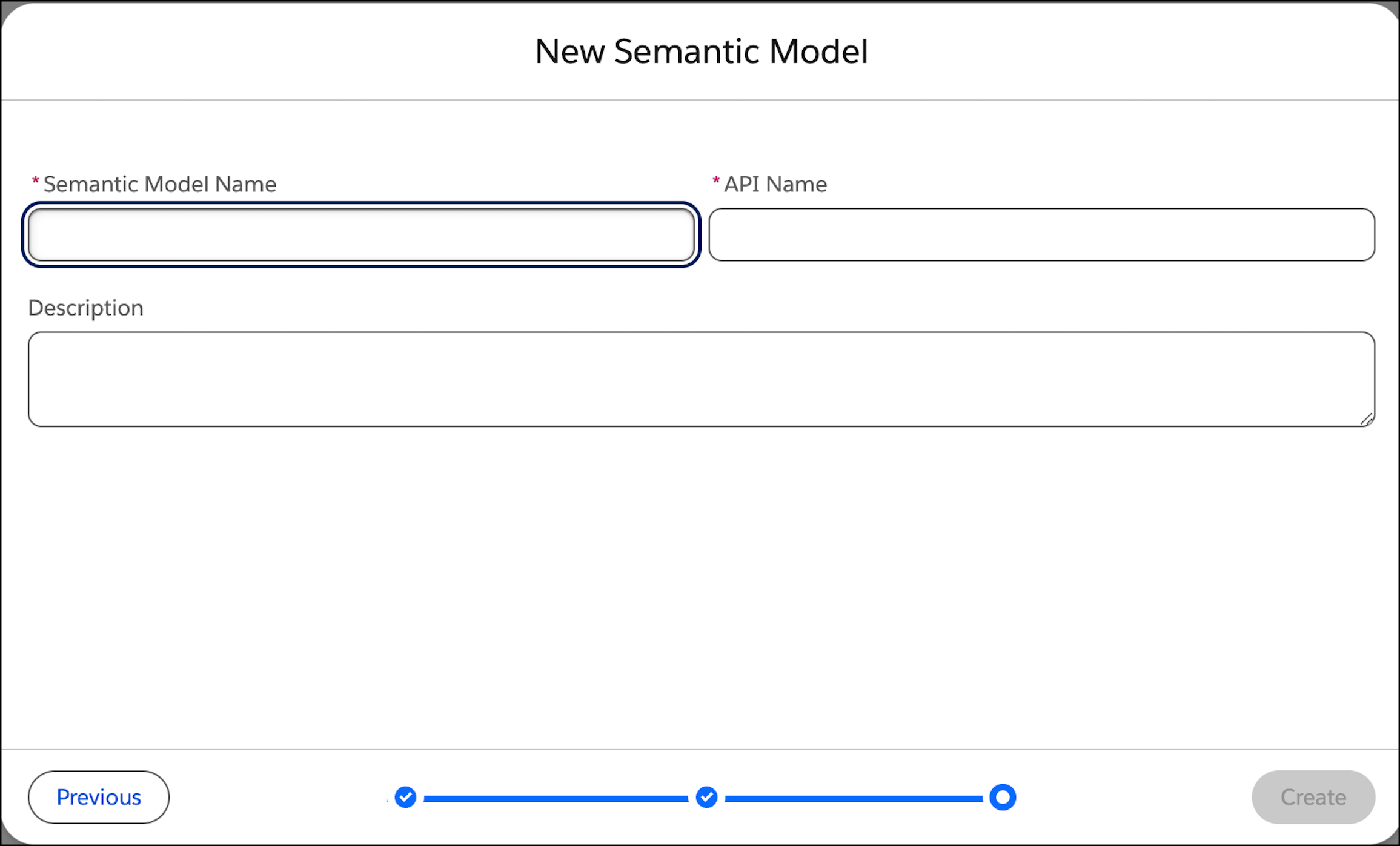
- Give the model a descriptive name and an API name, and enter an optional description. You can’t change the API name after the model is created.
-
Click Create.
After you create an extended model, you can:
- Add new definitions to the extended model independent from the base model.
- Override definitions from the base model to customize semantic definitions.
- Delete the base model to remove all its semantic definitions from the extended model and make it an independent model (a semantic model that's not based on any other model).
- Override Semantic Definitions in an Extended Semantic Model
When you extend a model, the extended model inherits all semantic definitions and their properties from the base model. If you change any property, the updated property is defined as an override. An overridden property is not connected to the base model. As such, your overridden properties are not changed when the base model is updated. Properties without overrides on the other hand, remain connected to the base model data source and receive updates from it, keeping it as the source of truth. If you want to return to the original values, you can always revert the override and resume automatic updates. - Override a Field, Data Object, or Calculated Field Property
Learn how to override a semantic definition property in an extended model. The process disconnects one or more definitions from a base model allowing you to keep the custom definition free from updates to the base model. - Override a Calculated Field or Metric in an Extended Model
Learn how to override a calculated field or metric in an extended model to preserve custom logic across base model updates. When you override a calculated field's formula or properties, or a metric's definition, that field or metric disconnects from the base model and stops receiving automatic updates. - Revert Overrides
Learn how to reconnect semantic definitions to an associated base model. This action reverts the semantic definition back to the current value of the base model. It doesn't delete the extended model. - Add Fields to an Extended Model
In an extended model, you can add standard or custom fields that weren’t originally selected in the base model. You can edit these fields only in the extended model. They aren’t included in the base model.