
Now that you updated the metadata file with the predicate, you can create the dataset.
Required Editions
| Available in Salesforce Classic and Lightning Experience. |
| Available with CRM Analytics, which is available for an extra cost in Enterprise, Performance, and Unlimited Editions. Also available in Developer Edition. |
| User Permissions Needed | |
|---|---|
| To upload a CSV and metadata file: | Upload External Data to CRM Analytics |

Warning If you wish to perform the steps in this sample implementation, perform the
steps in a non-production environment. Ensure that these changes do not impact other datasets
that you already created.
To create the dataset, perform the following steps.
- In CRM Analytics, go to the home page.
- Click Create | Dataset
- Click CSV.
The following screen appears.
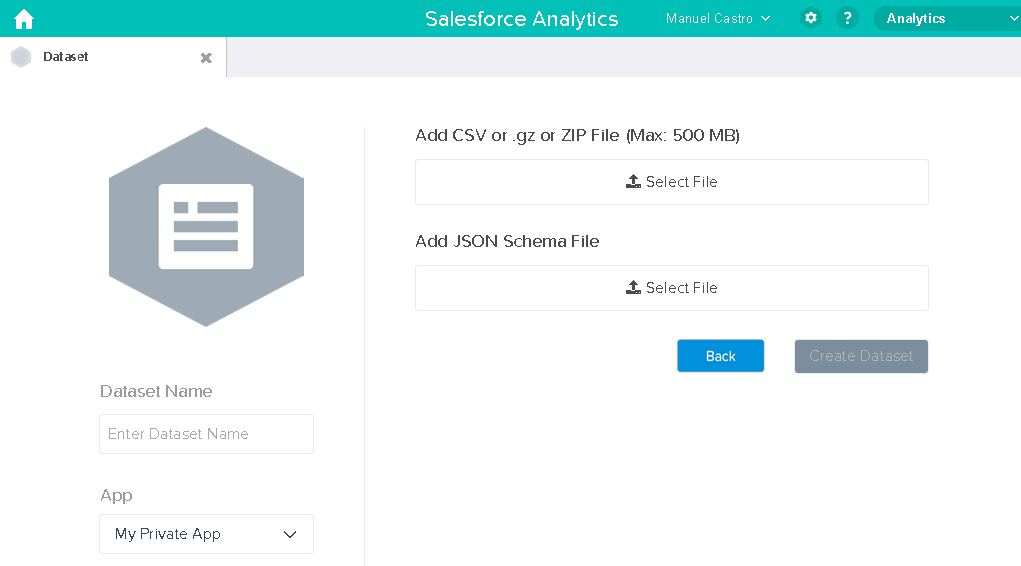
- Select the CSV file and metadata (schema) file.
- In the Dataset Name field, enter “SalesTarget” as the name of the dataset.
- Optionally, choose a different app where you want to store the dataset.
- Click Create Dataset.
CRM Analytics confirms that the upload is successful and then creates a job to create the dataset. You can view the SalesTarget dataset after the job completes successfully.
- To verify that the job completes successfully, perform the following steps:
- Click the gear icon (
 ) and then
select Data Monitor to open the data monitor.
By default, the Jobs View of the data monitor appears. It shows the statuses of dataflow and external data upload jobs.
) and then
select Data Monitor to open the data monitor.
By default, the Jobs View of the data monitor appears. It shows the statuses of dataflow and external data upload jobs. - Click the Refresh Jobs button (
 ) to view
the latest statuses of the jobs.
) to view
the latest statuses of the jobs.
- Click the gear icon (