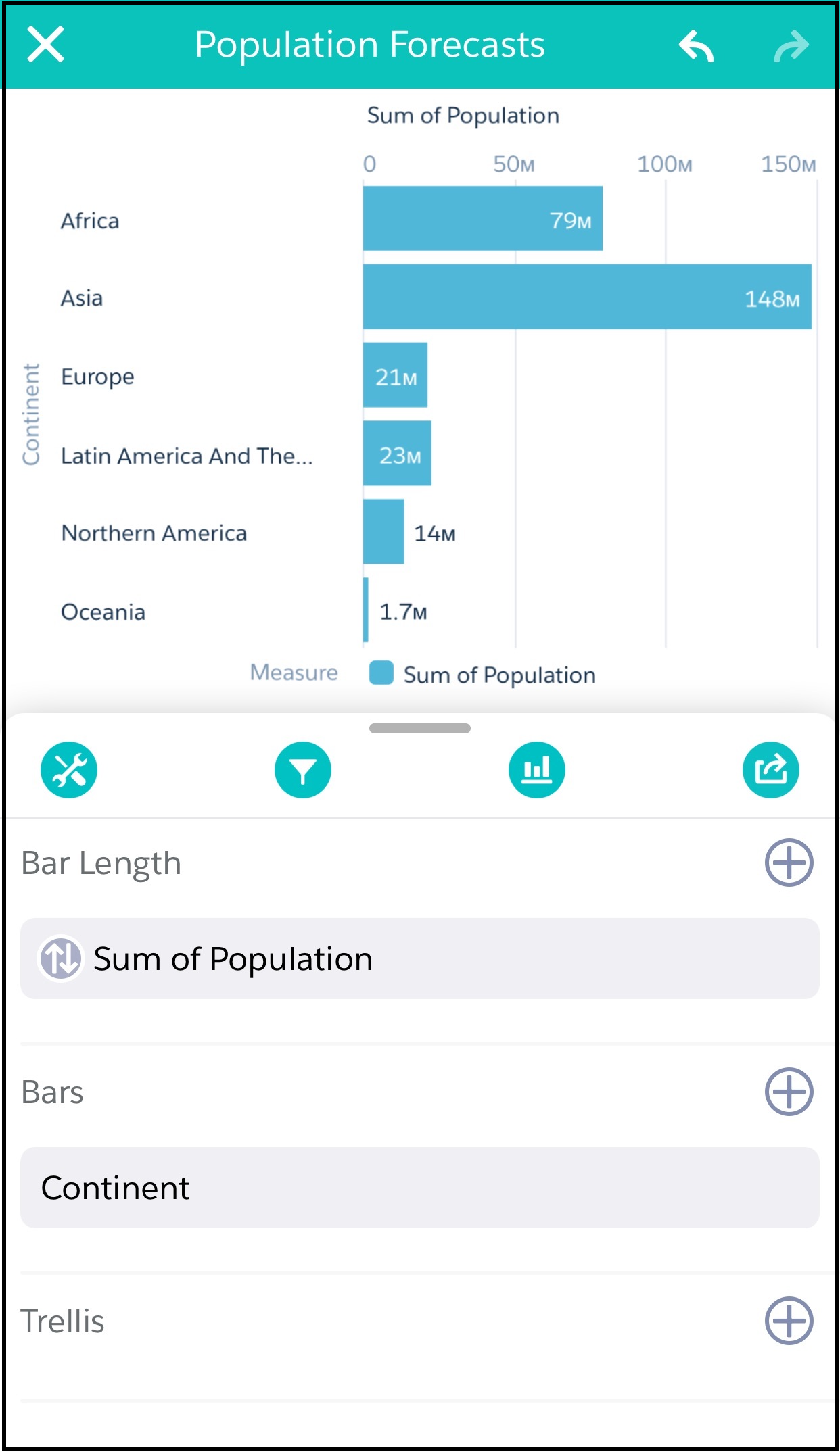
Your choice of measure defines your entire visualization and determines the overall scope of your exploration.
-
While viewing data in a lens, tap
 Build.
-
To change a measure, tap it. To add another measure, tap
 next to the chart
element you want to represent the measure. Note that the chart elements vary for different
charts.
next to the chart
element you want to represent the measure. Note that the chart elements vary for different
charts.
-
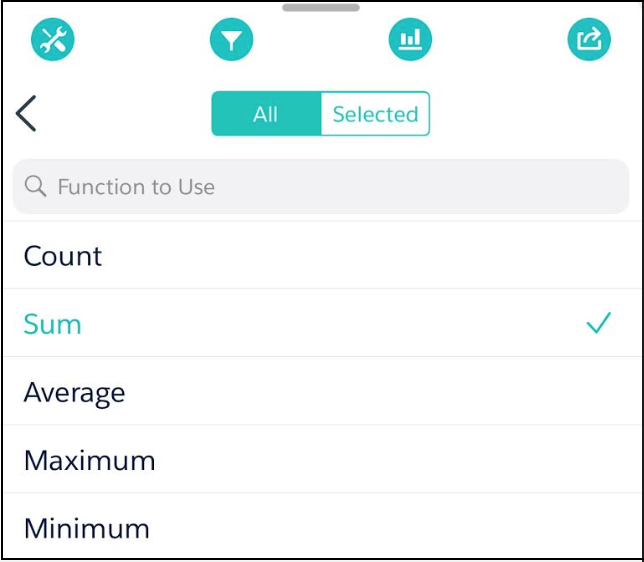
Choose an aggregation function, such as count or sum.
-
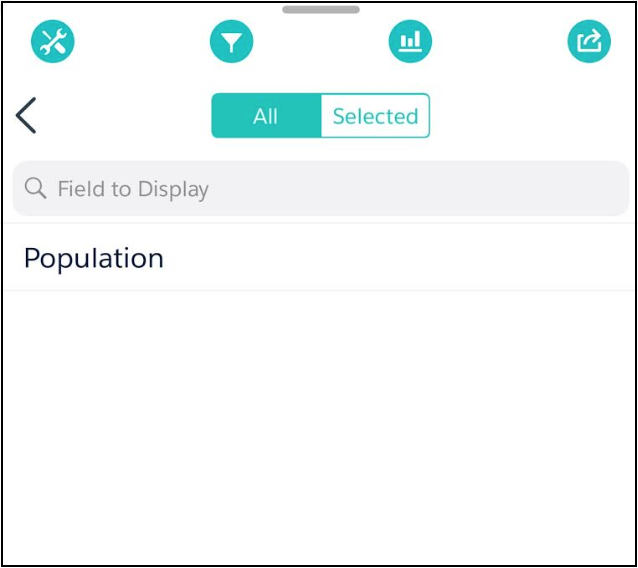
Choose a field or value to aggregate by.
 The dimensions in your dataset determine which categories you can group by.