
To ensure that the latest source data is loaded into datasets, schedule data syncs to pull data into CRM Analytics before the corresponding recipes. You schedule data sync for each connection, where all objects under the connection sync at the specified time, and not individual objects. To sync objects from the same data source on different intervals, create multiple connections to the data source, and set a unique schedule for each connection.
Required Editions
| Available in Salesforce Classic and Lightning Experience. |
| Available with CRM Analytics, which is available for an extra cost in Enterprise, Performance, and Unlimited Editions. Also available in Developer Edition. |
| User Permissions Needed | |
|---|---|
| To schedule sync: | Edit CRM Analytics Dataflows |

- In data manager, click the Connections tab to display the list of objects enabled for sync grouped by connection.
- Click
 to the right
of the connection that you want to schedule, and select Schedule.
The scheduler appears.
to the right
of the connection that you want to schedule, and select Schedule.
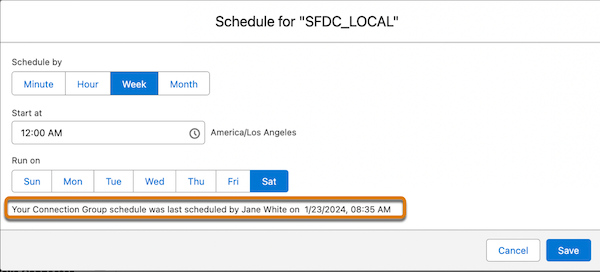
The scheduler appears. - Select the time to run the recipe. You can schedule it to run by minute, hour, week, or month. CRM Analytics runs the data sync according to the time zone of the user who set the schedule.
- If you schedule the recipe to run by minute or hour, select Stop schedule at a specific time to stop the recipe from running after a certain time. For example, to restrict runs to office hours, set a job to start at 8:00 AM, run every hour, and stop at 6:00 PM.
- Click Save. Schedule information for the connection displays in the connection header.
- Set the sync type for each object in the connection.
- Click to the
right of the object that you want to set the sync type for, and select Edit
Connection Mode.
- Choose from the following:
- Incremental Sync updates only rows that changed since the last sync. It’s the fastest option.
- Periodic Full Sync updates rows incrementally and periodically overwrites all rows with records in the Salesforce object.
- Full Sync updates all rows with records in the Salesforce object.Note
The API Type for the connector must be
BULKV2for incremental and periodic full sync.
- Click Save.
- Click
Schedules for data sync, dataflow, and recipes are removed 30 days after the last save in Sandbox and Developer edition orgs, and 10 days after the last save in Trial orgs. Users subscribed to notifications receive an email when a schedule is removed. Set the schedule again at any time.
The scheduler provides details on who created or modified the schedule and when the schedule was created or last modified.
When you deactivate a user who scheduled a data sync, the schedule is deleted and the data sync is unscheduled.
