
In CRM Analytics, you can swap column values with data from another data source when key pairs match with the Update node. For example, to update selected account names after a series of recent acquisitions and mergers, replace the name from an uploaded spreadsheet based on matching account IDs. Processing time is minimized by only changing column values with matching key pairs, instead of every value in the column.
| User Permissions Needed | |
|---|---|
| To manage and create a recipe: | Edit CRM Analytics Dataset Recipes |
- In a Data Prep recipe that already has at least one Input node, select the Add Node
button
 between two nodes or at the end of the recipe. To show the Add Node button
between two nodes, hover the cursor on the connecting line.
between two nodes or at the end of the recipe. To show the Add Node button
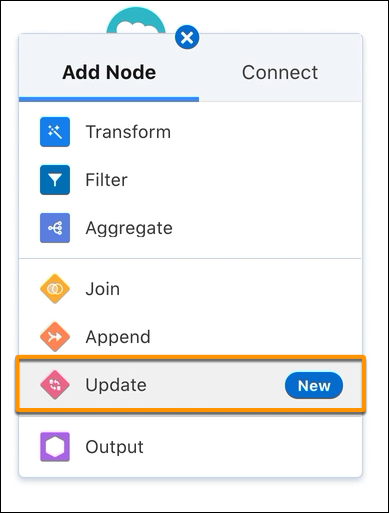
between two nodes, hover the cursor on the connecting line. - In the Add Node dialog, select Update.
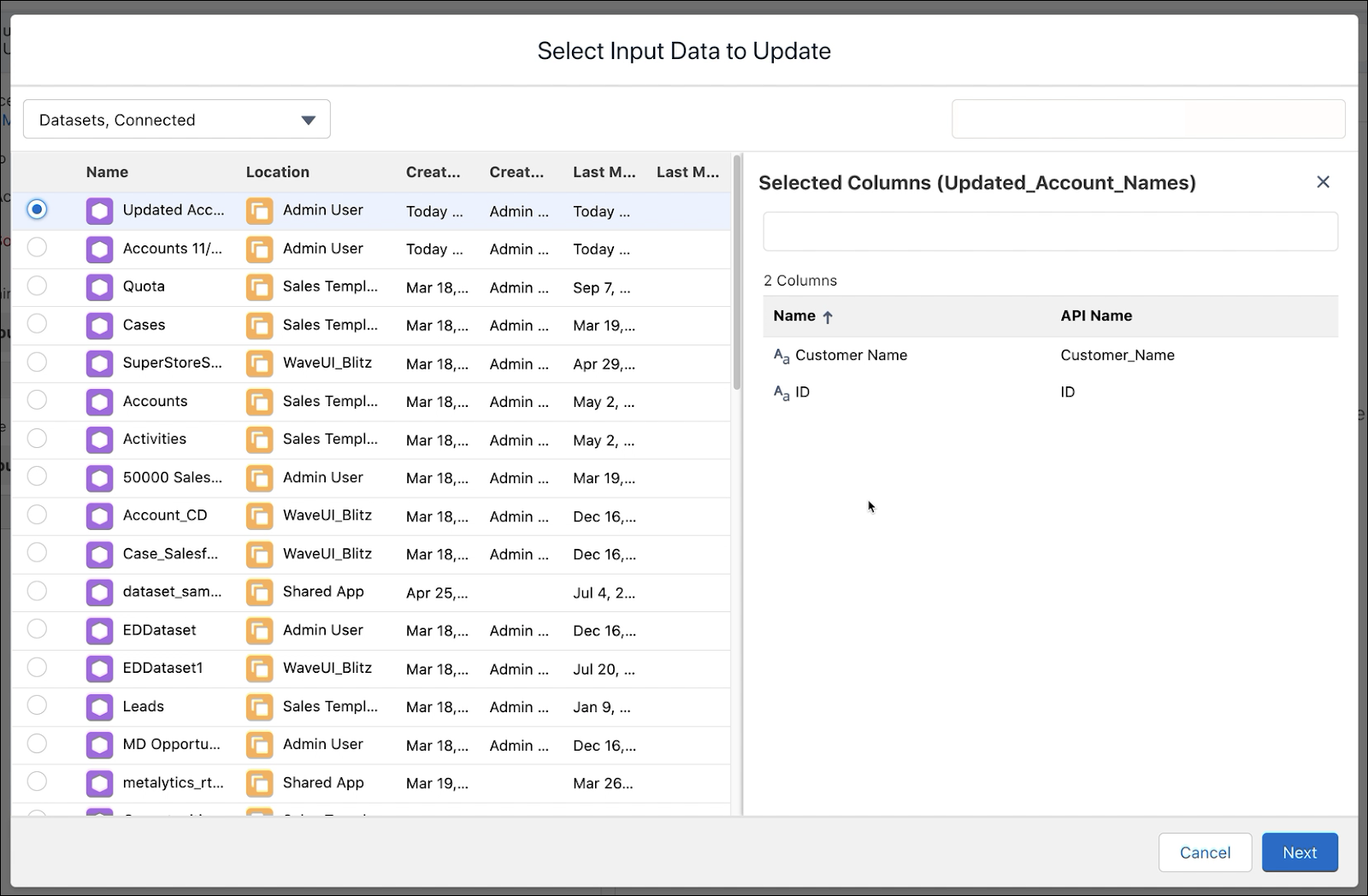
- Choose the data source containing the update data.
Alternatively, if the original and update data are already added as input nodes, drag the Add Node button (
) from one to the other and click Update. The two inputs are used as the
source and update location. - Choose which key pair values must match between the original and update data
(1).
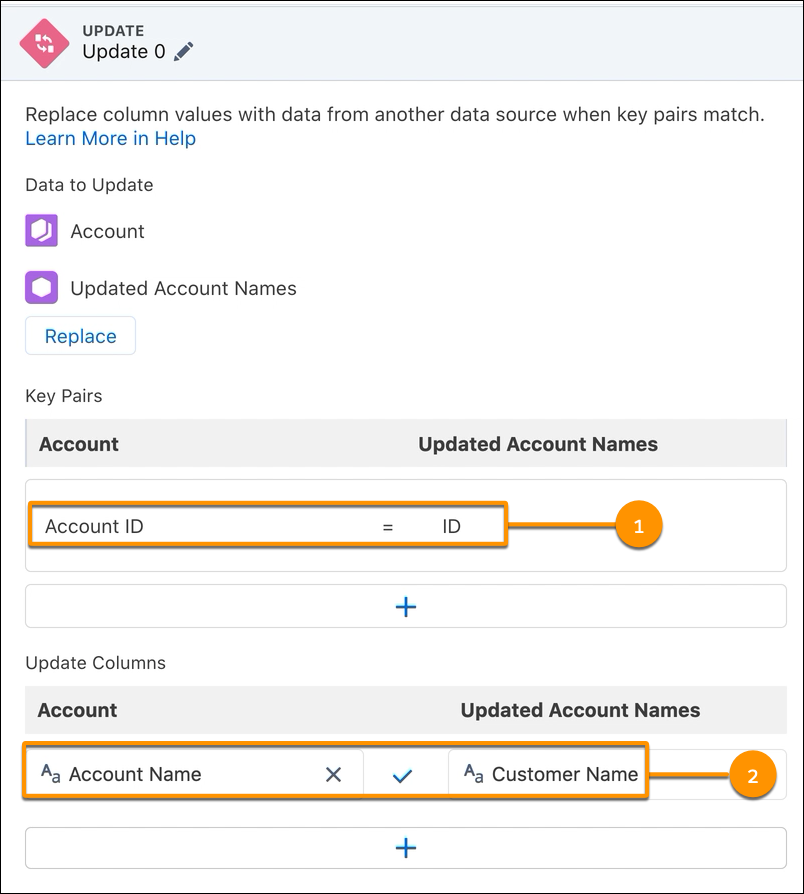
- Choose the columns to update (2). If all key pairs match for a row, the column value is updated.
- Click Apply. When the recipe runs, the update node contains the original data with updated column values.
- Save the recipe.