In CRM Analytic, you can split the strings in a text column into two values by
specifying a delimiter. To split column values into more than two parts, add multiple instances
of the Split transformation. For instance, you can use 3 Split transformations in a Data Prep
recipe to split the full address into the following components: street address, city, state, and
zip code.
Required Editions
Split Transformation: Break Up Column Values
| User Permissions
Needed |
| To create a recipe: |
Edit CRM Analytics Dataflows OR Edit Dataset Recipes |
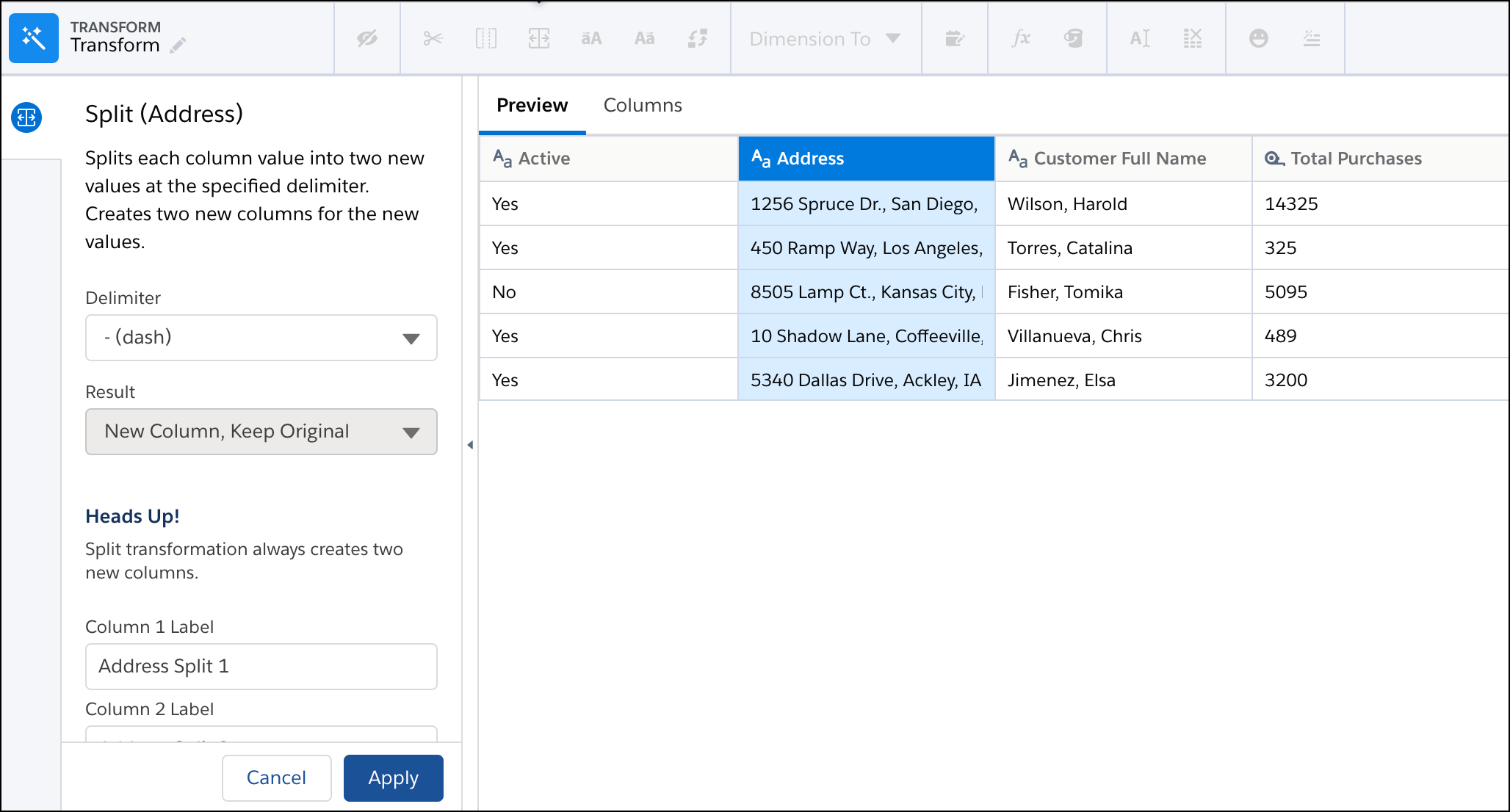
- In a Transform node of a Data Prep recipe, select the text (dimension) column in the
Preview tab.
- In the Transform toolbar, click the Split button (
 ).
).
- Select the delimiter in the Delimiter field.
For example, if address components are
separated by a comma in the Address field, specify comma as the delimiter.
- Specify the column labels for both new columns.
- Click Apply to add the transformation to the Transform
node.
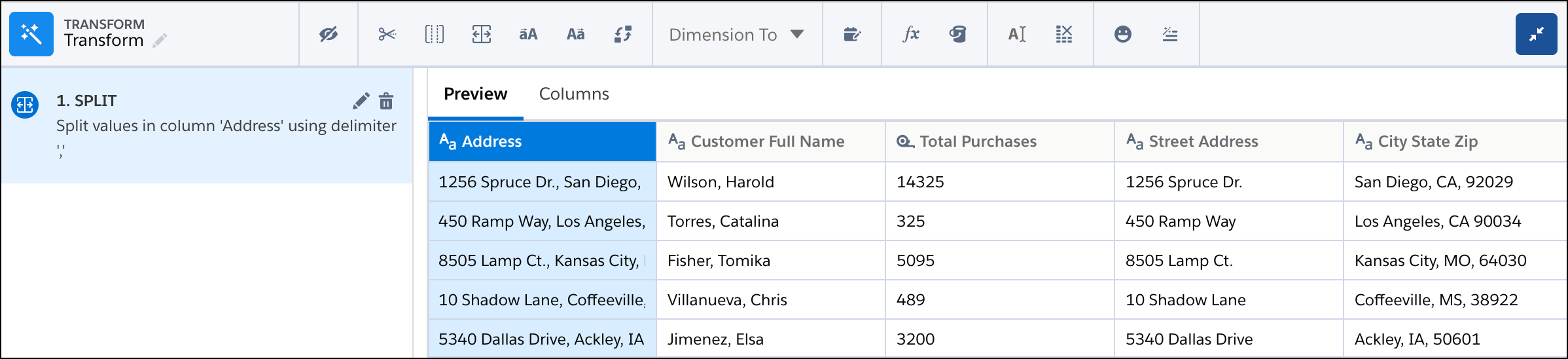
Going back to the address example, the Address field is split into two. The
Split transformation splits the value at the first occurrence of the delimiter. In this
case, the first comma appears after the street address. So the full address is broken
into the street address and the rest (city, state, and ZIP code).
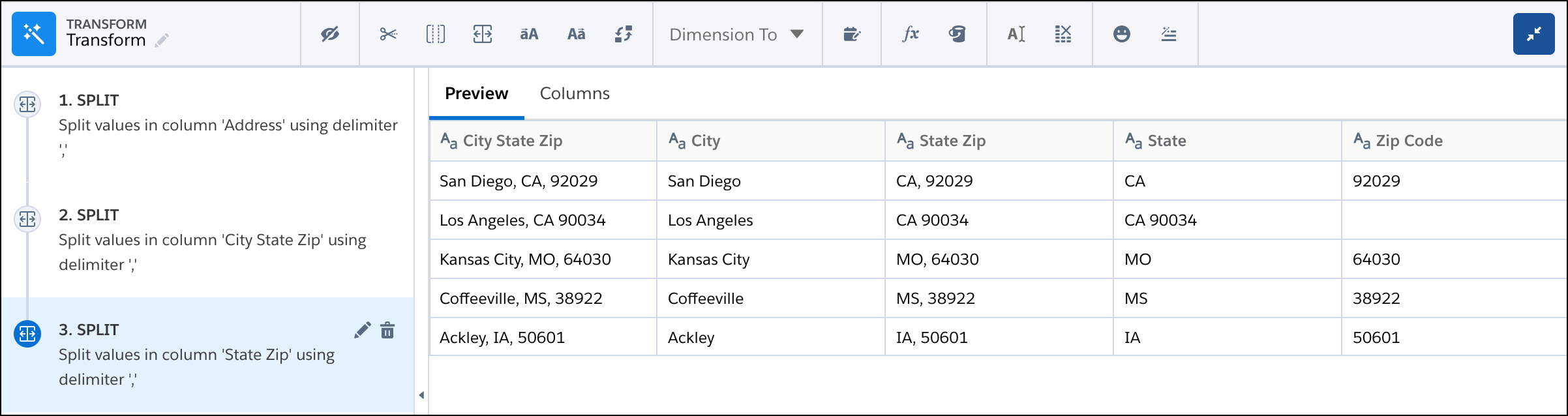
- If needed, add the Split transformation again to further split the column
values.
For example, to finish splitting the city, state, and ZIP code, we can add two
more Split transformations.
- To view the Graph area, click the Collapse button (
 ).
).
- Save the recipe.
If you don’t need the original column you split, add the Drop Columns transformation
after the Split transformation to drop it from the recipe. From that point, the original
column doesn’t appear in Preview anymore.