When you load data into a dataset, CRM Analytics tags a date column as a text
(dimension) if it contains unexpected string values or dates in different formats. To use date
functionality, such as grouping by month, use the Text To Date transformation to change the Text
column type to Date.
Required Editions
Text to Date Transformation: Convert the Column Type
| User Permissions
Needed |
| To create a recipe: |
Edit Analytics Dataflows OR Edit Dataset Recipes |
- In the Transform node of a Data Prep recipe, select the text (dimension) column you
want to convert to the Date column type.
For example, you standardized the dates in a
text column and now want to convert the column type to Date.
- In the Transform toolbar, select .
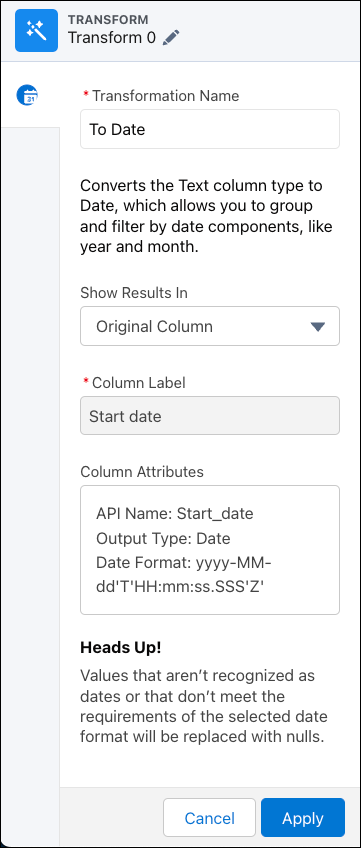
- In the Date Format field, select the date format to display the dates.
- Under Show Results In, select whether the new values appear in a new column and
whether to keep the original column.
- If you elect to create a column, set the label under Column Label.
- To change more column attributes, click the Column Attributes box, change them, and
click Apply.
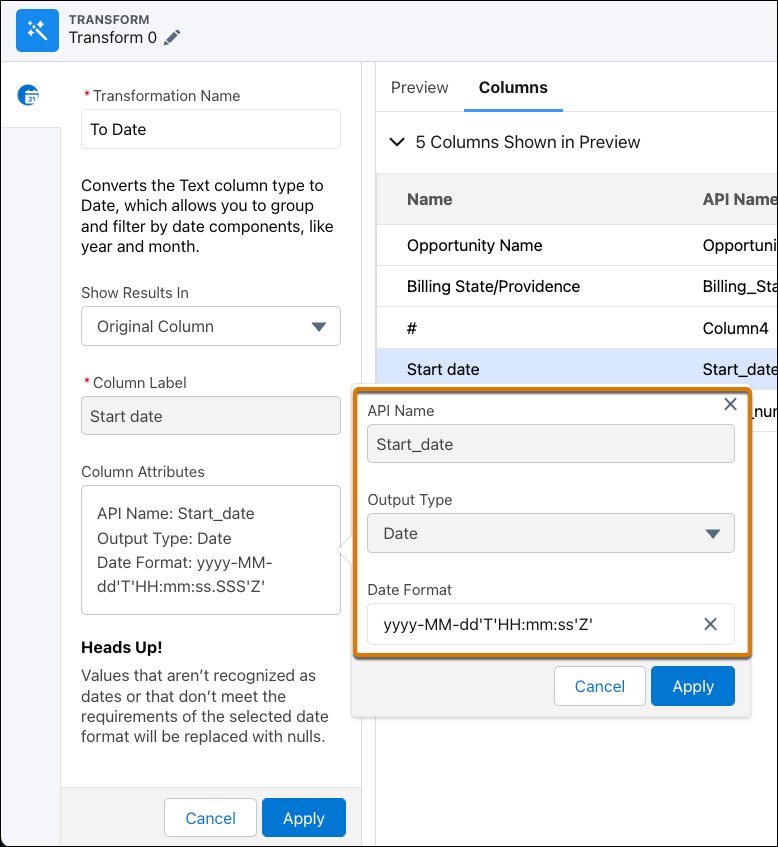
- Click Apply to add the transformation to the Transform node.
The Preview tab shows the new date component column.
- To view the Graph area, click the Collapse button (
 ).
).
- Save the recipe.
Run the recipe to convert the column type to Date and the date values to the specified
format. If the transformation can’t parse a date value, it replaces the value with
null.