Detect Sentiment Transformation: Determine the Sentiment of
Text
In CRM Analytics, text fields show valuable information such as product reviews and
social media posts. Use the Detect Sentiment transformation in a Data Prep recipe to quickly
categorize text into sentiments. Choose whether you want sentiment results as a decimal value on
a 5-point scale, with 5 as the most positive, or as labels of Positive, Negative, and Neutral.
For example, detect the sentiment of survey responses to evaluate how customers feel about your
product support. If more than a certain percentage—say 30%—of the comments are negative,
escalate the feedback to support management.
Required Editions
Detect Sentiment Transformation: Determine the Sentiment of Text
| User Permissions
Needed |
| To create a recipe: |
Edit CRM Analytics Dataflows OR Edit Dataset Recipes |
This transformation works on a text (dimension) column and supports English text only. It
processes non-English text as English and ignores images, including emoji. If the input
value is null or an empty string (''), the transformation assigns the sentiment as
Neutral or with a value of 2.5, depending on the output type. Applying Detect Sentiment on
text such as IDs, nouns, addresses, or alphanumeric values) can return unexpected
results.
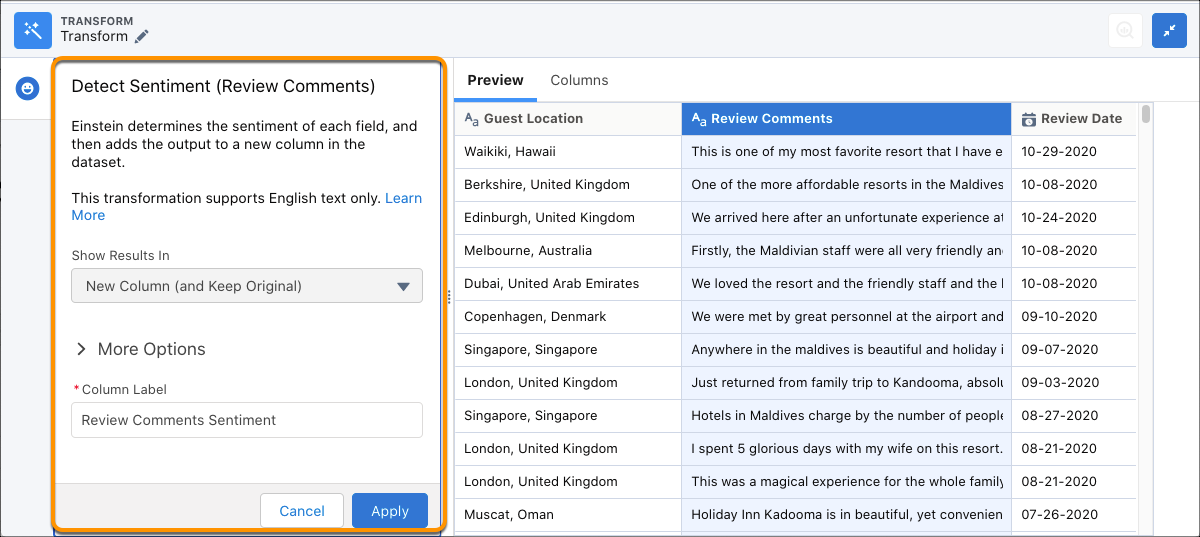
- In a Transform node of a Data Prep recipe, select the text (dimension) column that
contains the text for sentiment analysis in the Preview tab.
- In the Transform toolbar, click the Detect Sentiment button (
 ).
).
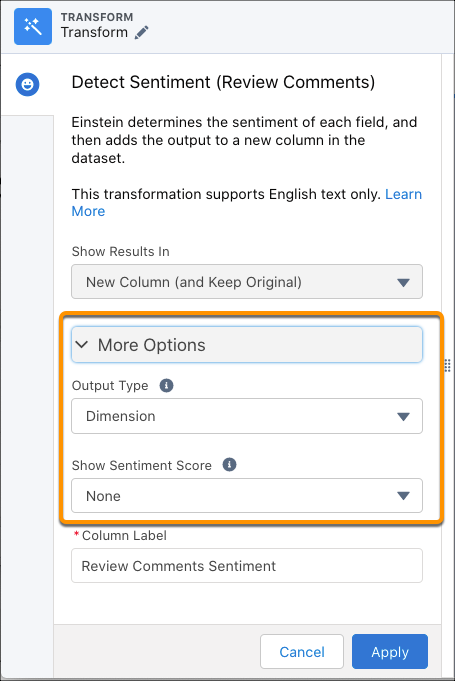
- Optionally, use More Options in the setup panel to change the output type or to show
sentiment scores.
| Options |
Description |
| Output Type |
Results of the sentiment analysis in a new column in the dataset.
Text (default) shows detected sentiment as Positive, Neutral, or Negative.
Number shows detected sentiment as a decimal value on a scale of from 1
through 5, with 5 as the most positive.
When determining sentiment, Detect Sentiment classifies
the text into groups from 1 through 5.
When output is Text, the sentiment
values are mapped to the numbers as follows:
- Positive is >3.50 and <= 5.00
- Neutral is >= 2.50 and < 3.5
- Negative is >= 1.00 and < 2.50
When output is Number, the sentiment is calculated as a weighted
sum of the number probabilities.
|
| Show Sentiment Score |
Einstein self-assesses its confidence in the accuracy of each sentiment
option. Sentiment scores are decimal values that add up to 1 and that can be
used in formulas. For example, trigger a support case when an online review
is negative with a strong sentiment score.
None (default) shows the detected sentiment column only. No sentiment
scores are added to the dataset.
All Sentiments shows the detected sentiment column and sentiment score
columns in the dataset.
- If output type is Text, sentiment scores appear in three columns for
Positive, Neutral, and Negative.
- If output type is Number, sentiment scores appear in five columns for 1,
2, 3, 4, and 5.
|
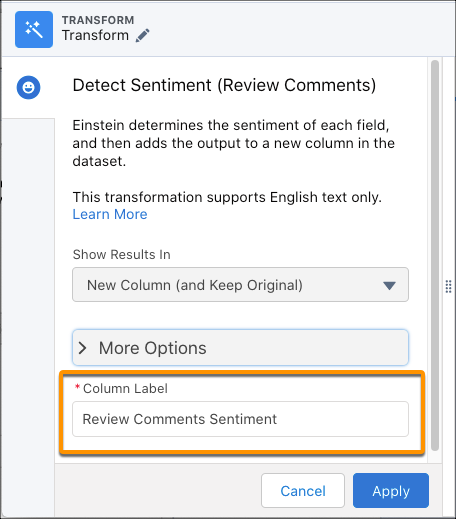
- Optionally, to change the label of the column that stores the detected sentiments, go
to Column Label.
- To add the transformation to the Transform node, click
Apply.
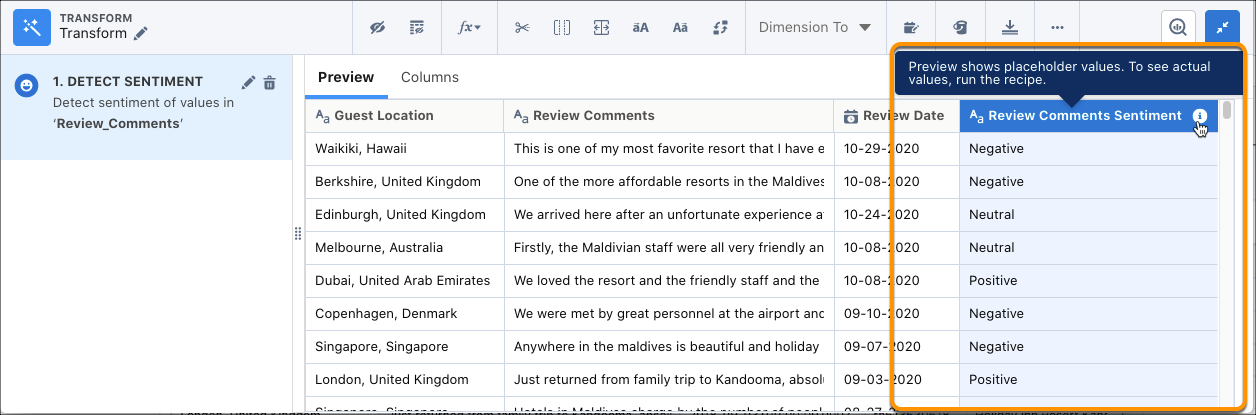
The Preview tab shows the new sentiment column. The
column shows the temporary value Sentiment TBD. To see the detected sentiment results,
run the recipe.
- To collapse the view and see the graph, click (
 ).
).
- Save the recipe.
After you run the recipe, you can view the detected sentiments in the sentiment
column.
- Detect Sentiment Model Card
In CRM Analytics, the Detect Sentiment transformation uses the model to determine whether the sentiment of text is positive, negative, or neutral. Use this model card to better understand the model, how it’s trained, its capabilities, its intended use, and its limitations.