In CRM Analytics, Data Prep provides transformations that allow you to prepare, clean,
and transform your data. For example, you can use a transformation to create a calculated column
based on a formula. You add transformations inside a Transform node. You can string together
multiple transformations to manipulate data sequentially.
Required Editions
Categorize Date Column Values into Buckets
| User Permissions
Needed |
| To manage and create a recipe: |
Edit CRM Analytics Dataflows OR Edit Dataset Recipes |
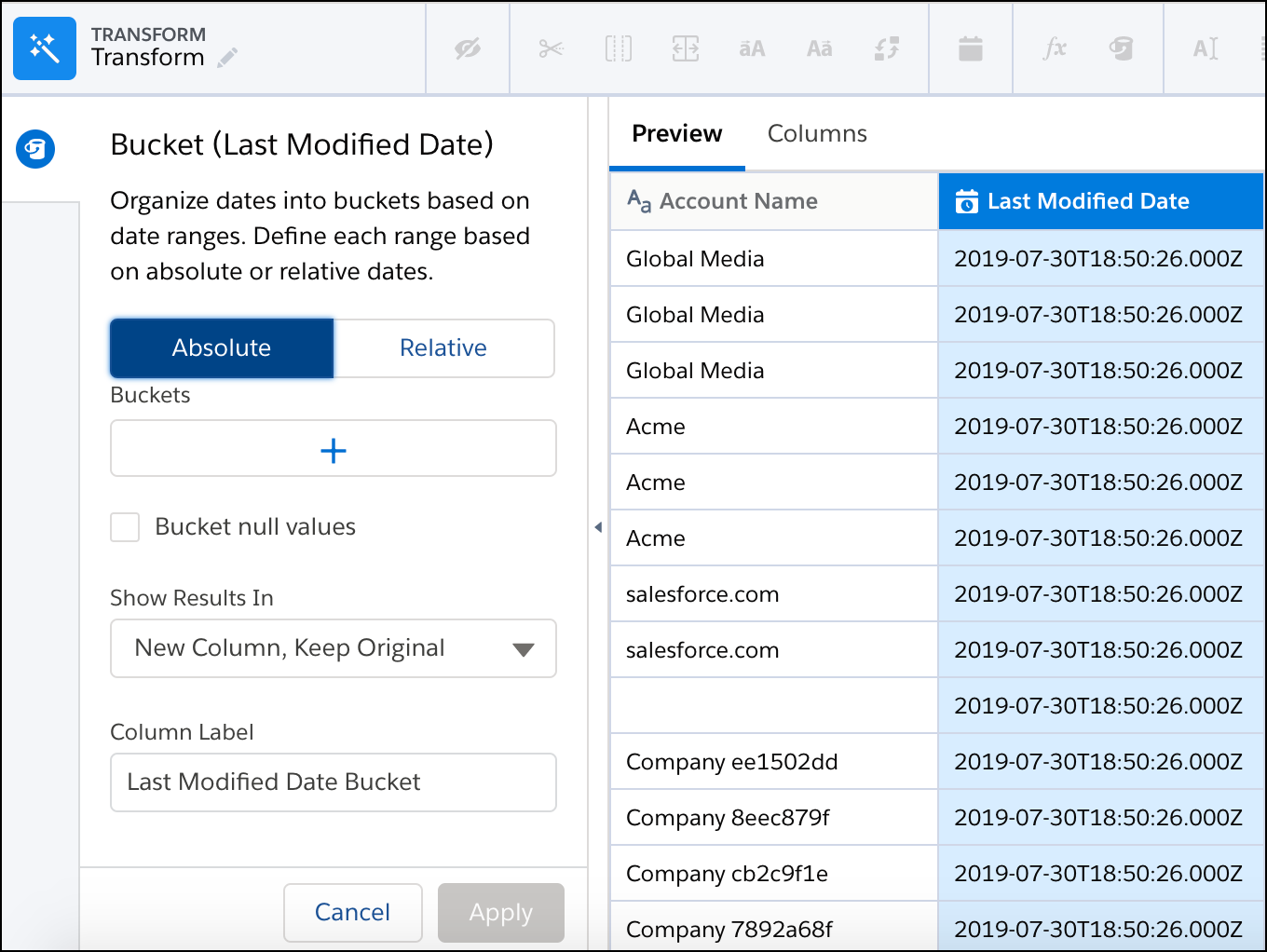
- In the Transform node of a Data Prep recipe, select the date column in the Preview
tab.
- In the Transform toolbar, click the Bucket button (
 ) to
define the buckets.
) to
define the buckets.
- Select whether to use absolute or relative dates.
Absolute dates are defined dates
on a calendar, like July 25, 2023. Relative dates are a time period in relation to the
day the data is viewed, like last quarter, or next month.
- Select
 .
.
- Enter a label for the first bucket.
The first bucket is for the earliest date range.
Each subsequent bucket must have a later date range than the previous bucket.
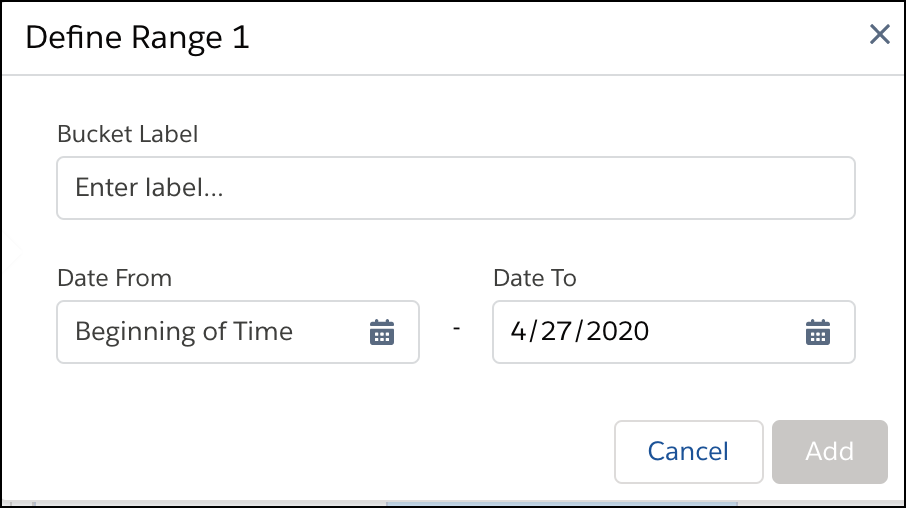
- Select the date range for this bucket.
- Click Add.
- To create another bucket with a later date range, click and specify the details.
- To place null values into their own bucket, select Bucket null
values.
- Under Show Results In, select whether the new bucket values appear in a new column and
what happens to the original column.
- If you elect to create a column, set its label under Column Label.
- Click Apply to add the transformation to the Transform node.
The Preview tab shows the new bucket column.
- To view the Graph area, click the Collapse button (
 ).
).
- Save the recipe.
After you run the recipe, you can view the bucket assigned to each row in the bucket
column.