By default, when you open a Data Prep Classic recipe, it upgrades to and opens in Data
Prep. If the upgraded version has any issues, you can revert it to the Data Prep Classic version.
The recipe reverts to the last saved Data Prep Classic version. CRM Analytics also creates a copy
of the Data Prep recipe so you don’t lose changes made in Data Prep.
Required Editions
| Available in: Salesforce Classic and Lightning Experience |
| Available for an additional cost in: Enterprise, Performance, and
Unlimited Editions
|
| User Permissions Needed |
| To manage and create a recipe: |
Edit CRM Analytics Dataflows OR Edit Dataset Recipes |
- In CRM Analytics, click Data Manager in the left pane.
Data manager opens in a new browser tab.
- In Data Manager, click Dataflows & Recipes.
- In the Dataflows & Recipes tab, click Recipes.
The Recipes subtab displays a list of existing recipes created in either Data Prep
or Data Prep Classic.
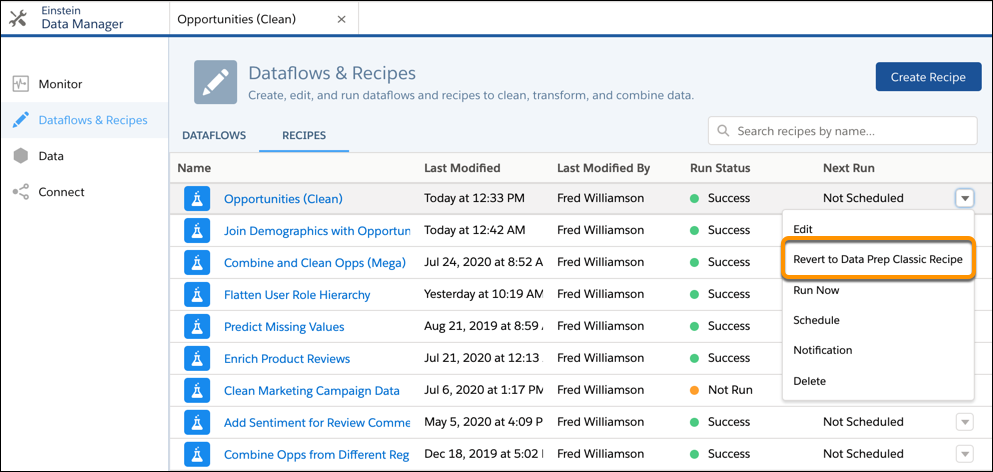
- To revert a Data Prep recipe to Data Prep Classic, click the actions button (
 ) to the right of the recipe, and then click Revert to
Data Prep Classic Recipe.
) to the right of the recipe, and then click Revert to
Data Prep Classic Recipe.
The Revert to Data Prep Classic Recipe option appears only for recipes that were created
with Data Prep Classic and upgraded to Data Prep.
The reverted recipe opens in Data Prep Classic. This recipe version is the last
saved recipe in Data Prep Classic—the one that was previously upgraded to Data Prep.
This version doesn’t contain changes made with Data Prep.
- When you’re done, save the recipe in Data Prep Classic.
The Recipes subtab shows two versions of the recipe, one Data Prep Classic version
(the reverted one) and one Data Prep version (a backup copy). Both recipes have the same name.
The recipe with the Information icon (

) is the Data Prep Classic version.
- To distinguish the two recipes, rename the Data Prep recipe. To change the name, edit it
and rename it in Data Prep.
Both recipes also write to the same dataset. The dataset updates each time you run either
recipe. Lenses and dashboards based on this dataset show the latest data based on the last run
recipe.
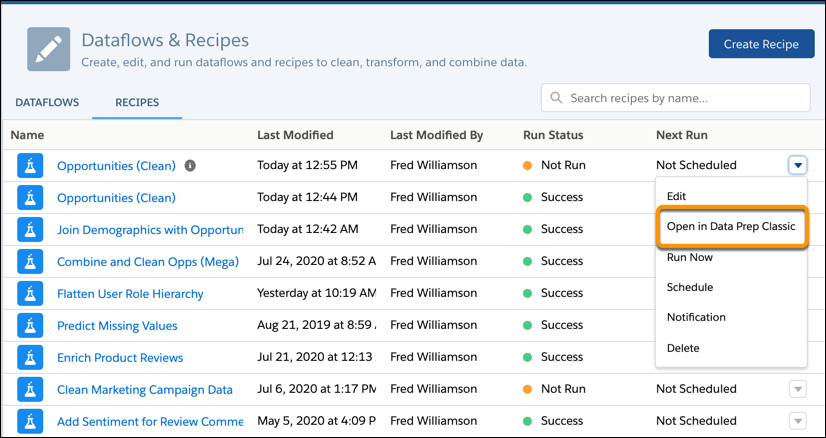
- To edit the Data Prep Classic recipe in Data Prep Classic, click the actions button () to the right of the recipe, and then click Open with
Data Prep Classic.
The Open with Data Prep Classic option appears only for recipes reverted to Data Prep
Classic.
- To edit the Data Prep Classic recipe with Data Prep, click the actions button () to the right of the recipe, and then click
Edit.
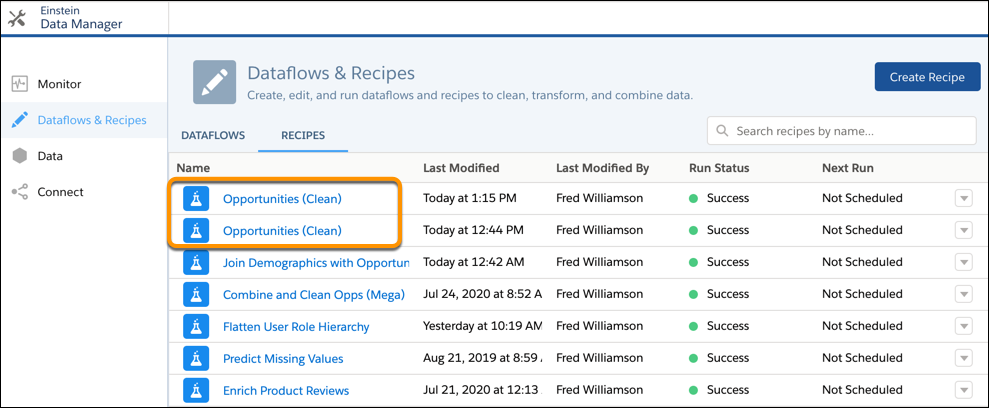
After you save the recipe in Data Prep, the recipe upgrades to Data Prep. You no longer
see the Information icon because it’s no longer a Data Prep Classic recipe. If you didn’t
rename the previous Data Prep recipe, you now have two Data Prep recipes with the same name.
If needed, you can revert the latest Data Prep recipe to Data Prep
Classic.

 The reverted recipe opens in Data Prep Classic. This recipe version is the last saved recipe in Data Prep Classic—the one that was previously upgraded to Data Prep. This version doesn’t contain changes made with Data Prep.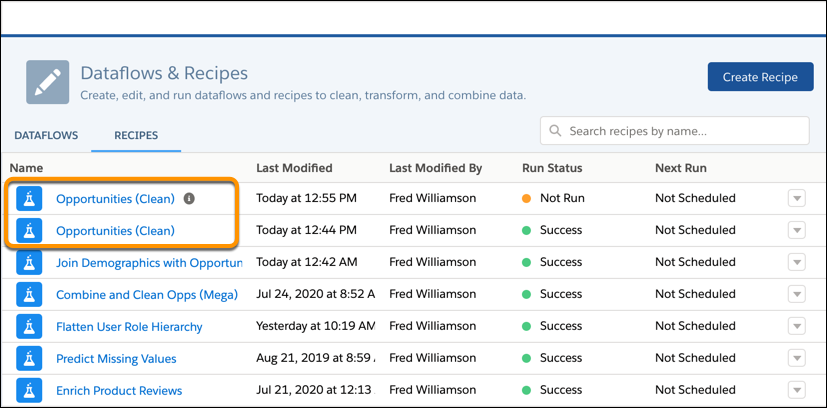
 If needed, you can revert the latest Data Prep recipe to Data Prep Classic.