
Use the Data Prep output node in CRM Analytics to save your prepared data as a Data 360 data lake object (DLO). After your data is in Data 360, you can create calculated insights, semantic models, and Data 360 reports and dashboards.
Required Editions
| User Permissions Needed | |
|---|---|
| To manage and create a recipe: | Edit CRM Analytics Dataset Recipes |
| To view Data 360: | Data 360 User permission set |

For information on limits, see Write To Data 360 Limits.
A recipe created to write output to Data 360 can only contain 3 node types, input nodes, filter nodes, and output nodes. Perform any other necessary data prep on the data in a separate recipe first.
To write out to multiple DLOs from one recipe, add an input, filter it, and write it out, and then repeat as necessary. At run time, the recipe job processes each set of input and output nodes sequentially.
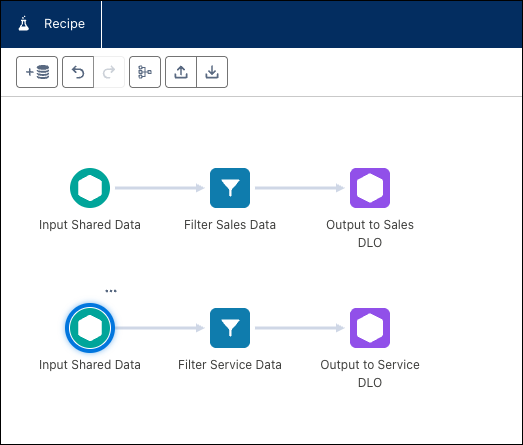
You can only use existing CRM Analytics datasets as input sources. You can't use input directly from external connectors or data sync objects.
Enable the Write to Data Cloud Feature
- From Setup, in the Quick Find box, enter Analytics, select Analytics, and then Settings.
- Select Enable CRM Analytics recipe to write output dataset to Data Cloud and then save your changes.
Starting in Winter '27, you can write recipe output to Data 360 in Government Cloud.
Create Data Cloud Output
- In Data Manager, click Recipes.
- Open an existing recipe or click New Recipe.
-
In the recipe editor, after adding an input node and an optional filter node, select
the add node button (
 ).
).
-
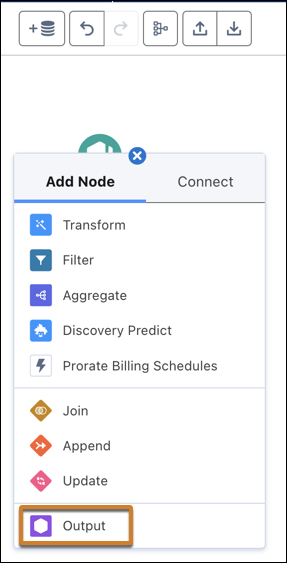
For the node type, select Output.
-
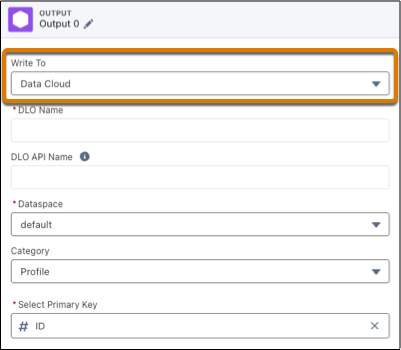
To create a DLO, for Write To, select Data Cloud.
-
Enter the DLO name, and optionally, the DLO API name.
If no DLO exists with this name, the recipe creates one. If you don’t specify the DLO API name, node creation generates a unique value.
 Warning If the DLO exists, the recipe overwrites it. Make sure that you use a unique name if you don’t want to overwrite an existing DLO.
 -
Select one or more Data 360 data spaces.
You can add up to 5 data spaces.
-
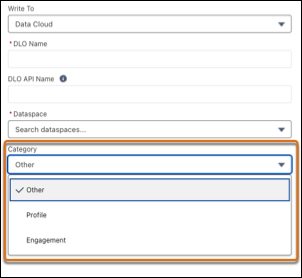
Select the DLO category.
-
Select the primary key for the DLO from the input fields.
Any text field can be the primary key as long as the field doesn't contain empty values. Select a field that is a unique identifier.
-
Enter the DLO name, and optionally, the DLO API name.
-
To update an existing DLO, for Write To, select Existing
DLO.
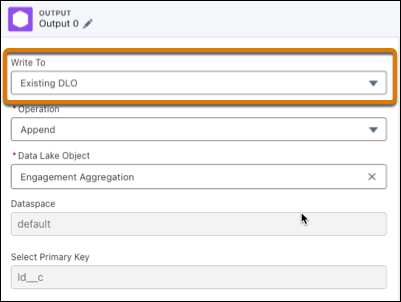
- Select the operation: Append, Upsert, or Delete.
-
Select a Data Lake Object to run the operation on.
The append operation adds all data from the input to the existing DLO. Appending can duplicate records. The upsert operation appends data from the input to the DLO if new, and overwrites existing rows when they match. The delete operation removes input data from the existing DLO when existing rows match.
The data space and primary key values default to the existing DLO values and aren't editable.
Both Home and Companion Data 360 orgs support these operations.
-
Verify the results in the Preview panel.
If Apply is disabled, check that you have values for every output field and that the recipe input is a CRM Analytics dataset.
- Click Apply.
- Save and run the recipe to generate one or more Data 360 DLOs.
Schedule the recipe to run at regular intervals or based on other data sync events. You can view the recipe output in Data 360, on the Data Lake Objects tab.
Considerations for DLO creation:
- Multi-value fields in CRM Analytics datasets convert to text fields in the Data 360 DLO.
- Recipes fail validation during creation in these situations:
- The DLO API name exceeds 40 characters. The name can't contain . characters.
- An API name of any field in the CRM Analytics dataset contains __c.
- An API name of any field in the CRM Analytics dataset is a duplicate of a field in the Data 360 DLO.
- The number of fields in the CRM Analytics dataset exceeds 1050.
- The number of fields of a specific type exceeds 800.
- DLO field names have a
__csuffix. For example, theskuissku__c. - After the recipe associates a DLO with a data space, you can't remove the DLO from the data space in the recipe editor. After the recipe creates successfully, you can add data spaces to the output node as needed.
- The input dataset can't contain columns with these names, as they're reserved
keywords in Data 360:
- DataSource
- DataSourceObject
- InternalOrganization
- cdp_sys_PartitionDate
- cdp_sys_SourceVersion
- cdp_sys_record_currency
- KQ_<PrimaryKey>
Working with Home Orgs and Companion Orgs
The CRM Analytics recipe creates and updates the DLO in your Data 360 home org, even though the recipe can run in the home org or any Data Cloud One companion org. Always verify that the DLO was created and output correctly in your home org.
If the DLO isn't visible in the home org, verify that the recipe ran and completed successfully.
The recipe shares the DLO to the selected data space when it's created. To use the data in companion orgs, map the DLO to one or more data model objects (DMO). Then, sync your data space to your companion orgs for DMO visibility and use.
For more information on companion orgs, see Access Data Cloud One from a Companion Org.