
In CRM Analytics, calculate the duration between two selected date columns as days, months, or years.
Required Editions
Date Difference
| User Permissions Needed | |
|---|---|
| To create a recipe: | Edit CRM Analytics Dataflows OR Edit Dataset Recipes |
- In a Transform node of a Data Prep recipe, select one date column in the Preview tab.
- Select the Formula button (
 ) in the Transform toolbar.
 - Select Date Difference.
- Configure the transformation.
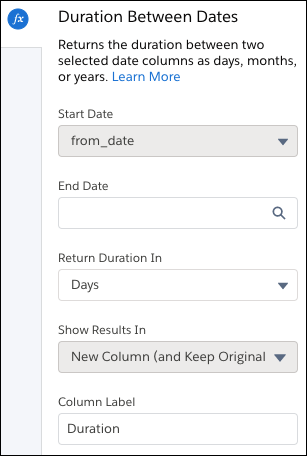
- Start Date is automatically filled with the date column you previously chose. Cancel and restart to choose a different Start Date.
- End Date is the value used to calculate the duration from the start date. Choose a date column from your data or the Now option to use the current date and time.
- Select whether to return duration as days, months, or years. Days are rounded up to the nearest value, while months and years include the selected number of decimal places.
- Optionally, change the label of the column that stores the result in the Column Label field.
- Click Apply to add the transformation to the Transform
node.
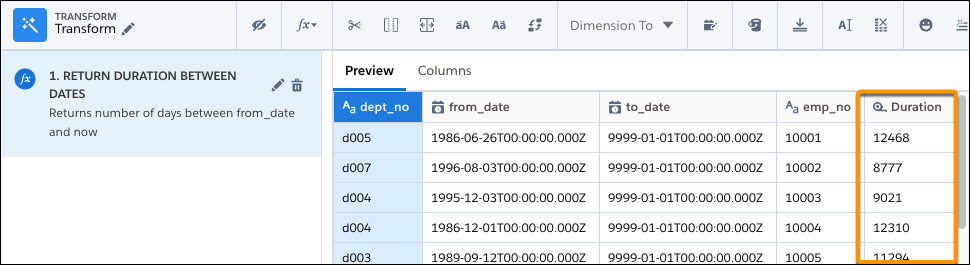
The Preview tab shows the new Now column.
- To view the Graph area, click the Collapse button (
 ).
). - Save the recipe.
After you run the recipe, you can view the calculated duration. The Now option uses the date and time when the recipe last ran, based on UTC timezone.